66 — 用 R3F 制作游戏
简介
在本节课中,我们将学习如何制作一个小游戏。
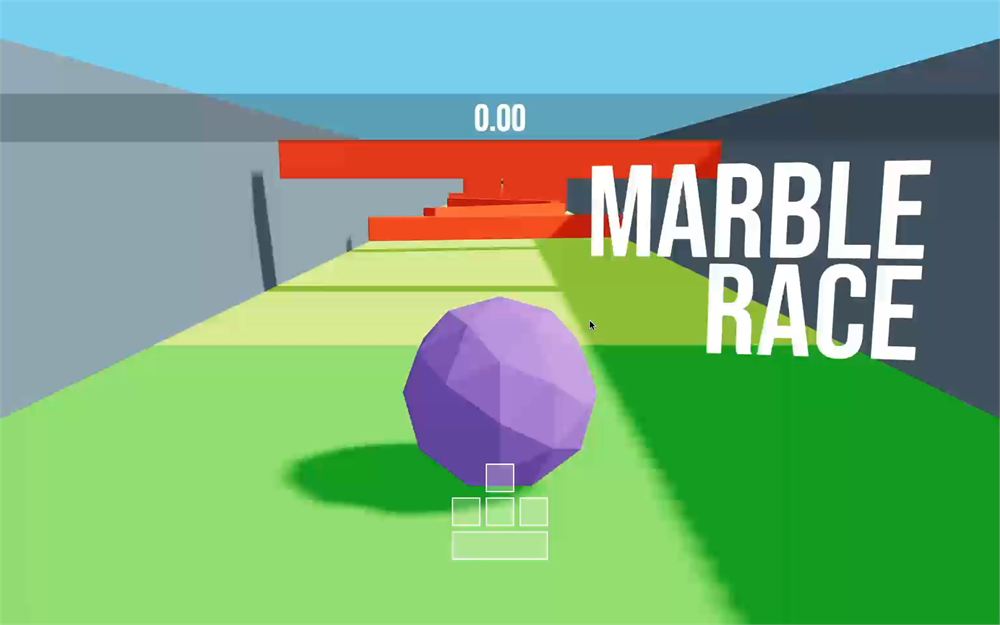
我们操控一颗弹珠,必须穿过一个布满各种移动障碍的关卡,抵达终点。
以下是一些游戏机制:
- 玩家可以用键盘移动弹珠并让它跳跃。
- 只要弹珠一开始移动,计时器就会启动,显示玩家用了多长时间完成障碍赛道。
- 比赛结束时会出现一个“重新开始”按钮,点击它会把弹珠重置到初始位置、重置计时器,并生成一组新的障碍,让关卡每次都不同。
本节课是一个很好的机会,来实践我们之前积累的知识,比如物理、界面与组件,同时也会学习一些新概念,比如全局状态或键盘控制。
而且,显而易见,我们能制作并玩一个游戏!
准备工作
在初始项目中,我们有经典的橙色球体、紫色立方体和绿色地面。
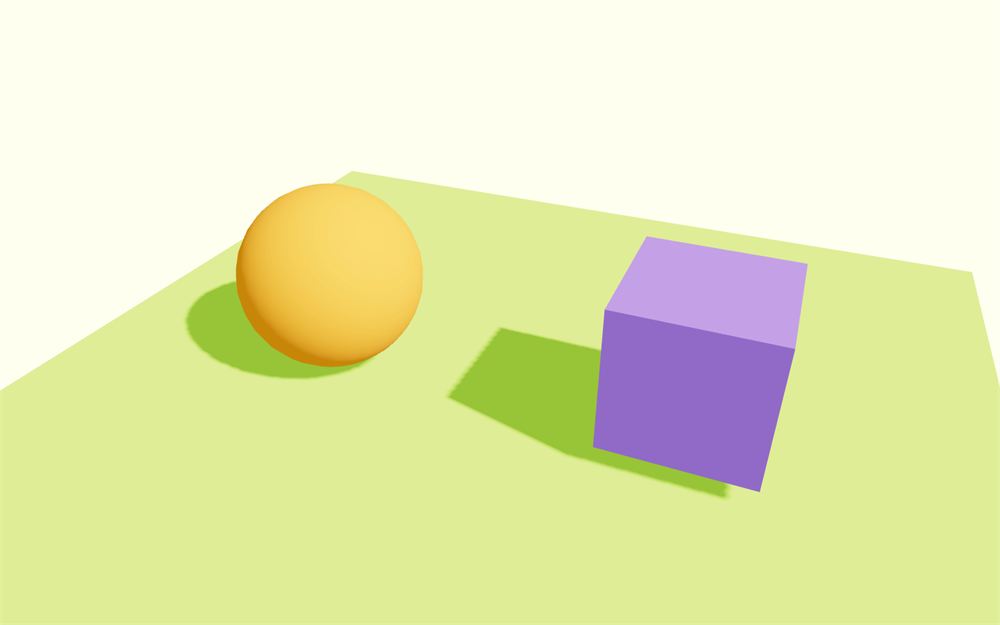
平行光光源和环境光光源都放在一个 <Lights> 组件里,因为我们稍后会对灯光做一些调整,希望保持结构清晰。
阴影已经启用,平行光被设置为在一个相当大的区域内投射阴影:
<directionalLight
    castShadow
    position={ [ 4, 4, 1 ] }
    intensity={ 1.5 }
    shadow-mapSize={ [ 1024, 1024 ] }
    shadow-camera-near={ 1 }
    shadow-camera-far={ 10 }
    shadow-camera-top={ 10 }
    shadow-camera-right={ 10 }
    shadow-camera-bottom={ - 10 }
    shadow-camera-left={ - 10 }
/>
项目中已经安装了 @react-three/drei 依赖。
我们使用 OrbitControls 辅助工具来移动相机,但稍后我们会移除它,好让相机跟随弹珠。
我们没有添加来自 r3f-perf 的 <Perf />,但如果你要制作自己的游戏,绝对应该使用它。良好的帧率非常重要,监控性能会对你有所帮助。
我们没有添加调试 UI,因为所有数值和颜色都已经仔细选好了,但如果你要制作自己的游戏,或者想在本节课结束后改进这个游戏,绝对应该添加一个(比如 Leva)。
关卡
制作游戏时,尽快让东西出现在屏幕上是个好主意。即使机制还不能用,它也有助于让你对接下来要做的东西有个概念,而且要有趣得多。
因此,我们先从创建关卡及其各种陷阱开始。
我们的关卡将由我们称之为“方块(block)”的东西组成。
第一个方块由一个简单的地面组成,没有别的东西。玩家将从这里开始。
最后一个方块是终点线。
在它们之间,会有一系列带有移动障碍的陷阱方块。
我们将创建 3 种不同类型的陷阱,然后用这些陷阱方块组成的随机集合填充起点和终点之间的方块。
组件
在 /src/ 中创建 Level.jsx 文件,导出一个 Level 函数组件,并把 Experience 中的 3 个网格放进去:
export default function Level()
{
    return <>
        <mesh castShadow position-x={ - 2 }>
            <sphereGeometry />
            <meshStandardMaterial color="orange" />
        </mesh>

        <mesh castShadow position-x={ 2 } scale={ 1.5 }>
            <boxGeometry />
            <meshStandardMaterial color="mediumpurple" />
        </mesh>

        <mesh receiveShadow position-y={ - 1 } rotation-x={ - Math.PI * 0.5 } scale={ 10 }>
            <planeGeometry />
            <meshStandardMaterial color="greenyellow" />
        </mesh>
    </>
}
在 Experience 中,导入 Level:
import Level from './Level.jsx'在 <Lights> 之后实例化它:
export default function Experience()
{
    return <>

        <OrbitControls makeDefault />

        <Lights />
        <Level />

    </>
}
我们的小场景又回来了,但现在它被放进 <Level> 里了。
添加物理
游戏会大量依赖物理,我们将使用上一节课介绍的 Rapier 和 @react-three/rapier。
在终端中运行 npm install @react-three/rapier@1.4(我们固定版本以避免意外;你可以忽略可能出现的漏洞警告)。
我们将在较高的层级添加物理,以便所有组件都能使用它。
在 Experience 中,从 @react-three/rapier 导入 Physics:
import { Physics } from '@react-three/rapier'把 <Lights /> 和 <Level /> 包裹在 <Physics> 中,并添加 debug 属性:
export default function Experience()
{
    return <>

        <OrbitControls makeDefault />

        <Physics debug>
            <Lights />
            <Level />
        </Physics>

    </>
}
看起来没有变化,但现在我们可以在 <Level> 中使用像 <RigidBody> 这样与物理相关的组件了。
起点方块
如前所述,第一个方块是玩家的起点,我们只需要一个地面。
组件
为了保持结构清晰且可复用,我们将把每种类型的方块放在单独的组件中。
这些组件不需要放在单独的文件里,所以我们会把它们都放进 Level.jsx。
在 Level 组件之前创建一个 BlockStart 组件:
function BlockStart()
{
    return null
}

export default function Level()
{
    // ...
}即使它什么都不返回(null),我们也可以在 Level 中使用它:
export default function Level()
{
    return <>
        {/* ... */}

        <BlockStart />
    </>
}
在这个组件中,我们将创建一个 4 × 0.2 × 4 的 <boxGeometry> 地面,以及一个 color 设置为 "limegreen" 的 <meshStandardMaterial>:
function BlockStart()
{
    return <mesh>
        <boxGeometry args={ [ 4, 0.2, 4 ] } />
        <meshStandardMaterial color="limegreen" />
    </mesh>
}
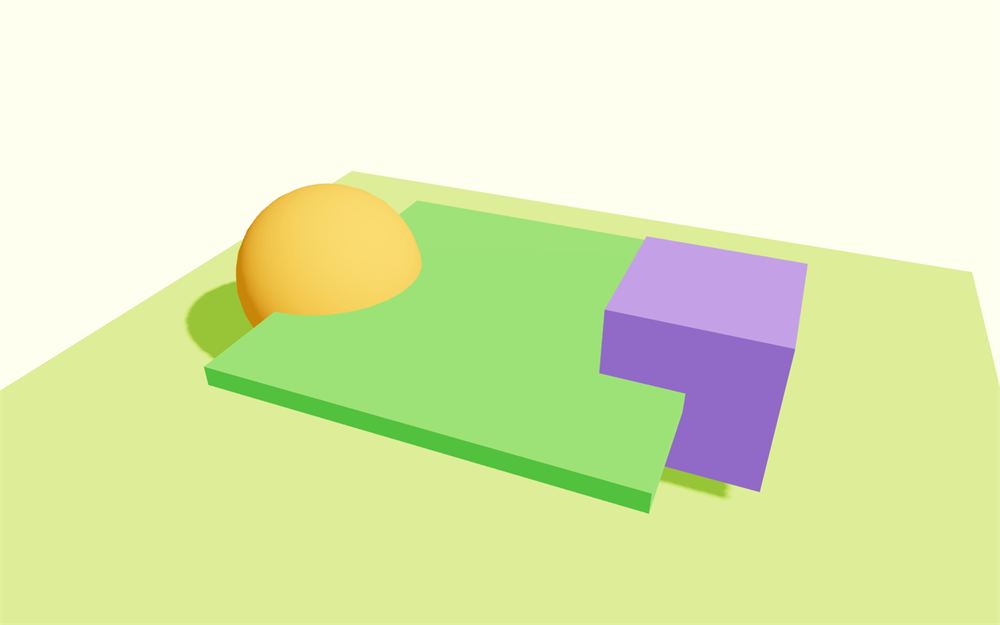
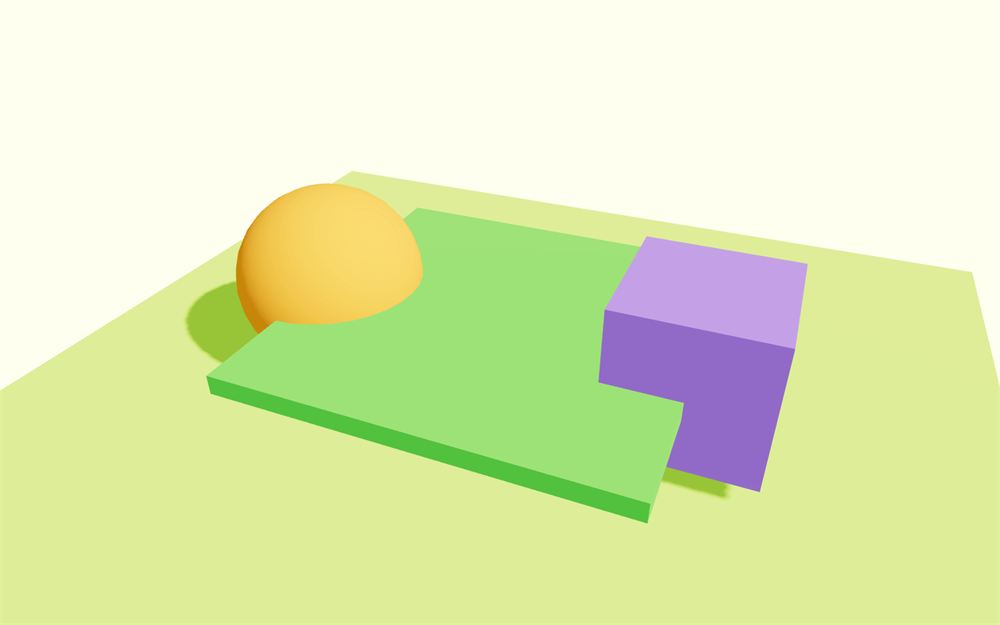
用 position 属性把它稍微下移,让顶面位于 0:
<mesh position={ [ 0, - 0.1, 0 ] }>
    <boxGeometry args={ [ 4, 0.2, 4 ] } />
    <meshStandardMaterial color="limegreen" />
</mesh>
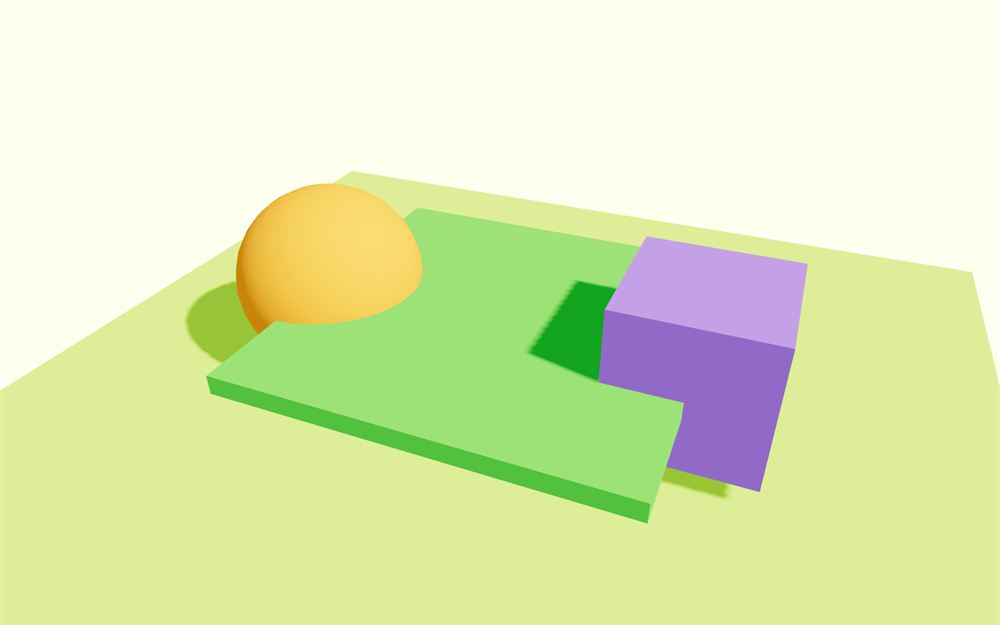
然后给它添加 receiveShadow(我们不需要 castShadow,因为地板下方没有任何会被阴影影响的东西):
<mesh position={ [ 0, - 0.1, 0 ] } receiveShadow>
    <boxGeometry args={ [ 4, 0.2, 4 ] } />
    <meshStandardMaterial color="limegreen" />
</mesh>
移除旧景物
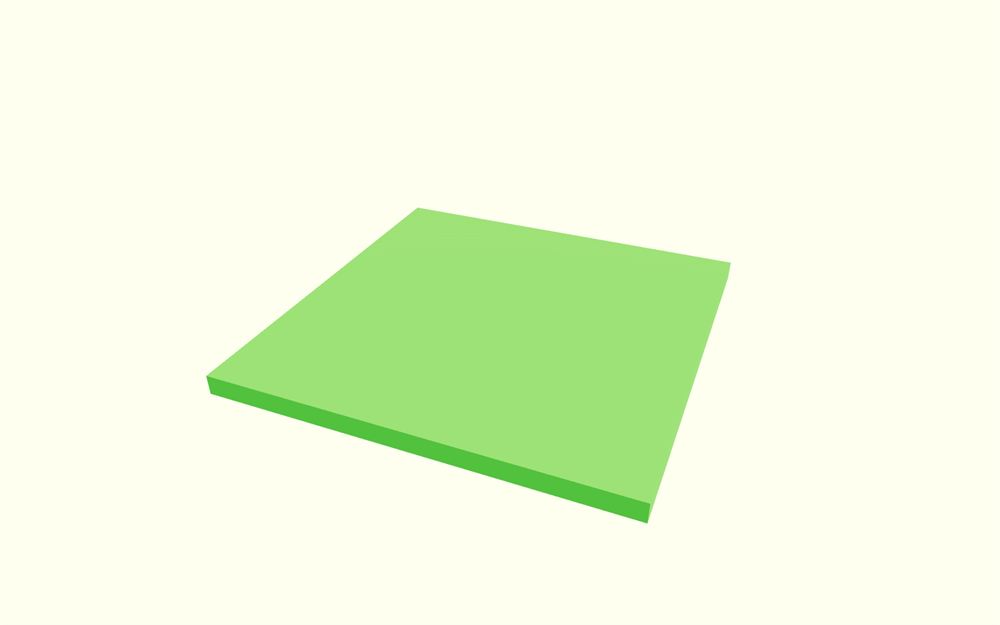
既然现在有与游戏相关的东西可看了,就移除之前的场景(Level 中的 3 个 <mesh>):
export default function Level()
{
    return <>
        <BlockStart />
    </>
}
定位
起点方块已经在正确的位置,也就是场景的原点,但其他方块需要放在不同的位置。因此,我们将为每个方块添加一个 position prop。
给 BlockStart 添加一个 position prop,并把默认值设为 [ 0, 0, 0 ]:
function BlockStart({ position = [ 0, 0, 0 ] })
{
    {/* ... */}
}
把这个位置应用到包裹 <mesh> 的 <group> 上:
function BlockStart({ position = [ 0, 0, 0 ] })
{
    return <group position={ position }>
        <mesh position={ [ 0, - 0.1, 0 ] } receiveShadow>
            <boxGeometry args={ [ 4, 0.2, 4 ] } />
            <meshStandardMaterial color="limegreen" />
        </mesh>
    </group>
}在这种情况下,<group> 其实没什么实际用途,因为里面只有一个子元素,但对其他方块来说它会很有用,如果你想在起点方块里添加更多东西也一样。
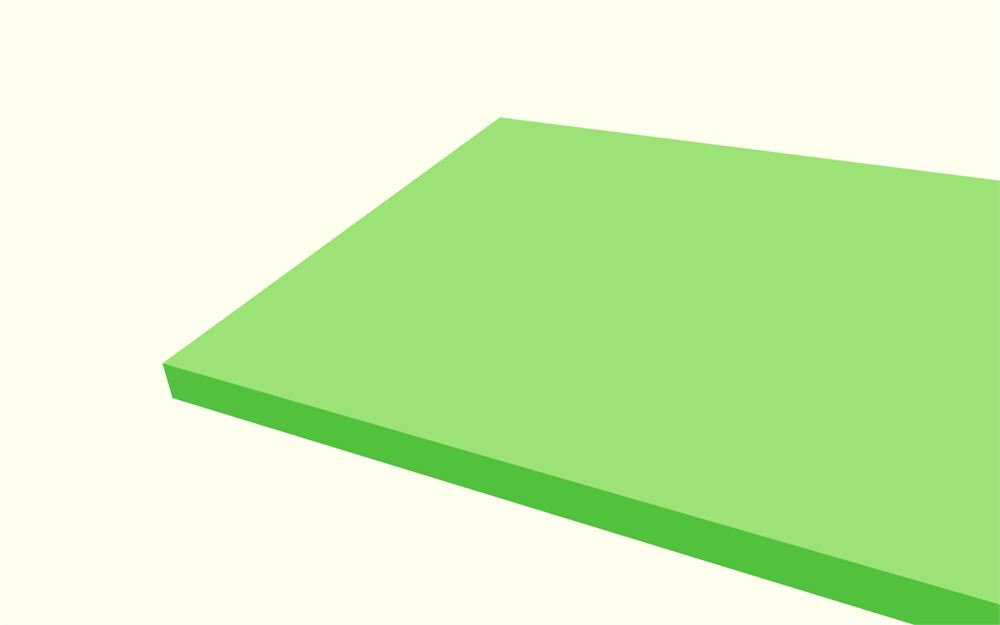
现在我们可以用 position 属性控制 <BlockStart /> 的位置:
<BlockStart position={ [ 2, 2, 2 ] } />
但正如前面所说,<BlockStart /> 保持在 0, 0, 0 就很好:
<BlockStart position={ [ 0, 0, 0 ] } />
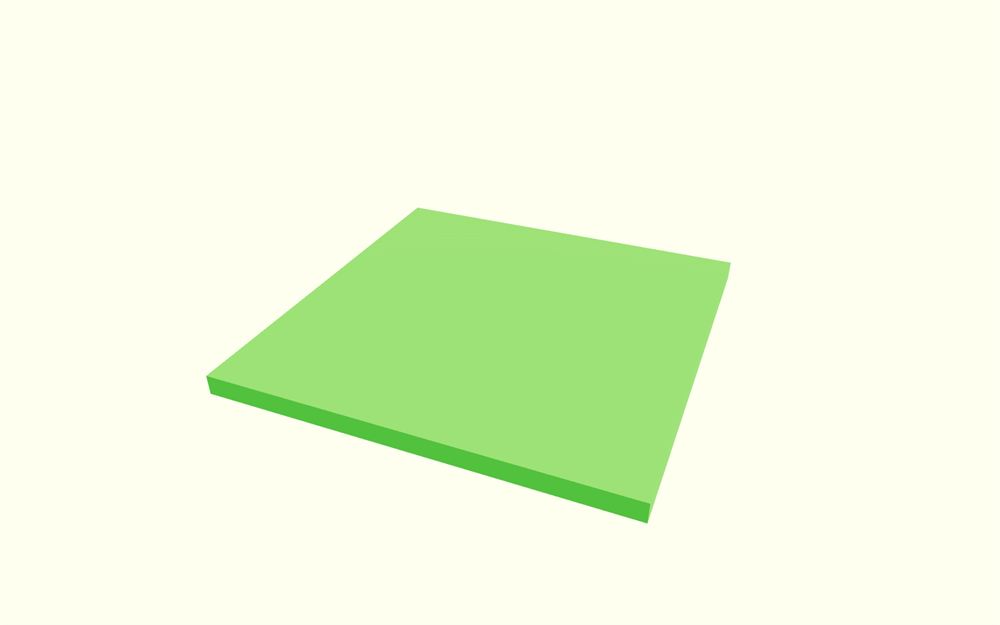
我们的第一个方块就完成了!
你可能会觉得我们遗漏了一些重要的部分,比如给地板或侧墙添加物理,但我们会在最后添加这些,这样就能用尽可能少的 <RigidBody> 做出一直延伸到关卡尽头的长墙。
优化
在继续之前,我们需要优化代码,为接下来的内容做好准备。
最后我们会有一堆方块,虽然它们在某些方面有所不同,但你会发现它们大部分的几何体和材质是相同的。与其在每个方块内部创建新的几何体和材质,我们只在外部创建一次。
几何体
我们从几何体开始。
整个关卡都由 <boxGeometry> 组成,如果我们有几十个方块,最终会产生大量的 BoxGeometry 实例,从而导致性能问题。
为了解决这个问题,我们将用原生 Three.js 在组件外部只实例化一个 BoxGeometry,并在需要的地方复用它。
在 Level.jsx 中,导入 Three.js:
import * as THREE from 'three'实例化一个 BoxGeometry,并把它赋值给两个组件外部的 boxGeometry 变量:
const boxGeometry = new THREE.BoxGeometry(1, 1, 1)

function BlockStart({ position = [ 0, 0, 0 ] })
{
    // ...
}

export default function Level()
{
    // ...
}
在 BlockStart 中,移除 <boxGeometry>,改为在 <mesh> 的 geometry 属性上使用 boxGeometry 变量:
<mesh geometry={ boxGeometry } position={ [ 0, - 0.1, 0 ] } receiveShadow>
    <meshStandardMaterial color="limegreen" />
</mesh>
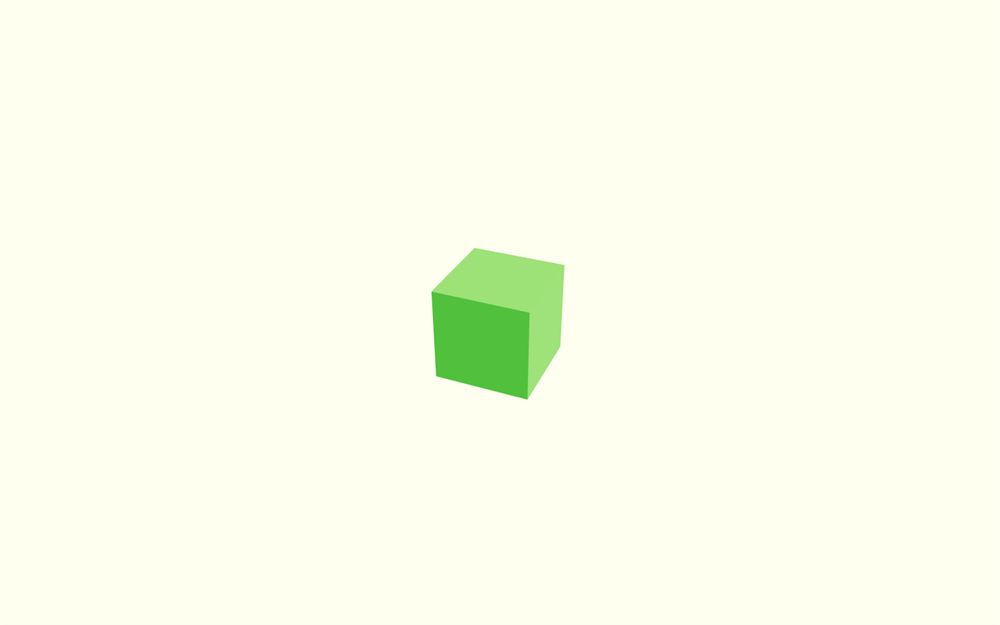
好,很好,但形状不对。
诀窍在这里。我们将修改 <mesh> 上的 scale 属性:
<mesh geometry={ boxGeometry } position={ [ 0, - 0.1, 0 ] } scale={ [ 4, 0.2, 4 ] } receiveShadow>
    <meshStandardMaterial color="limegreen" />
</mesh>
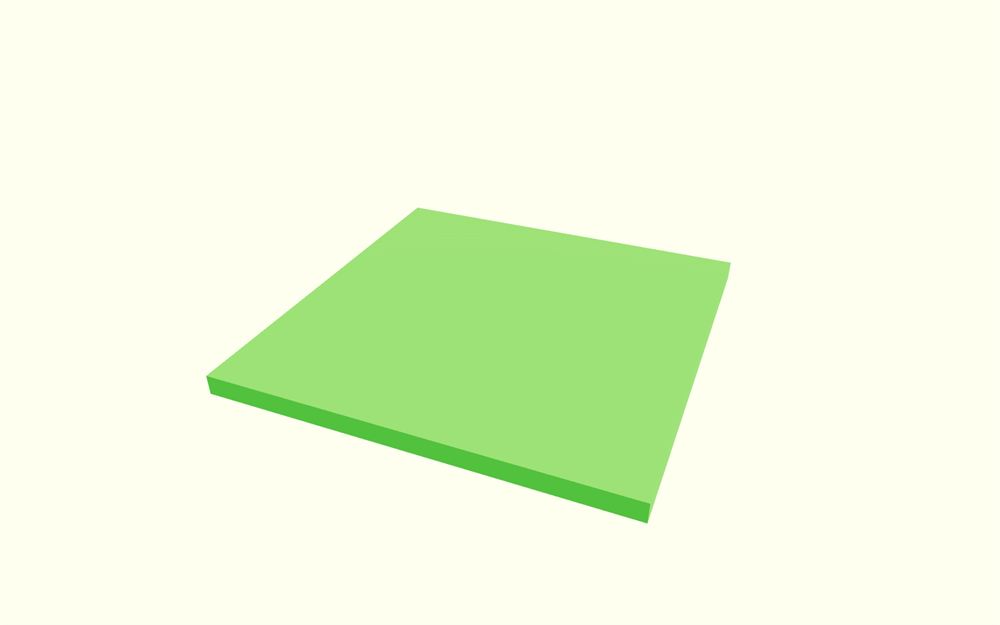
地面又回来了。
材质
材质也做同样处理。
目前我们只有一个使用颜色 "limegreen" 的材质,但为了推进游戏,我们干脆一次性创建所有需要的材质:
floor1Material用于起点和终点方块的地面("limegreen")floor2Material用于陷阱方块的地面("greenyellow")obstacleMaterial用于障碍物("orangered")wallMaterial用于墙壁("slategrey")
没错,我至少花了半个小时测试颜色……
像处理 boxGeometry 那样,在组件外部创建所有材质,并使用 MeshStandardMaterial:
const boxGeometry = new THREE.BoxGeometry(1, 1, 1)

const floor1Material = new THREE.MeshStandardMaterial({ color: 'limegreen' })
const floor2Material = new THREE.MeshStandardMaterial({ color: 'greenyellow' })
const obstacleMaterial = new THREE.MeshStandardMaterial({ color: 'orangered' })
const wallMaterial = new THREE.MeshStandardMaterial({ color: 'slategrey' })

function BlockStart({ position = [ 0, 0, 0 ] })
{
    // ...
}

export default function Level()
{
    // ...
}
在 <mesh> 上用 material 属性使用 floor1Material,代替 <meshStandardMaterial />(因为 <mesh> 里已经没有内容了,可以使用自闭合写法):
<mesh geometry={ boxGeometry } material={ floor1Material } position={ [ 0, - 0.1, 0 ] } scale={ [ 4, 0.2, 4 ] } receiveShadow />
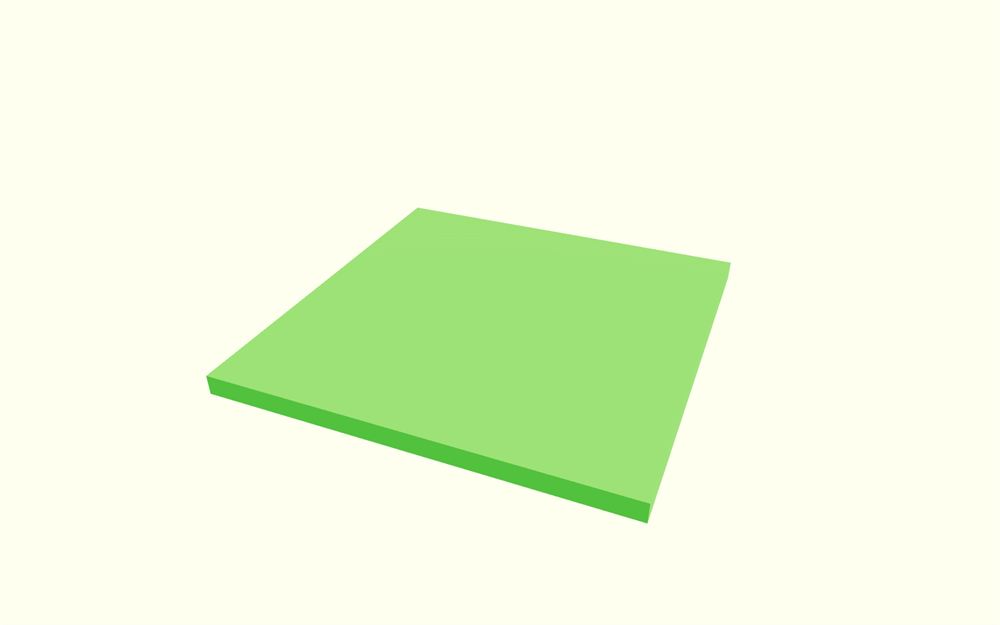
这个 <mesh> 代码放在一行里已经相当长了。由于这个文件里会有很多代码,我们不会加太多换行,但你可以随意按照自己喜欢的方式组织代码。
旋转器陷阱方块
我们来创建第一个陷阱方块,它将是一个旋转器,就像上一节课做的那样(不过当时我们叫它“twister”)。
如果你想练习,现在是自己动手尝试的好机会。
我们一起做吧。
组件
复制 BlockStart 函数组件,命名为 BlockSpinner:
function BlockStart({ position = [ 0, 0, 0 ] })
{
    // ...
}

function BlockSpinner({ position = [ 0, 0, 0 ] })
{
    return <group position={ position }>
        <mesh geometry={ boxGeometry } material={ floor1Material } position={ [ 0, - 0.1, 0 ] } scale={ [ 4, 0.2, 4 ] } receiveShadow />
    </group>
}
在 Level 中实例化它,并修改 <BlockStart /> 和 <BlockSpinner /> 的位置,让旋转器方块位于中心以便调试(稍后方块会自动定位):
export default function Level()
{
    return <>
        <BlockStart position={ [ 0, 0, 4 ] } />
        <BlockSpinner position={ [ 0, 0, 0 ] } />
    </>
}
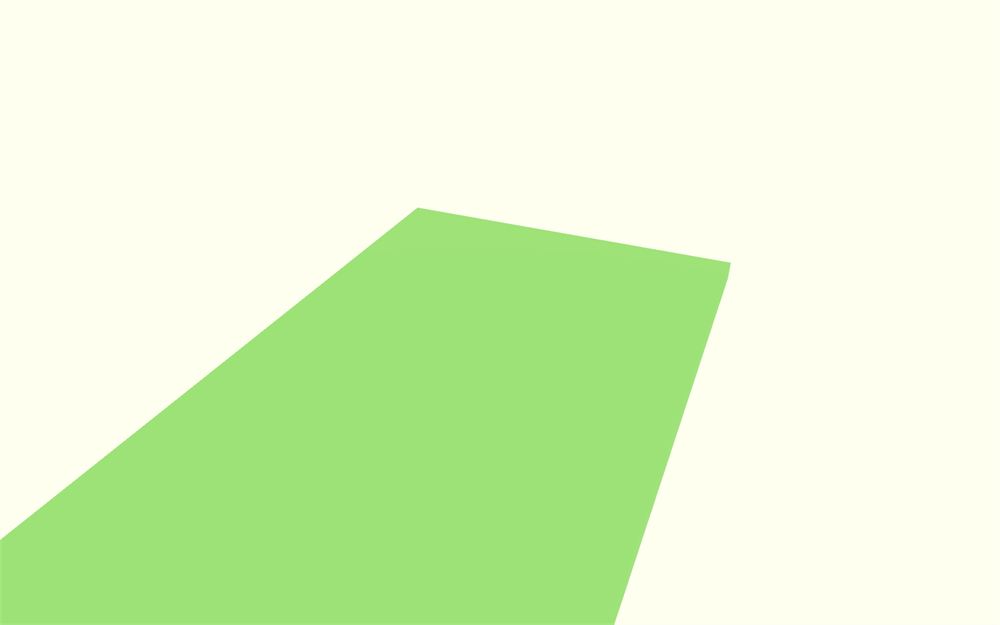
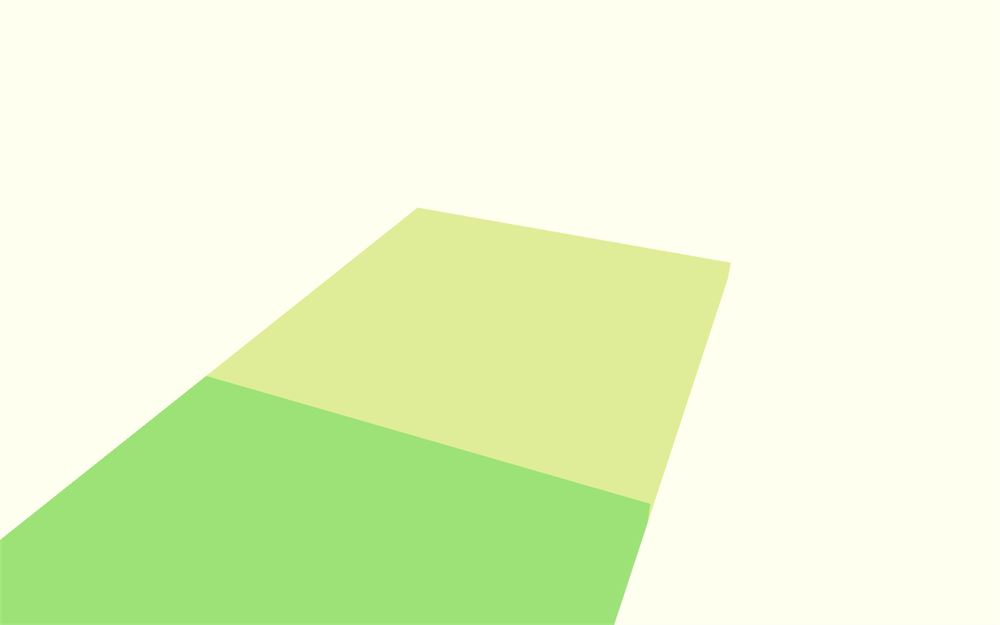
在 BlockSpinner 中,把地面 <mesh> 的材质设置为 floor2Material,以区分陷阱方块和起点方块:
function BlockSpinner({ position = [ 0, 0, 0 ] })
{
    return <group position={ position }>
        <mesh geometry={ boxGeometry } material={ floor2Material } position={ [ 0, - 0.1, 0 ] } scale={ [ 4, 0.2, 4 ] } receiveShadow />
    </group>
}
障碍物
对于障碍物,我们想要一根在方块正中央绕 y 轴旋转的横杆。
首先,用 boxGeometry 和 obstacleMaterial 材质创建 <mesh>:
function BlockSpinner({ position = [ 0, 0, 0 ] })
{
    return <group position={ position }>
        {/* ... */}

        <mesh geometry={ boxGeometry } material={ obstacleMaterial } scale={ [ 3.5, 0.3, 0.3 ] } />
    </group>
}
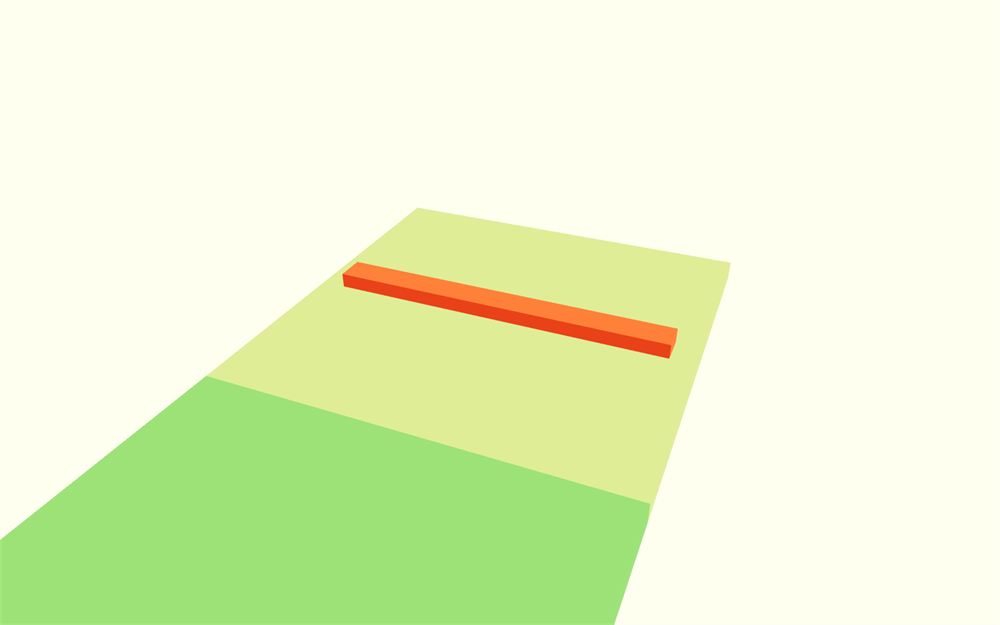
障碍物看起来穿进了地板,但我们稍后会修复。
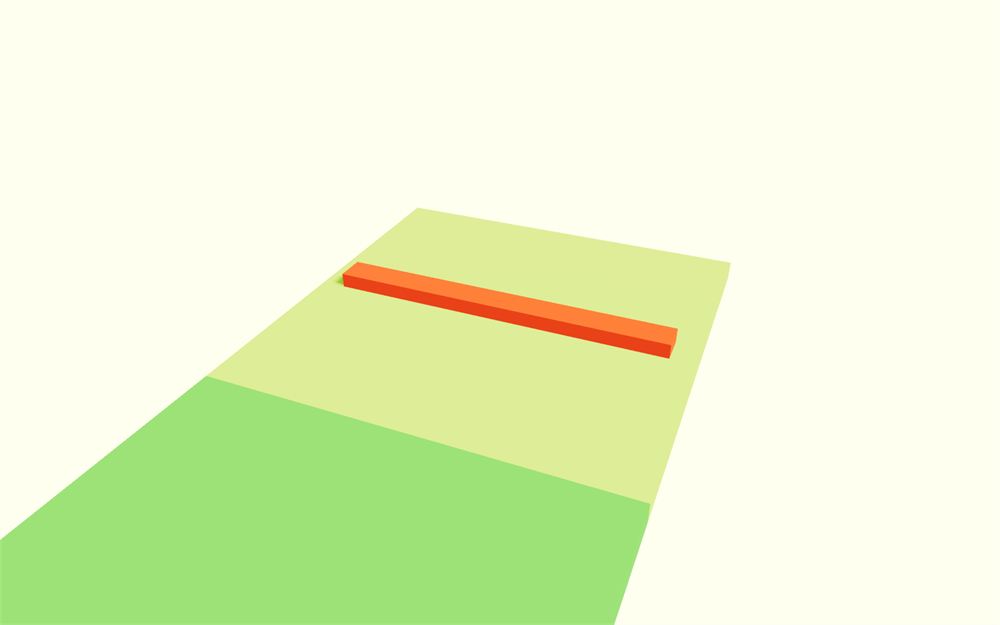
别忘了设置它的 castShadow 和 receiveShadow 属性:
<mesh geometry={ boxGeometry } material={ obstacleMaterial } scale={ [ 3.5, 0.3, 0.3 ] } castShadow receiveShadow />
障碍物物理
我们终于可以添加物理了。
在 Level.jsx 中,从 @react-three/rapier 导入 RigidBody:
import { RigidBody } from '@react-three/rapier'把障碍物 <mesh> 包裹在 <RigidBody> 中:
<RigidBody>
    <mesh geometry={ boxGeometry } material={ obstacleMaterial } scale={ [ 3.5, 0.3, 0.3 ] } castShadow receiveShadow />
</RigidBody>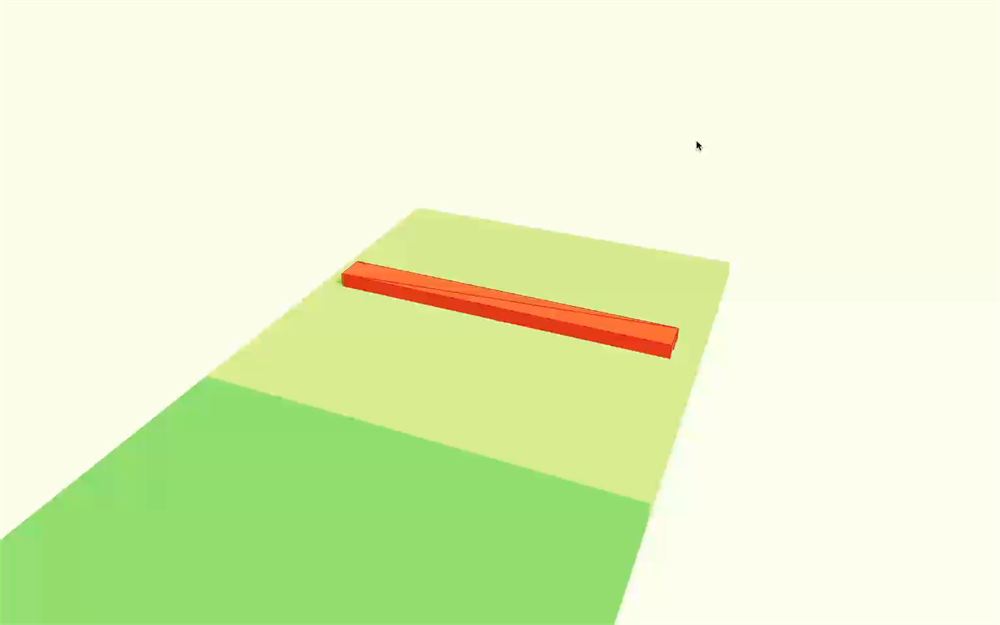
RigidBody 因为没有地板正在下落。但我们不希望障碍物像其他物理对象那样运动。我们想让它遵循一个非常特定的运动(在我们的例子中是旋转),既不下落也不被推开。
就像上一节课那样,我们需要把 type 属性设置为 "kinematicPosition":
<RigidBody type="kinematicPosition">
    {/* ... */}
</RigidBody>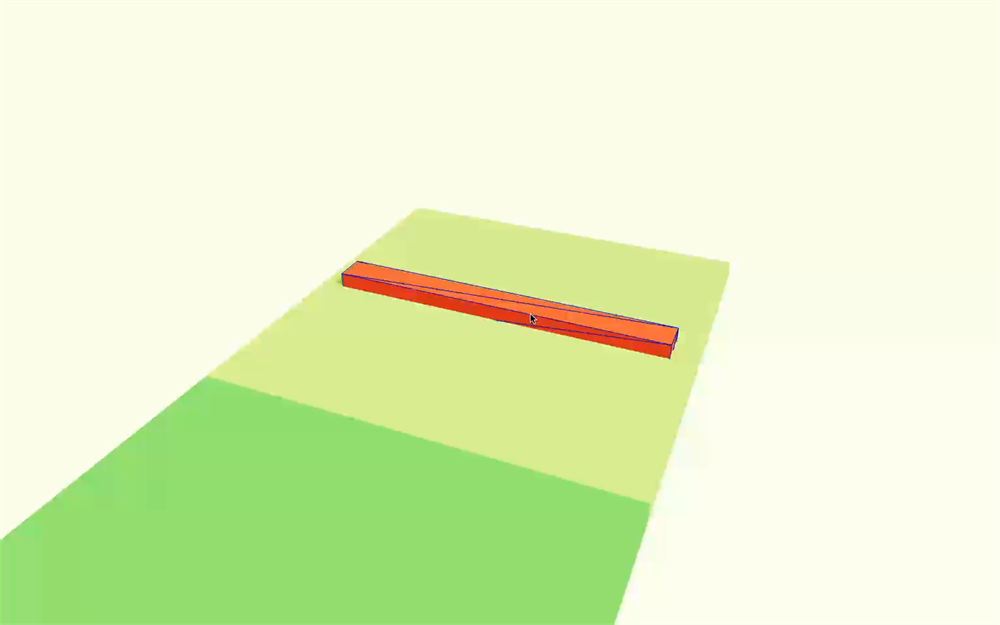
障碍物不再下落了。
我们直接在 <RigidBody> 上用 position 属性把它稍微抬离地面:
<RigidBody type="kinematicPosition" position={ [ 0, 0.3, 0 ] }>
    {/* ... */}
</RigidBody>
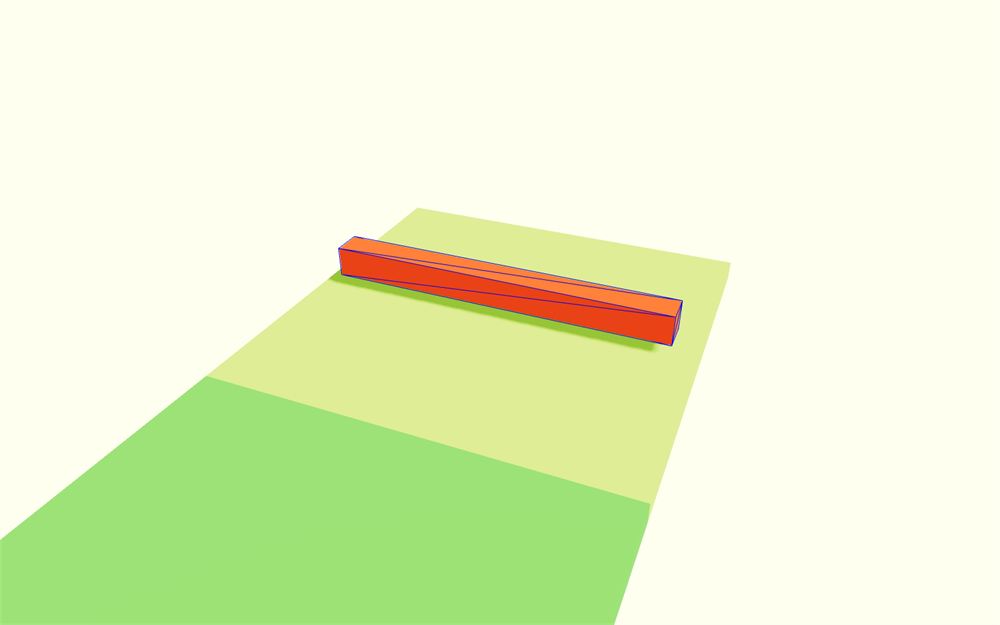
在让它动起来之前,我们可以把它的 restitution 设置为 0.2,friction 设置为 0,这样弹珠会反弹一点点,而不会过多地与地板摩擦。这是因为我们不希望弹珠停止滚动:
<RigidBody type="kinematicPosition" position={ [ 0, 0.3, 0 ] } restitution={ 0.2 } friction={ 0 }>
    {/* ... */}
</RigidBody>
是时候让它动起来了。首先,我们需要一个引用。
从 react 导入 useRef:
import { useRef } from 'react'创建一个 obstacle 引用:
function BlockSpinner({ position = [ 0, 0, 0 ] })
{
    const obstacle = useRef()

    // ..
}
并用 ref 属性把它赋给 <RigidBody>:
<RigidBody ref={ obstacle } type="kinematicPosition" position={ [ 0, 0.3, 0 ] } restitution={ 0.2 } friction={ 0 }>
    {/* ... */}
</RigidBody>
由于我们希望障碍物一直旋转,我们将每帧都执行。
从 @react-three/fiber 导入 useFrame:
import { useFrame } from '@react-three/fiber'在 BlockSpinner 中调用它,传入一个带 state 参数的函数,并用 state.clock.getElapsedTime() 获取已流逝的时间:
function BlockSpinner({ position = [ 0, 0, 0 ] })
{
    const obstacle = useRef()

    useFrame((state) =>
    {
        const time = state.clock.getElapsedTime()
        console.log(time)
    })

    // ...
}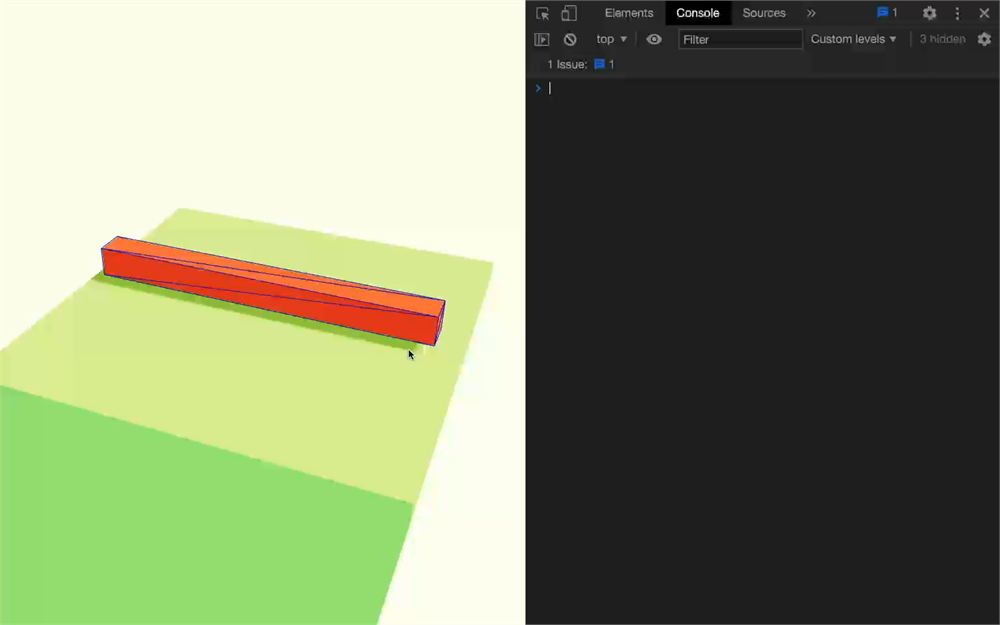
要让旋转器旋转,我们必须使用 setNextKinematicRotation,但这个方法期望一个 Quaternion。
为了稍微简化一点,我们将使用已经导入的 Three.js,从 Euler 创建那个 Quaternion,就像我们在物理课里做的那样:
useFrame((state) =>
{
    const time = state.clock.getElapsedTime()

    const rotation = new THREE.Quaternion()
    rotation.setFromEuler(new THREE.Euler(0, time, 0))
    obstacle.current.setNextKinematicRotation(rotation)
})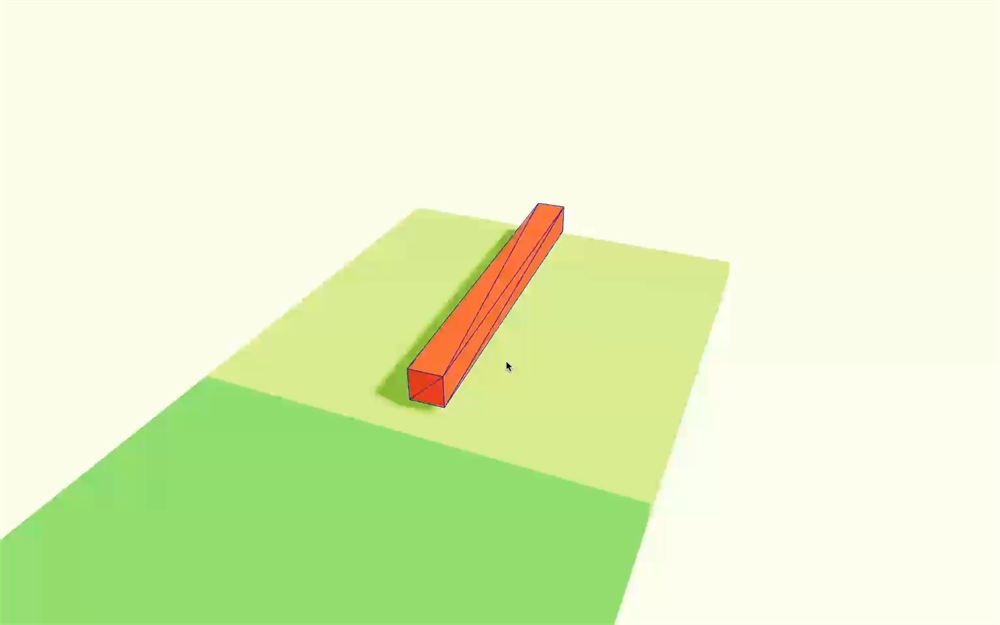
旋转速度不错,但如果我们添加多个 BlockSpinner,它们的旋转都会一样,这对玩家来说有点奇怪和无聊。
为了解决这个问题,我们将创建一个随机速度,并让 time 乘以它。
但我们需要为每个 <BlockSpinner> 只创建一次那个随机速度。为此,我们将使用一个 state。
从 react 导入 useState:
import { useState, useRef } from 'react'在 BlockSpinner 中使用它,通过 Math.random() 获取 0 到 1 之间的随机值:
function BlockSpinner({ position = [ 0, 0, 0 ] })
{
    const obstacle = useRef()
    const [ speed ] = useState(() => Math.random())

    // ...
}
然后,在 Euler 中让 time 乘以 speed:
rotation.setFromEuler(new THREE.Euler(0, time * speed, 0))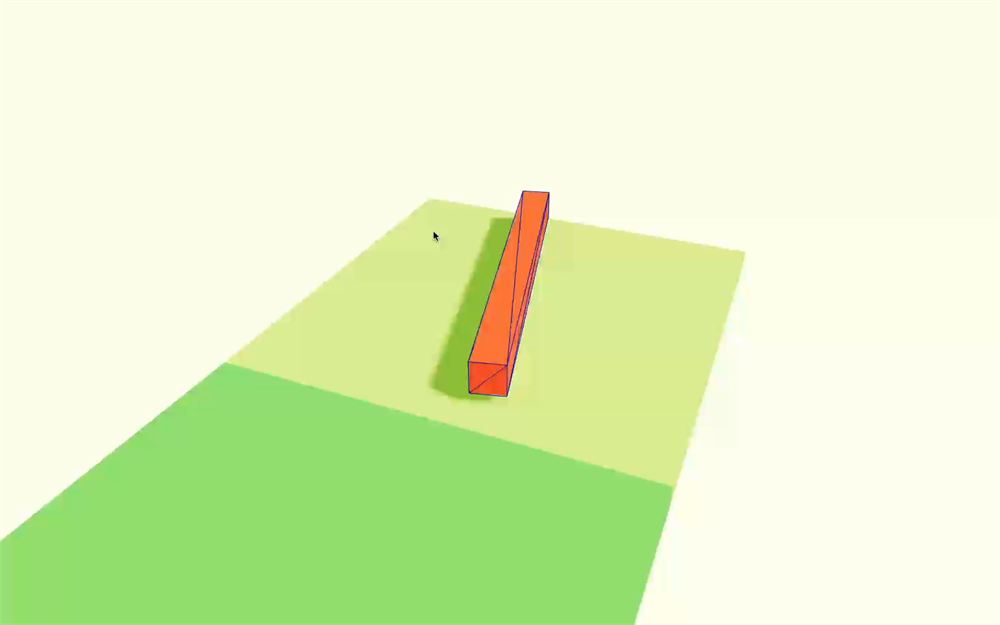
为了防止旋转太慢,我们可以给它加上 0.2:
const [ speed ] = useState(() => Math.random() + 0.2)旋转效果很不错,但它总是朝同一个方向转。
为了解决这个问题,我们要耍个小花招。我们再实现一个 Math.random(),并判断结果是否小于 0.5。如果是,就把 speed 乘以 - 1,否则乘以 1。我们将直接在 useState 中用三元条件来做这件事:
const [ speed ] = useState(() => (Math.random() + 0.2) * (Math.random() < 0.5 ? - 1 : 1))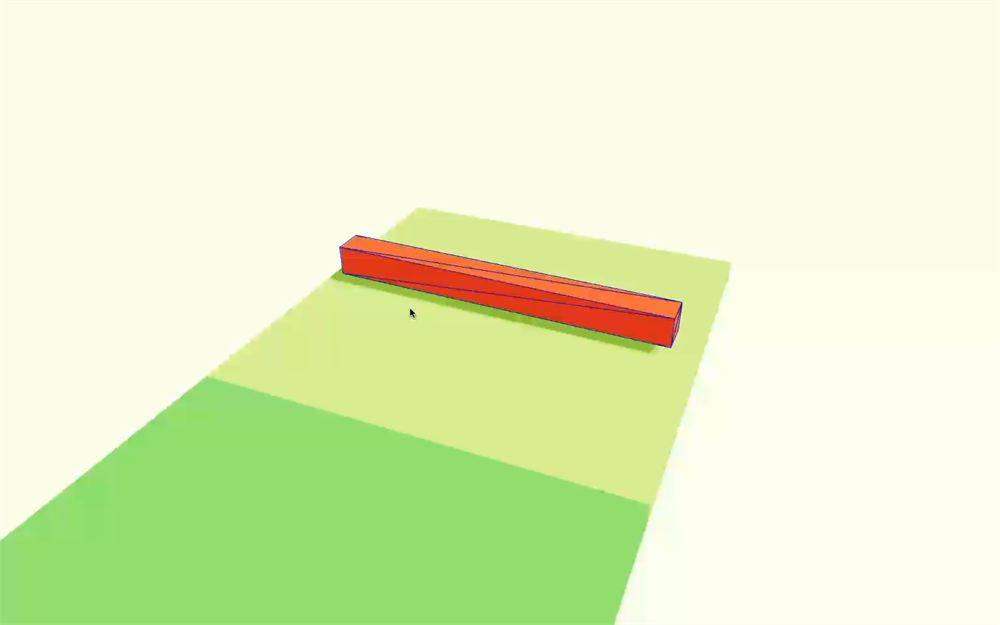
现在旋转器会朝两个方向旋转了,接下来我们可以开始制作下一个陷阱。
Limbo 陷阱方块
下一个陷阱将由一根上下移动的横杆组成,我们称之为 limbo(就像那个必须从横杆下方通过而不掉落的挑战)。
这个会更容易,因为它和 BlockSpinner 非常相似。
组件
复制 BlockSpinner 函数组件,命名为 BlockLimbo:
function BlockSpinner({ position = [ 0, 0, 0 ] })
{
    // ...
}

function BlockLimbo({ position = [ 0, 0, 0 ] })
{
    const obstacle = useRef()
    const [ speed ] = useState(() => (Math.random() + 0.2) * (Math.random() < 0.5 ? - 1 : 1))

    useFrame((state) =>
    {
        const time = state.clock.getElapsedTime()

        const rotation = new THREE.Quaternion()
        rotation.setFromEuler(new THREE.Euler(0, time * speed, 0))
        obstacle.current.setNextKinematicRotation(rotation)
    })

    return <group position={ position }>
        <mesh geometry={ boxGeometry } material={ floor2Material } position={ [ 0, - 0.1, 0 ] } scale={ [ 4, 0.2, 4 ] }  receiveShadow />
        <RigidBody ref={ obstacle } type="kinematicPosition" position={ [ 0, 0.3, 0 ] } restitution={ 0.2 } friction={ 0 }>
            <mesh geometry={ boxGeometry } material={ obstacleMaterial } scale={ [ 3.5, 0.3, 0.3 ] } castShadow receiveShadow />
        </RigidBody>
    </group>
}
在 <Level> 中实例化 <BlockLimbo>,并修改所有三个方块的位置,让 Limbo 方块位于中心:
export default function Level()
{
    return <>
        <BlockStart position={ [ 0, 0, 8 ] } />
        <BlockSpinner position={ [ 0, 0, 4 ] } />
        <BlockLimbo position={ [ 0, 0, 0 ] } />
    </>
}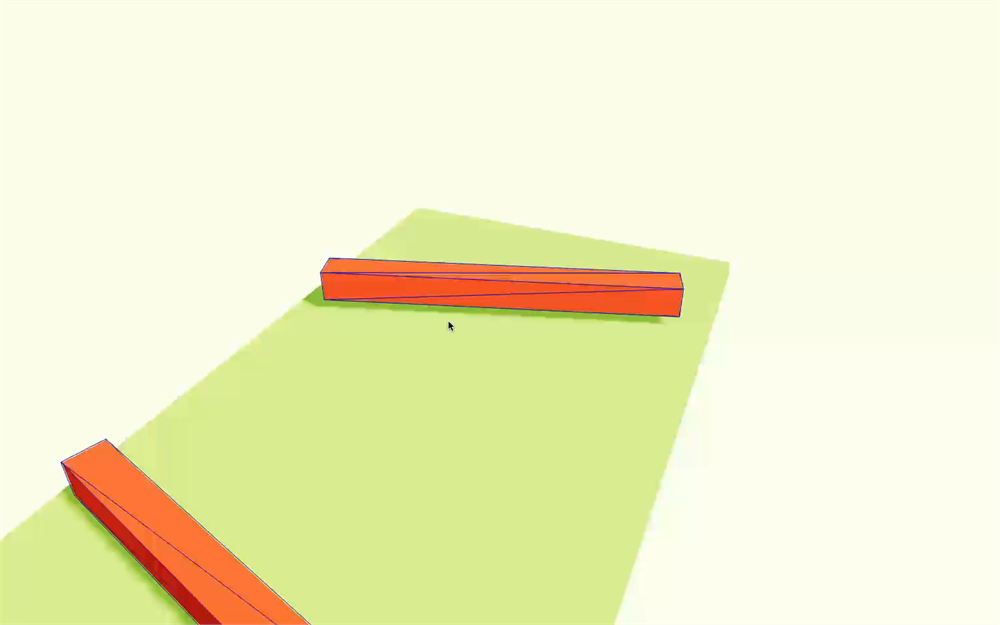
动画
这次,我们想让障碍物上下移动,而不是旋转。
为此,我们需要使用 setNextKinematicTranslation 代替 setNextKinematicRotation,并传入一个 Vector3。由于我们希望障碍物永远上下移动,可以使用 Math.sin() 并传入 time。
如果你想练习,现在是自己动手尝试的好机会。
useFrame((state) =>
{
    const time = state.clock.getElapsedTime()

    const y = Math.sin(time)
    obstacle.current.setNextKinematicTranslation({ x: 0, y: y, z: 0 })
})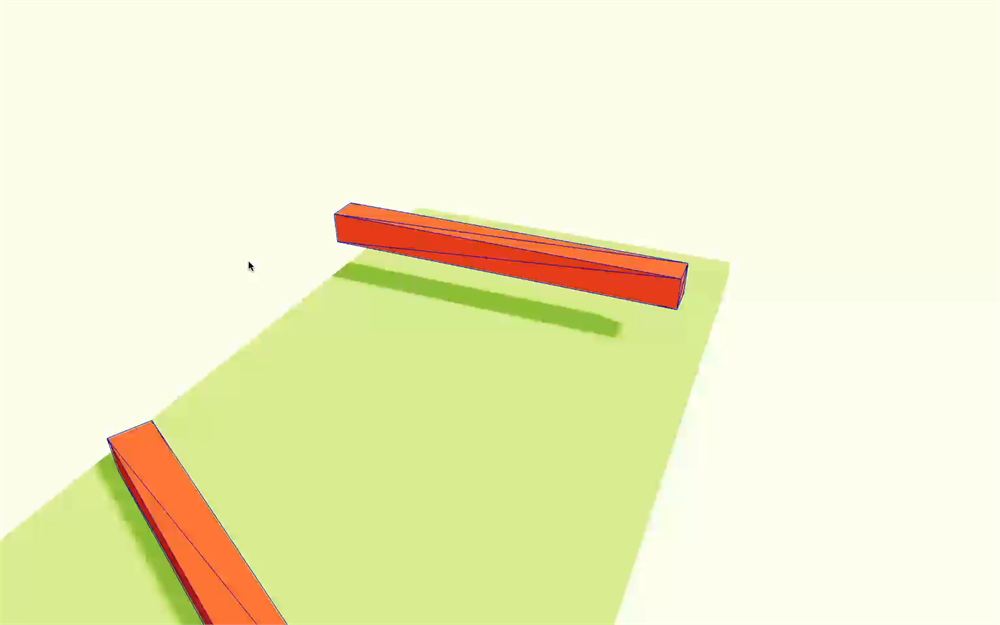
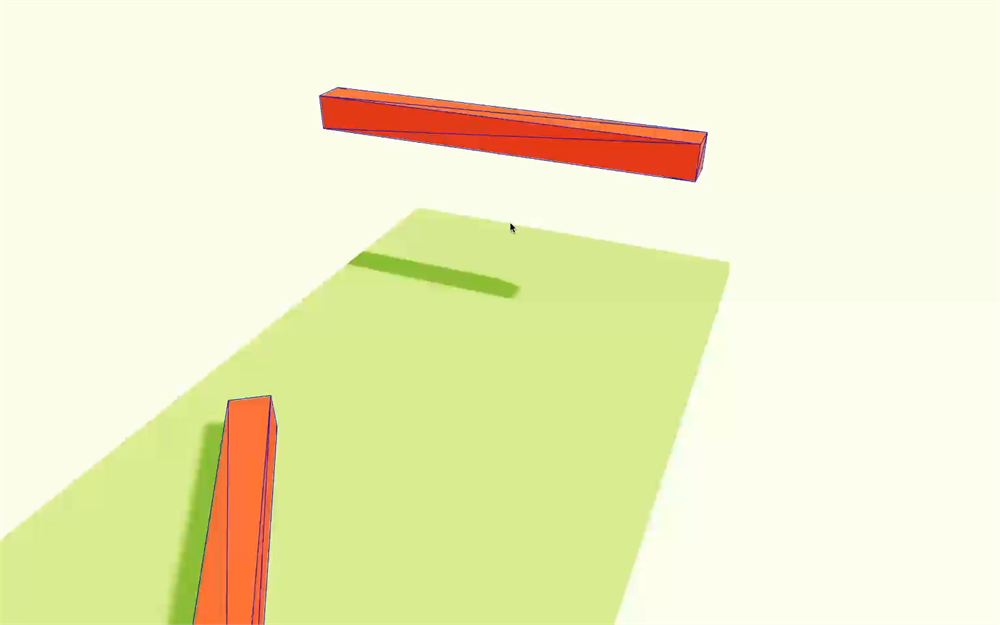
现在,障碍物会沉进地板。不过,我们可以通过给 y 加上一个固定数值来修复:
useFrame((state) =>
{
    const time = state.clock.getElapsedTime()

    const y = Math.sin(time) + 1.15
    obstacle.current.setNextKinematicTranslation({ x: 0, y: y, z: 0 })
})
和 BlockSpinner 类似,放一堆 <BlockLimbo> 会导致动画完全一样。这次,我们不调整速度,而是简单地在时间上给动画加一个偏移。
既然我们不再使用 speed state,就可以把它替换成 timeOffset,并设置一个 0 到 Math.PI * 2 之间的随机值(因为它会经过 sin()):
function BlockLimbo({ position = [ 0, 0, 0 ] })
{
    const obstacle = useRef()
    const [ timeOffset ] = useState(() => Math.random() * Math.PI * 2)

    // ...
}
然后我们可以在 Math.sin() 中把 timeOffset 加到 time 上:
const y = Math.sin(time + timeOffset) + 1.15只有当我们有多个 Limbo 方块时,这一点才会明显。
修复运动学位置
我们犯了一个小错误,如果在添加下一个方块之前移动组件,就能注意到:
export default function Level()
{
    return <>
        <BlockStart position={ [ 0, 0, 12 ] } />
        <BlockSpinner position={ [ 0, 0, 8 ] } />
        <BlockLimbo position={ [ 0, 0, 4 ] } />
    </>
}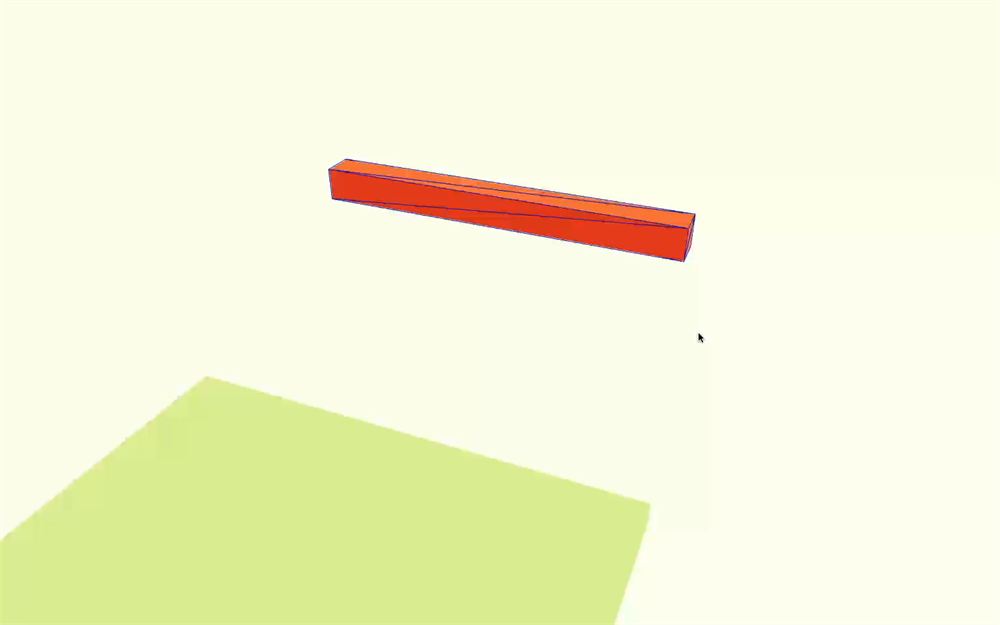
如你所见,障碍物有问题,即使周围的 <group> 被移动了,它仍停留在初始位置。
这不是 bug。使用 setNextKinematicTranslation 会把它定位在绝对坐标上,而既然我们把 z 设为 0,它就会一直待在那里。
为了解决这个问题,我们可以在 setNextKinematicTranslation 中使用 position prop:
obstacle.current.setNextKinematicTranslation({ x: position[0], y: position[1] + y, z: position[2] })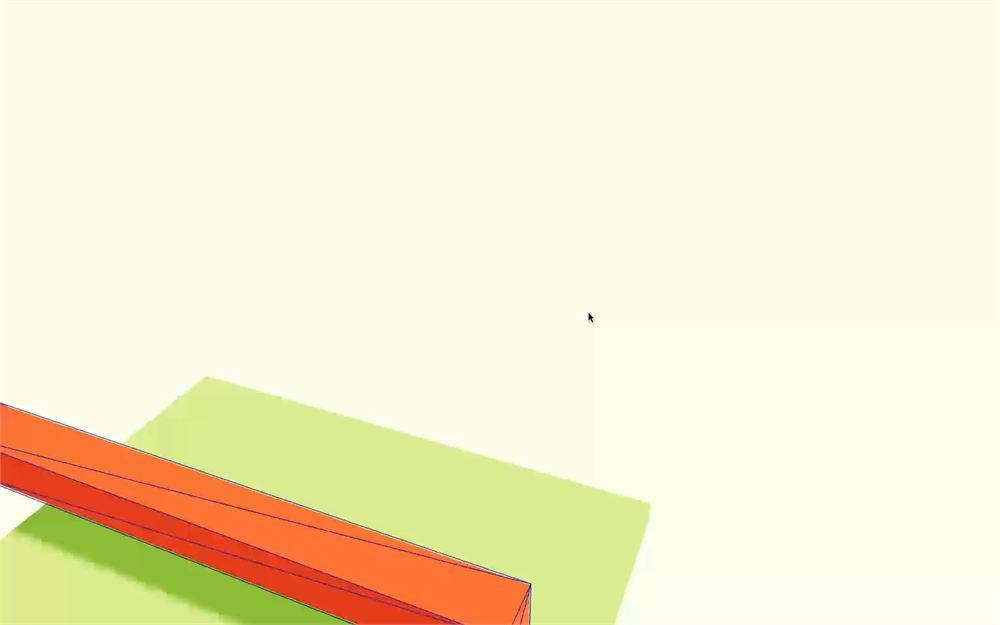
我们在 3 个轴上都用到了它,以防你想沿 x 或 y 轴移动方块。
斧头陷阱方块
下一个陷阱将和 Limbo 方块非常相似,只是障碍物会水平移动,就像一把摆动的斧头,这在很多地牢游戏里很常见。
组件
复制 BlockLimbo 函数组件,命名为 BlockAxe:
function BlockLimbo({ position = [ 0, 0, 0 ] })
{
    // ...
}

function BlockAxe({ position = [ 0, 0, 0 ] })
{
    const obstacle = useRef()
    const [ timeOffset ] = useState(() => Math.random() * Math.PI * 2)

    useFrame((state) =>
    {
        const time = state.clock.getElapsedTime()

        const y = Math.sin(time + timeOffset) + 1.15
        obstacle.current.setNextKinematicTranslation({ x: position[0], y: position[1] + y, z: position[2] })
    })

    return <group position={ position }>
        <mesh geometry={ boxGeometry } material={ floor2Material } position={ [ 0, - 0.1, 0 ] } scale={ [ 4, 0.2, 4 ] }  receiveShadow />
        <RigidBody ref={ obstacle } type="kinematicPosition" position={ [ 0, 0.3, 0 ] } restitution={ 0.2 } friction={ 0 }>
            <mesh geometry={ boxGeometry } material={ obstacleMaterial } scale={ [ 3.5, 0.3, 0.3 ] } castShadow receiveShadow />
        </RigidBody>
    </group>
}
然后,在 <Level> 中实例化 <BlockAxe>,并修改所有三个方块的位置,让斧头方块位于中心(虽然它应该已经是这样了):
export default function Level()
{
    return <>
        <BlockStart position={ [ 0, 0, 12 ] } />
        <BlockSpinner position={ [ 0, 0, 8 ] } />
        <BlockLimbo position={ [ 0, 0, 4 ] } />
        <BlockAxe position={ [ 0, 0, 0 ] } />
    </>
}
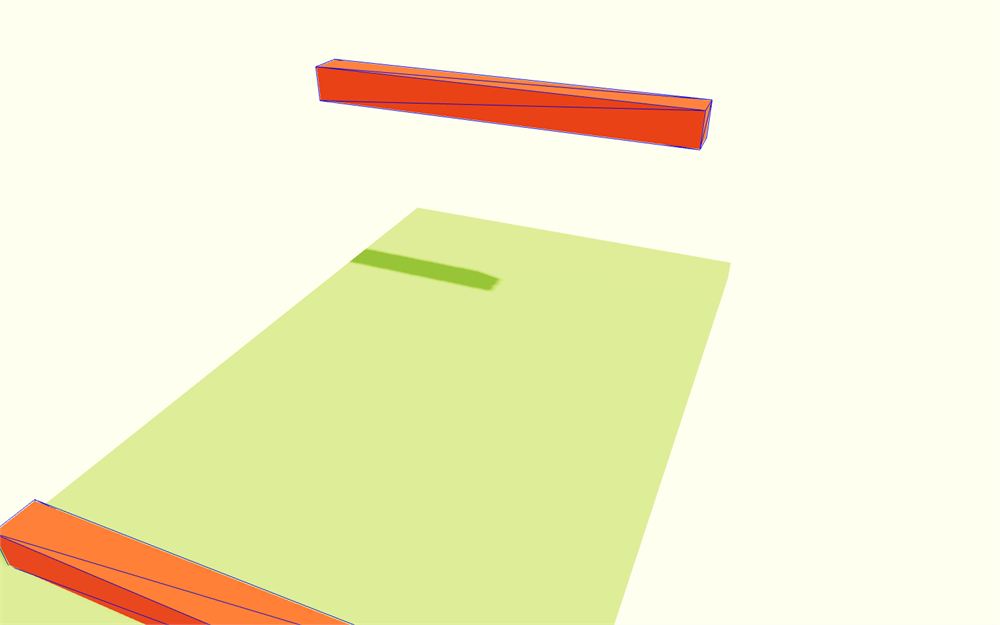
形状
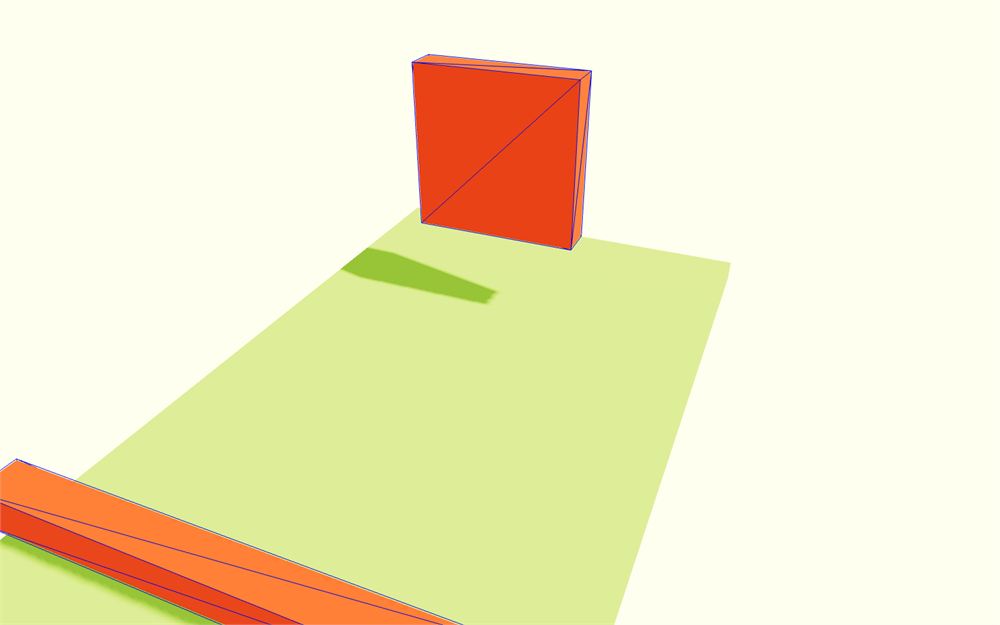
替换障碍物 <mesh> 上的 scale,让它更具压迫感:
<mesh geometry={ boxGeometry } material={ obstacleMaterial } scale={ [ 1.5, 1.5, 0.3 ] } castShadow receiveShadow />
动画
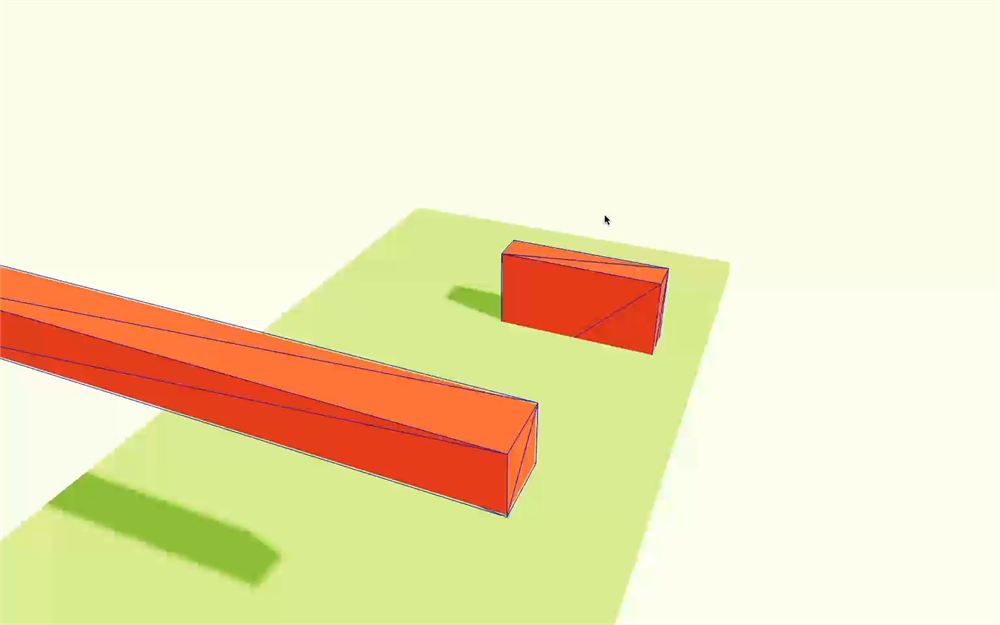
让障碍物沿 x 轴而不是 y 轴移动,并移除 + 1.25:
useFrame((state) =>
{
    const time = state.clock.getElapsedTime()

    const x = Math.sin(time + timeOffset)
    obstacle.current.setNextKinematicTranslation({ x: position[0] + x, y: position[1], z: position[2] })
})
在 y 上把它稍微抬高:
obstacle.current.setNextKinematicTranslation({ x: position[0] + x, y: position[1] + 0.75, z: position[2] })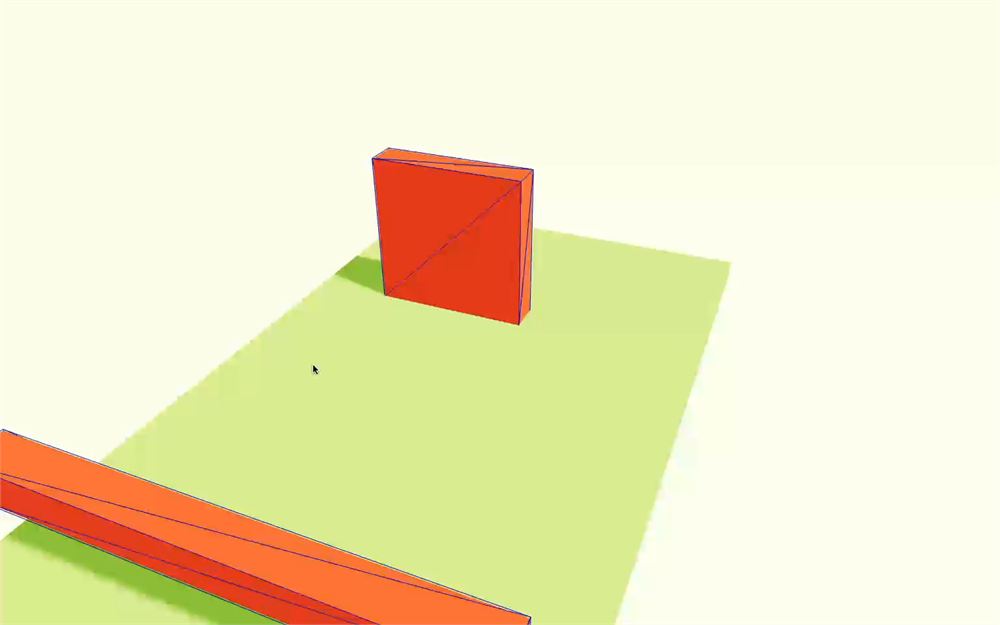
把 Math.sin() 乘以 1.25 来增加振幅,让障碍物左右摆动:
const x = Math.sin(time + timeOffset) * 1.25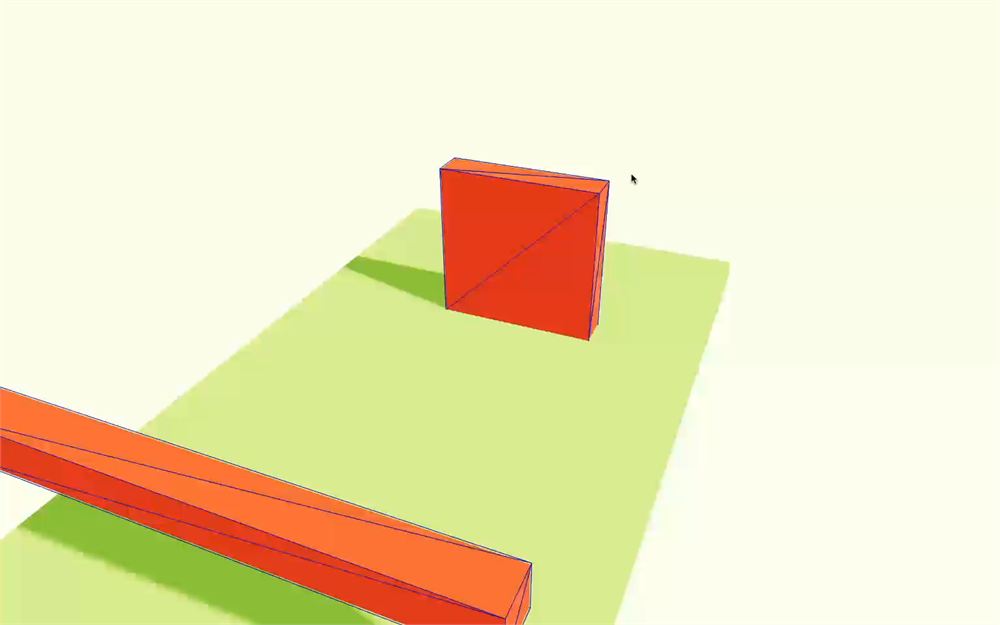
很好。现在最后一个陷阱方块也完成了。
我们本可以添加更多变体,但本节课还有很多内容要讲。
终点方块
最后,我们来创建终点方块。
组件
复制 BlockStart 函数组件,命名为 BlockEnd:
function BlockStart({ position = [ 0, 0, 0 ] })
{
    // ...
}

function BlockEnd({ position = [ 0, 0, 0 ] })
{
    return <group position={ position }>
        <mesh geometry={ boxGeometry } material={ floor1Material } position={ [ 0, - 0.1, 0 ] } scale={ [ 4, 0.2, 4 ] } />
    </group>
}
在 <Level> 中实例化它,并修改所有三个方块的位置,让终点方块位于中心:
export default function Level()
{
    return <>
        <BlockStart position={ [ 0, 0, 16 ] } />
        <BlockSpinner position={ [ 0, 0, 12 ] } />
        <BlockLimbo position={ [ 0, 0, 8 ] } />
        <BlockAxe position={ [ 0, 0, 4 ] } />
        <BlockEnd position={ [ 0, 0, 0 ] } />
    </>
}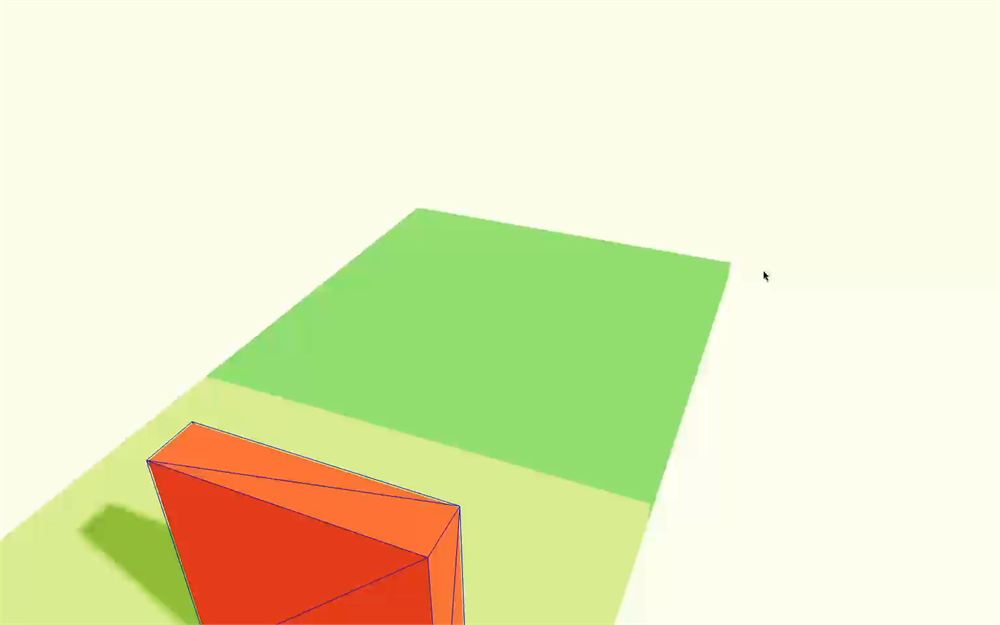
回到 BlockEnd,把地面 <mesh> 的 position 属性设置为 0, 0, 0 来抬高它:
<mesh geometry={ boxGeometry } material={ floor1Material } position={ [ 0, 0, 0 ] } scale={ [ 4, 0.2, 4 ] } receiveShadow />
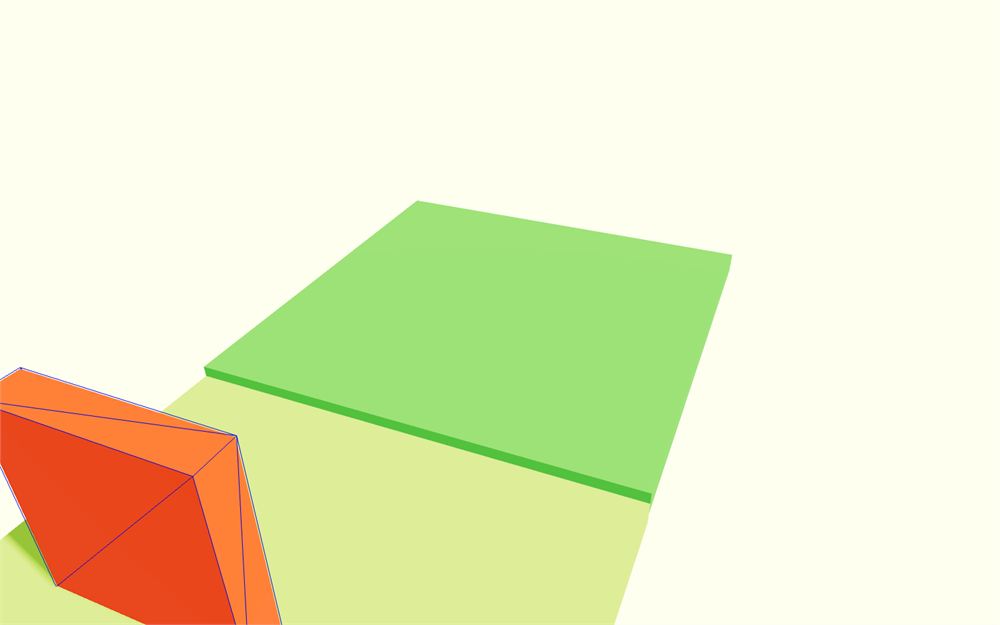
这样陷阱和终点线之间有了更好的分隔。此外,它看起来也有点像低多边形草地。
汉堡
我们将通过添加一个汉堡让终点线更有吸引力。它可以作为完成关卡的某种奖励。
汉堡模型已经放在 public 文件夹里,名为 hamburger.glb。
首先,从 @react-three/drei 导入 useGLTF:
import { useGLTF } from '@react-three/drei'然后,用 useGLTF 加载汉堡:
function BlockEnd({ position = [ 0, 0, 0 ] })
{
    const hamburger = useGLTF('./hamburger.glb')

    // ...
}
现在,用 <primitive> 把它添加到 <group> 中:
function BlockEnd({ position = [ 0, 0, 0 ] })
{
    const hamburger = useGLTF('./hamburger.glb')

    return <group position={ position }>
        {/* ... */}
        <primitive object={ hamburger.scene } />
    </group>
}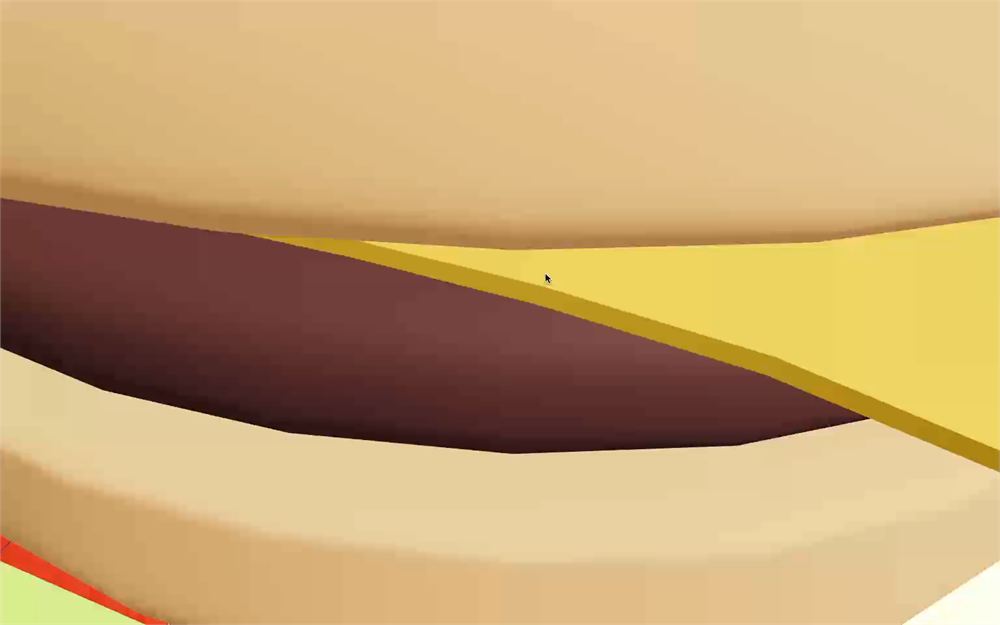
最后,把它缩小到 0.2:
<primitive object={ hamburger.scene } scale={ 0.2 } />
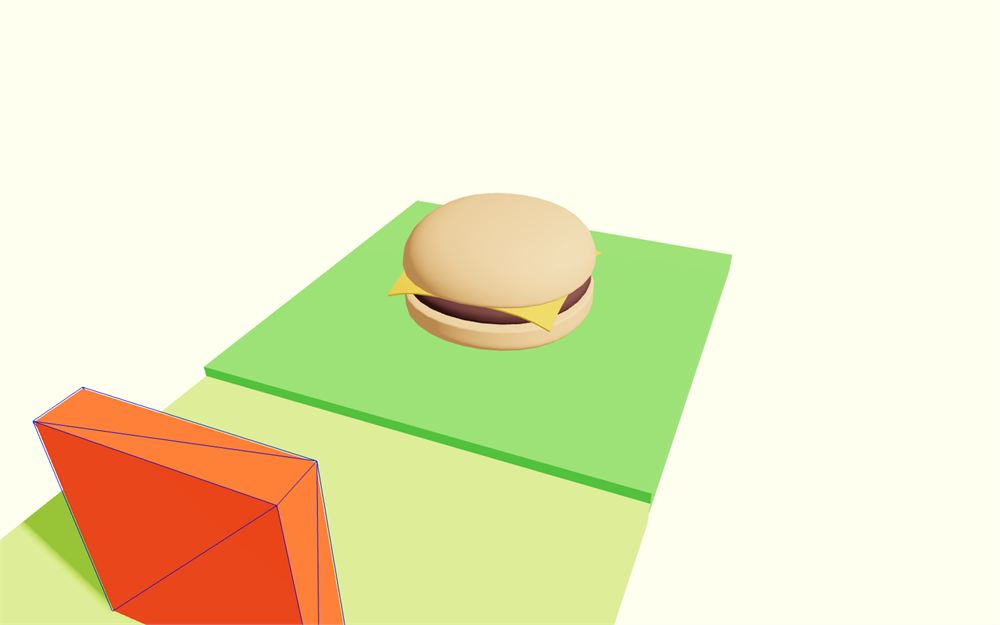
因为我们不希望弹珠穿过汉堡,所以需要给它添加物理。
把 <primitive> 包裹在 <RigidBody> 中,并把它的 type 设置为 'fixed':
<RigidBody type="fixed">
    <primitive object={ hamburger.scene } scale={ 0.2 } />
</RigidBody>
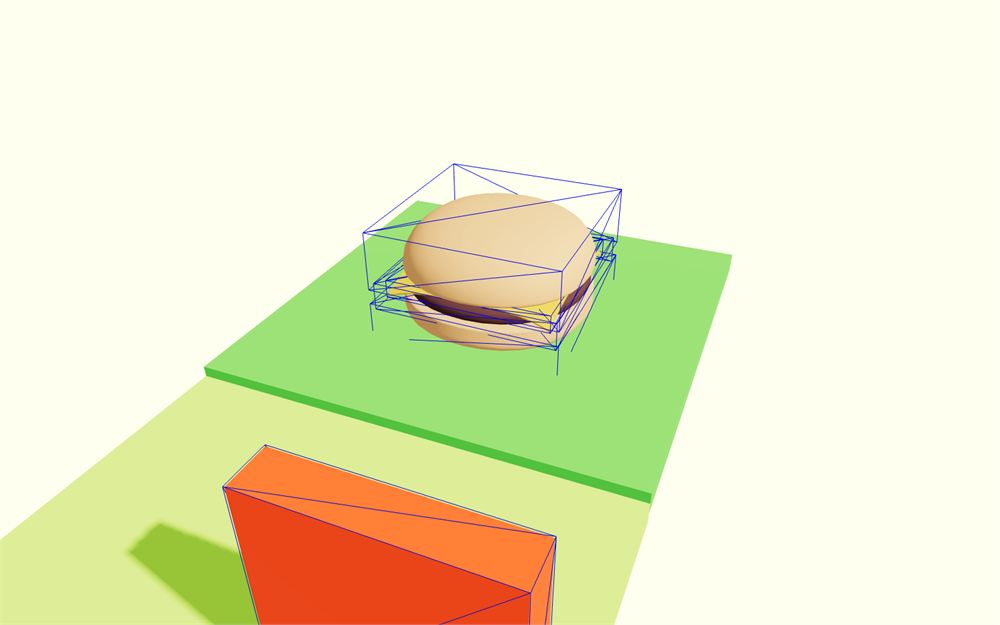
碰撞体与模型并不十分吻合。
把它的 colliders 属性设置为 "hull" 来修复这个问题:
<RigidBody type="fixed" colliders="hull">
    <primitive object={ hamburger.scene } scale={ 0.2 } />
</RigidBody>
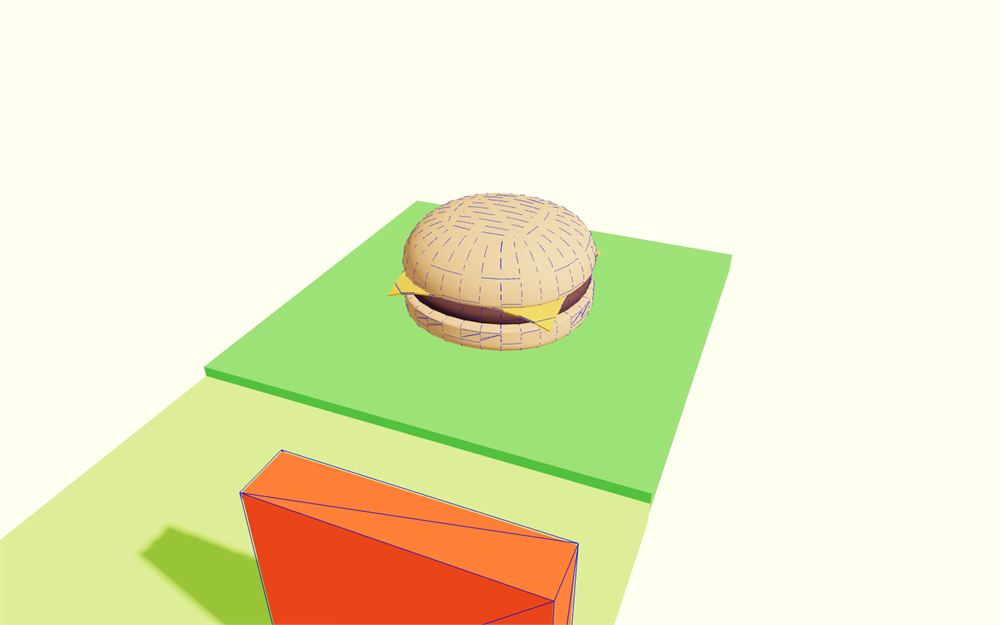
然后,把 restitution 设置为 0.2,friction 设置为 0,这样弹珠会反弹一点点,而不会过多地与地板摩擦:
<RigidBody type="fixed" colliders="hull" restitution={ 0.2 } friction={ 0 }>
    <primitive object={ hamburger.scene } scale={ 0.2 } />
</RigidBody>
用 <RigidBody> 上的 position 属性把它稍微抬高:
<RigidBody type="fixed" colliders="hull" position={ [ 0, 0.25, 0 ] } restitution={ 0.2 } friction={ 0 }>
    <primitive object={ hamburger.scene } scale={ 0.2 } />
</RigidBody>
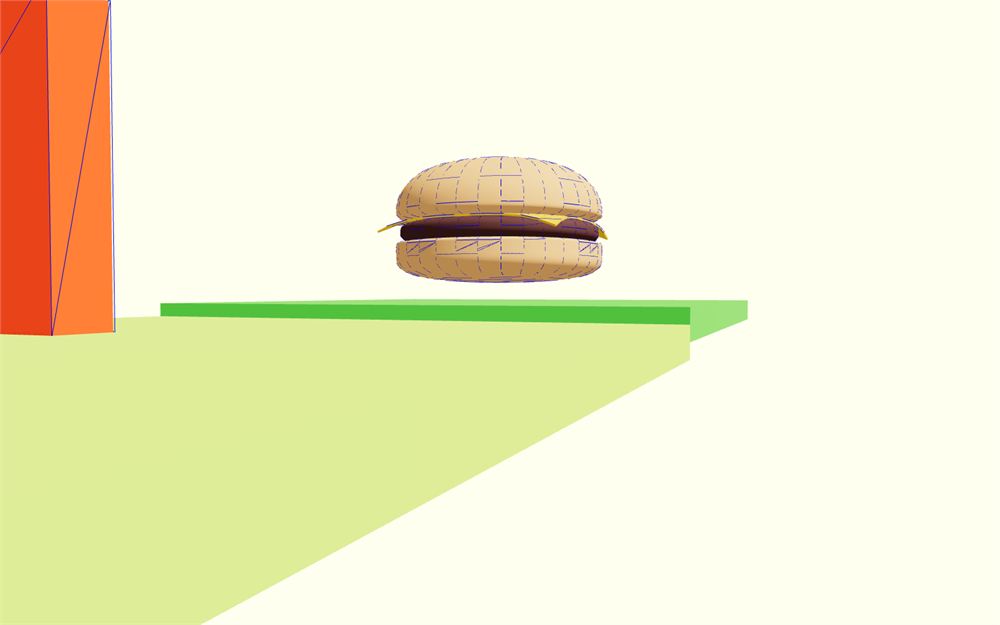
最后,让我们为那个汉堡启用阴影。
由于汉堡场景里只包含网格,我们可以在 hamburger.scene.children 上使用 forEach,并在其中把 castShadow 设置为 true:
function BlockEnd({ position = [ 0, 0, 0 ] })
{
    const hamburger = useGLTF('./hamburger.glb')
    hamburger.scene.children.forEach((mesh) =>
    {
        mesh.castShadow = true
    })

    // ...
}
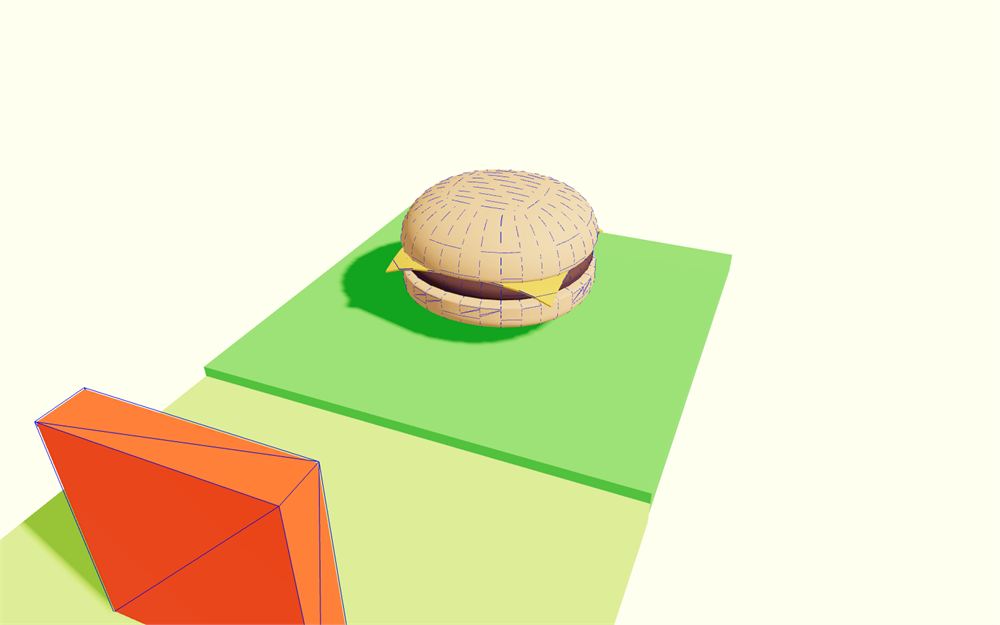
我们不需要让汉堡接收阴影,因为它上方什么都没有,而且原生 Three.js 阴影容易在像面包这样圆润的形状上产生阴影痤疮(shadow acne)。
好,现在方块都创建完了。
你显然可以创建许多额外的陷阱,并改进起点和终点方块,但遗憾的是,现在我们必须继续了。
打乱方块
到目前为止,我们一直手动定位方块。
我们希望这些方块能自动定位。除此之外,我们还希望能够决定起点方块和终点方块之间要有多少个陷阱。另外,我们希望陷阱是随机选择的,这样关卡每次都不同。
起点方块
首先,我们移除除 <BlockStart> 之外的所有方块,并把它位置设为 0, 0, 0:
export default function Level()
{
    return <>
        <BlockStart position={ [ 0, 0, 0 ] } />
    </>
}
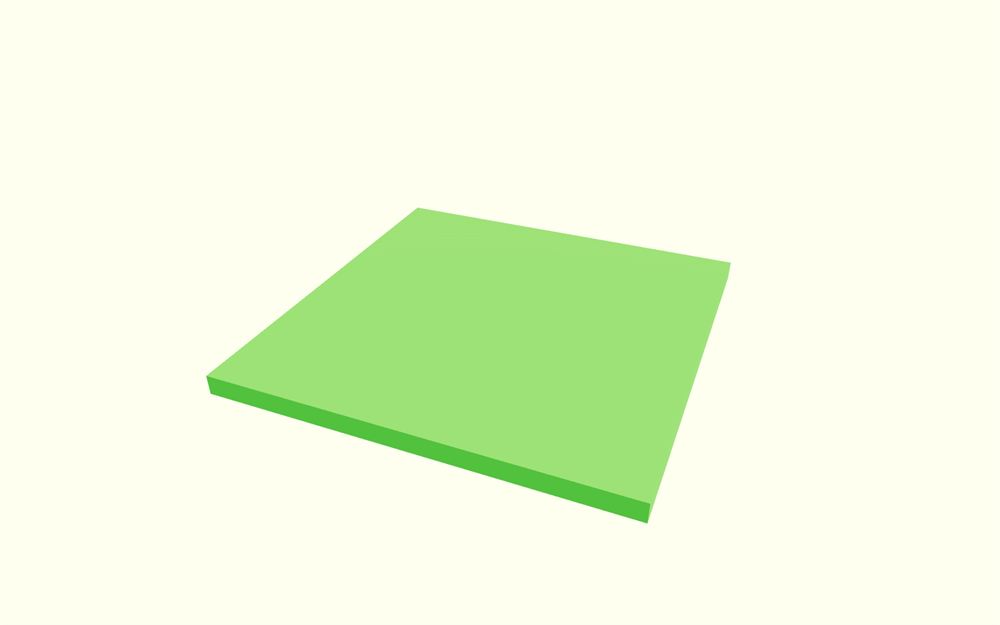
陷阱方块
对于陷阱方块,我们将创建一个数组,从目前拥有的三种方块中随机选择。
首先,创建一个 count 变量,设为 5:
export default function Level()
{
    const count = 5

    // ...
}
现在,创建一个包含所有可用陷阱方块类型的数组:
export default function Level()
{
    const count = 5
    const types = [ BlockSpinner, BlockAxe, BlockLimbo ]

    // ...
}
我们这里的做法是可行的,但如果我们要把组件提供给其他开发者,他们也得深入研究 Level.jsx 的代码才能修改这些变量。
为了更好、更灵活一点,我们将使用 props。
把 count 和 types 变量移到 Level 的 props 上,并设置相同的默认值:
export default function Level({ count = 5, types = [ BlockSpinner, BlockAxe, BlockLimbo ] })
{
    return <>
        <BlockStart position={ [ 0, 0, 0 ] } />
    </>
}
虽然这完全是可选的,但它代价不大,而且能让我们的组件更方便,尤其是对其他潜在的开发者来说。
例如(但别这么做),我们可以这样写,轻松添加 10 个旋转器:
<Level count={ 10 } types={ [ BlockSpinner ] } />但这意味着我们还需要允许开发者导入我们创建的各种方块。
为此,在每个方块前面加上 export:
export function BlockStart({ position = [ 0, 0, 0 ] })
{
    // ...
}

export function BlockEnd({ position = [ 0, 0, 0 ] })
{
    // ...
}

export function BlockSpinner({ position = [ 0, 0, 0 ] })
{
    // ...
}

export function BlockLimbo({ position = [ 0, 0, 0 ] })
{
    // ...
}

export function BlockAxe({ position = [ 0, 0, 0 ] })
{
    // ...
}

// ...
由于 Level 不再是 Level.jsx 文件中唯一被导出的组件,我们可以移除 Level 函数前的 default:
export function Level({ count = 5, types = [ BlockSpinner, BlockAxe, BlockLimbo ] })
{
    // ...
}
好。现在相应地在 Experience.jsx 中更新导入 Level 的方式:
import { Level } from './Level.jsx'回到我们的 Level.jsx。
我们现在想生成一个长度为 count、从 types 数组中随机选择的陷阱数组,并且即使 Level 组件重新渲染,也保留这个数组及其内容。
为此,我们将使用 useMemo。
首先,从 react 导入 useMemo:
import { useMemo, useState, useRef } from 'react'在 Level 中,调用 useMemo 返回一个 blocks 数组,并把依赖项设为 count 和 types:
export function Level({ count = 5, types = [ BlockSpinner, BlockAxe, BlockLimbo ] })
{
    const blocks = useMemo(() =>
    {
        const blocks = []

        return blocks
    }, [ count, types ])

    // ...
}
只有当 count 或 types 变化时,useMemo 才会返回不同的值。
让我们在 useMemo 之后打印 blocks:
export function Level({ count = 5, types = [ BlockSpinner, BlockAxe, BlockLimbo ] })
{
    const blocks = useMemo(() =>
    {
        const blocks = []

        return blocks
    }, [ count, types ])

    console.log(blocks)

    // ...
}
为简单起见,我们将编写一个传统的 for 循环来填充 blocks 数组,目前先取 types 的第一个值:
const blocks = useMemo(() =>
{
    const blocks = []

    for(let i = 0; i < count; i++)
    {
        const type = types[0]
        blocks.push(type)
    }

    return blocks
}, [ count, types ])
目前我们得到 5 个旋转器方块。
为了从数组中随机选取元素,我们可以用 Math.random() 乘以 types.length,再用 Math.floor() 向下取整,从而得到索引:
const type = types[ Math.floor(Math.random() * types.length) ]现在我们有了一组随机陷阱,这意味着可以移除 console.log 了。
在 <BlockStart> 之后,用 map 方法遍历 blocks 并 return 该组件:
export function Level({ count = 5, types = [ BlockSpinner, BlockAxe, BlockLimbo ] })
{
    const blocks = useMemo(() =>
    {
        const blocks = []

        for(let i = 0; i < count; i++)
        {
            const type = types[ Math.floor(Math.random() * types.length) ]
            blocks.push(type)
        }

        return blocks
    }, [ count, types ])

    return <>
        <BlockStart position={ [ 0, 0, 0 ] } />

        { blocks.map((Block) => <Block />) }
    </>
}
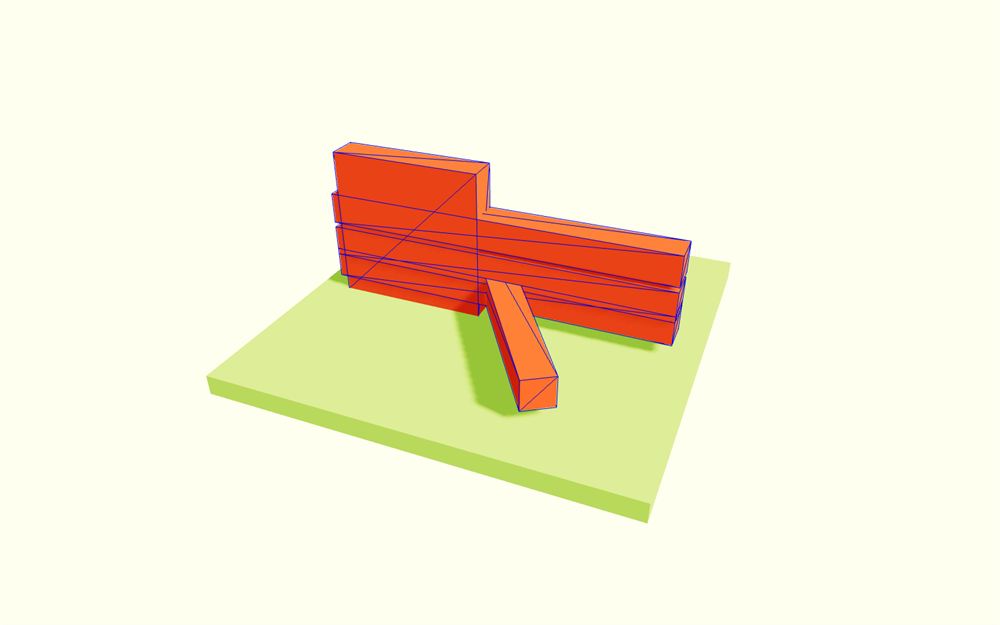
真是一团乱。别担心,很容易修复。
首先注意,我们对 Block 使用 PascalCase,因为这个组件不是由 React Three Fiber 自动生成的。
其次,像这样循环并创建多个组件时,我们需要提供一个 key 属性。为此,我们可以使用 map 参数中的 index:
{ blocks.map((Block, index) => <Block key={ index } />) }最后,所有方块都堆在了一起,因为我们没有提供 position。
为此,添加一个 position 属性,并把 index 乘以 4 作为 z 轴坐标,因为每个陷阱都是 4 个单位大:
{ blocks.map((Block, index) => <Block key={ index } position={ [ 0, 0, index * 4 ] } />) }陷阱方向反了。在公式前面加一个 -:
{ blocks.map((Block, index) => <Block key={ index } position={ [ 0, 0, - index * 4 ] } />) }目前第一个陷阱压在起点方块上。给 index 加 1:
{ blocks.map((Block, index) => <Block key={ index } position={ [ 0, 0, - (index + 1) * 4 ] } />) }
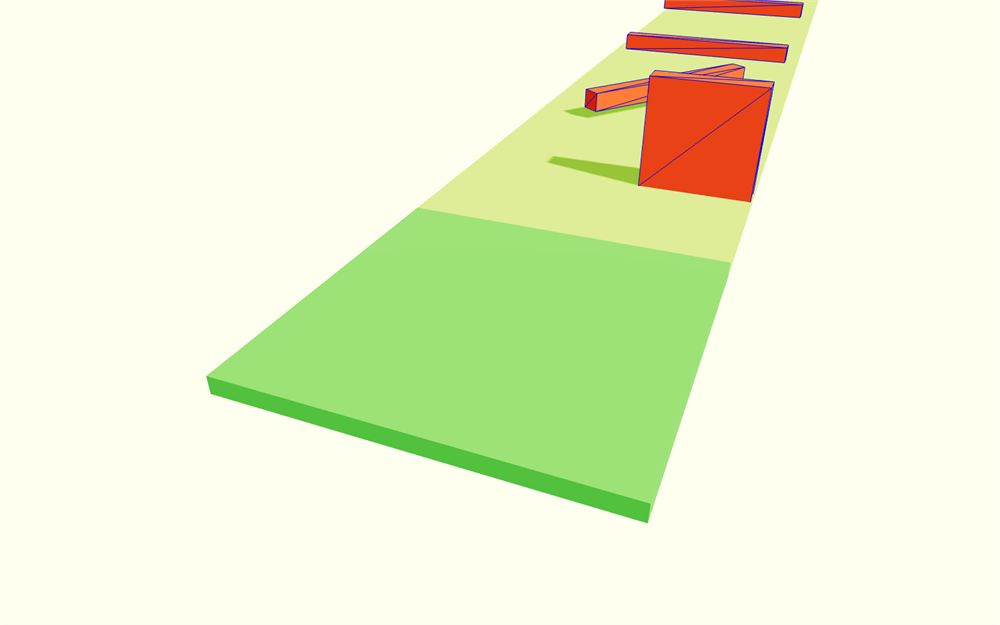
这就是我们的陷阱,如果你重新加载,就会得到一组新的陷阱。
终点方块
我们终于可以添加终点方块,并用公式 - (count + 1) * 4 设置它的 z 位置:
export function Level({ count = 5, types = [ BlockSpinner, BlockAxe, BlockLimbo ] })
{
    // ...

    return <>
        <BlockStart position={ [ 0, 0, 0 ] } />

        { blocks.map((Block, index) => <Block key={ index } position={ [ 0, 0, - (index + 1) * 4 ] } />) }

        <BlockEnd position={ [ 0, 0, - (count + 1) * 4 ] } />
    </>
}
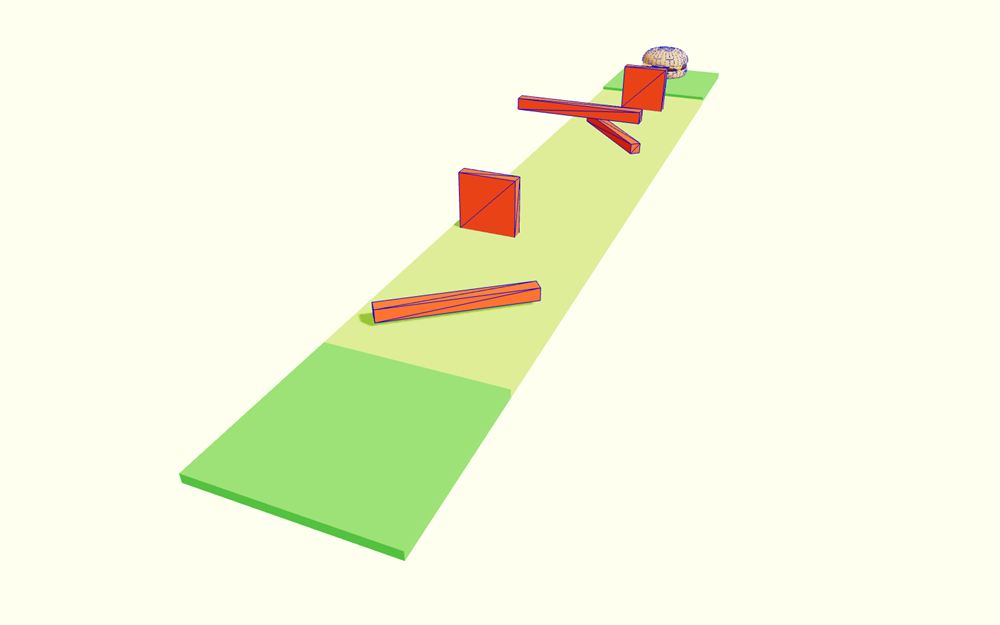
你可能会注意到关卡末尾的阴影不工作。这是因为平行光光源的阴影贴图没有覆盖整个关卡。别担心,我们稍后会修复。
边界
我们的关卡快完成了。现在需要添加墙壁和碰撞体来界定关卡,并防止玩家陷进地板。
组件
在 Level.jsx 中创建一个 Bounds 函数组件:
function Bounds()
{
    return <>
    </>
}
在 Level 中实例化它:
export function Level({ count = 5, types = [ BlockSpinner, BlockAxe, BlockLimbo ] })
{
    // ...

    return <>
        {/* ... */}

        <Bounds />
    </>
}
我们希望能够通过属性控制 Bounds 的长度。
给 Bound 组件添加一个 length prop:
function Bounds({ length = 1 })
{
    return <>
    </>
}
在 Level 中,把 length 属性设为 count + 2(因为 count 是陷阱数量,我们还需要加上起点和终点方块):
export function Level({ count = 5, types = [ BlockSpinner, BlockAxe, BlockLimbo ] })
{
    // ...

    return <>
        {/* ... */}

        <Bounds length={ count + 2 } />
    </>
}
墙壁
我们从右边的墙开始。它厚 0.3、高 1.5,覆盖从起点到终点的整个关卡。
你可以自己尝试,但为了节省时间,这里是带有正确属性的 <mesh>:
function Bounds({ length = 1 })
{
    return <>
        <mesh
            position={ [ 2.15, 0.75, - (length * 2) + 2 ] }
            geometry={ boxGeometry }
            material={ wallMaterial }
            scale={ [ 0.3, 1.5, 4 * length ] }
        />
    </>
}
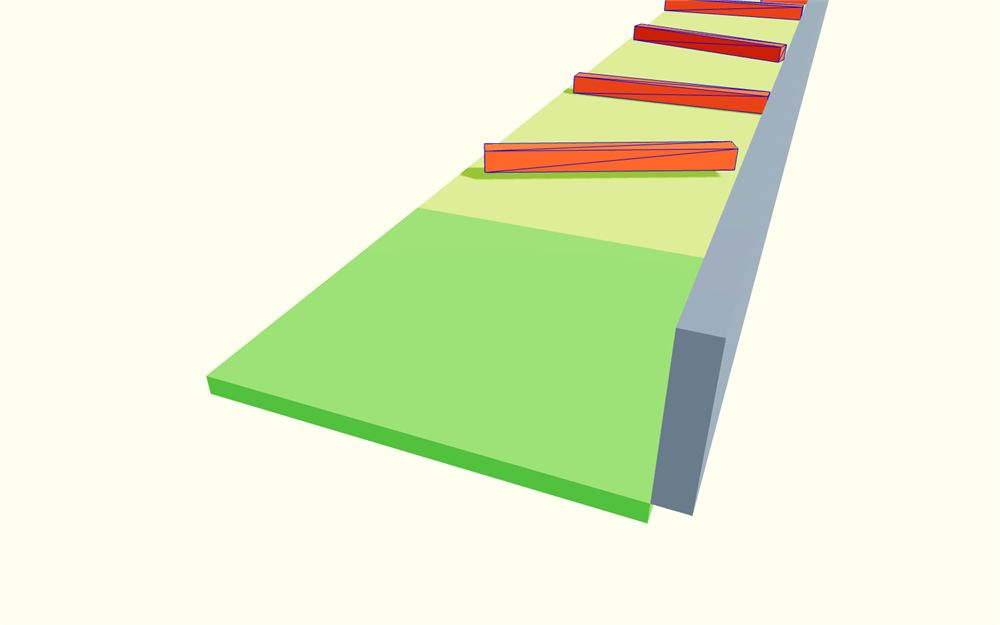
由于光从右边照来,只有右边的墙需要投射阴影。
给 <mesh> 添加 castShadows:
<mesh
    position={ [ 2.15, 0.75, - (length * 2) + 2 ] }
    geometry={ boxGeometry }
    material={ wallMaterial }
    scale={ [ 0.3, 1.5, 4 * length ] }
    castShadow
/>
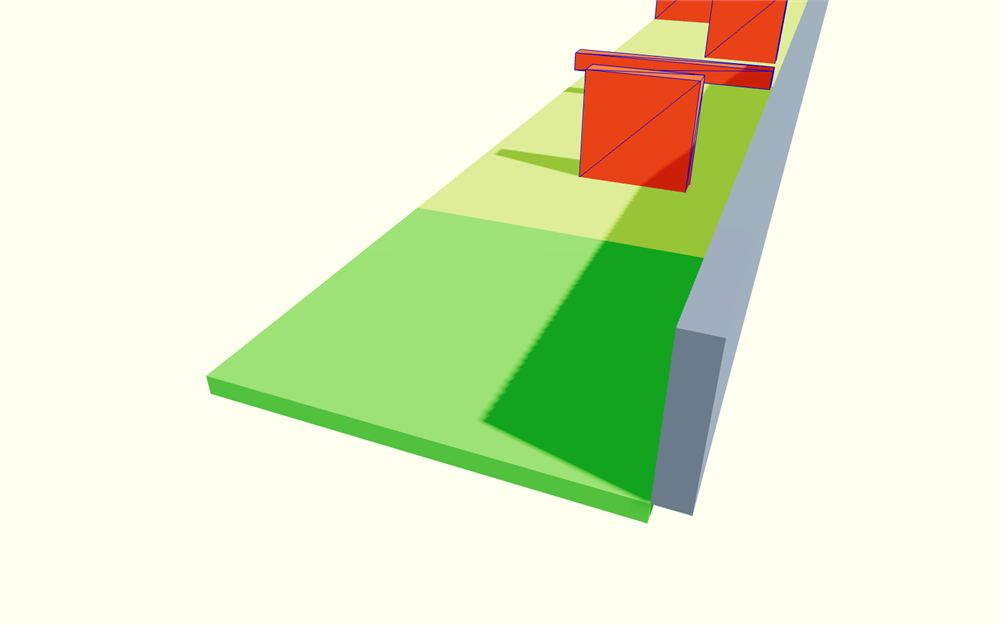
对于左边的墙,复制右边的墙 <mesh> 并反转它的 x 位置:
function Bounds({ length = 1 })
{
    return <>
        <mesh
            position={ [ 2.15, 0.75, - (length * 2) + 2 ] }
            geometry={ boxGeometry }
            material={ wallMaterial }
            scale={ [ 0.3, 1.5, 4 * length ] }
            castShadow
        />
        <mesh
            position={ [ - 2.15, 0.75, - (length * 2) + 2 ] }
            geometry={ boxGeometry }
            material={ wallMaterial }
            scale={ [ 0.3, 1.5, 4 * length ] }
            castShadow
        />
    </>
}
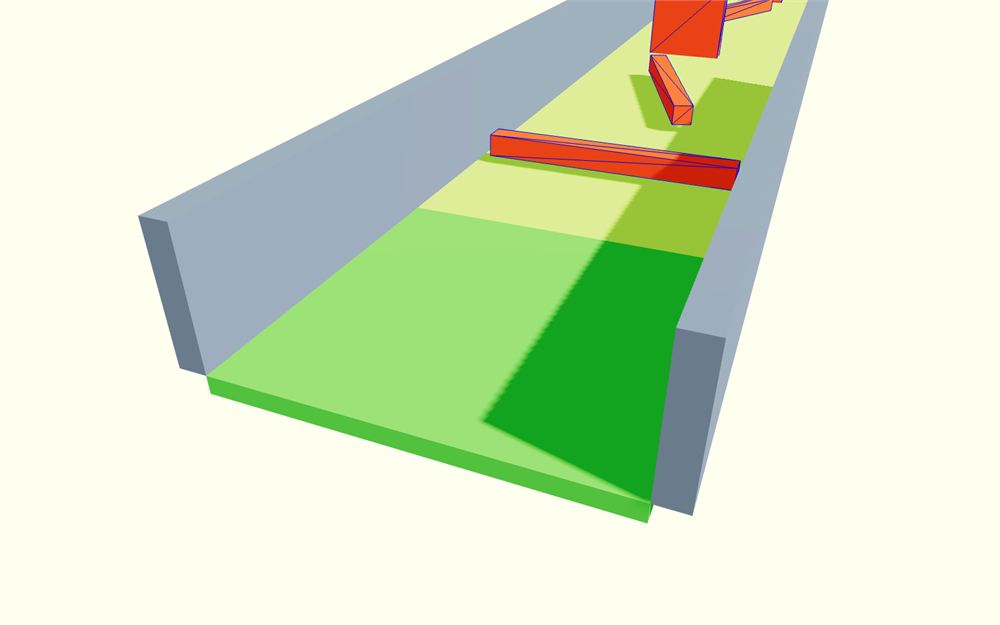
把 castShadow 换成 receiveShadow:
<mesh
    position={ [ - 2.15, 0.75, - (length * 2) + 2 ] }
    geometry={ boxGeometry }
    material={ wallMaterial }
    scale={ [ 0.3, 1.5, 4 * length ] }
    receiveShadow
/>
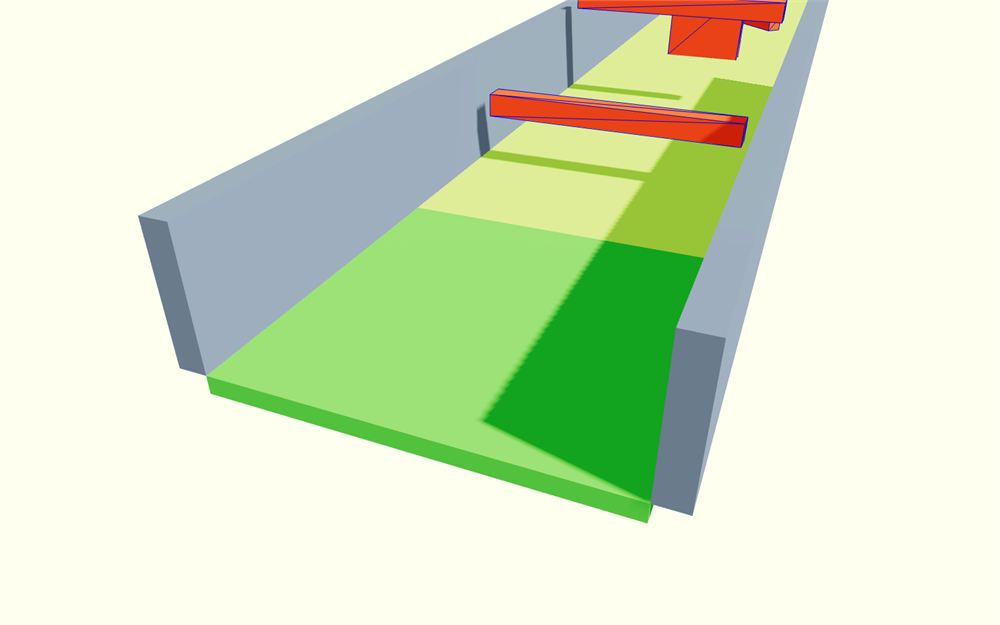
我们还需要在关卡尽头加一面墙。复制左边的墙 <mesh>,并设置以下坐标:
function Bounds({ length = 1 })
{
    return <>
        <mesh
            position={ [ 2.15, 0.75, - (length * 2) + 2 ] }
            geometry={ boxGeometry }
            material={ wallMaterial }
            scale={ [ 0.3, 1.5, 4 * length ] }
            castShadow
        />
        <mesh
            position={ [ - 2.15, 0.75, - (length * 2) + 2 ] }
            geometry={ boxGeometry }
            material={ wallMaterial }
            scale={ [ 0.3, 1.5, 4 * length ] }
            receiveShadow
        />
        <mesh
            position={ [ 0, 0.75, - (length * 4) + 2] }
            geometry={ boxGeometry }
            material={ wallMaterial }
            scale={ [ 4, 1.5, 0.3 ] }
            receiveShadow
        />
    </>
}
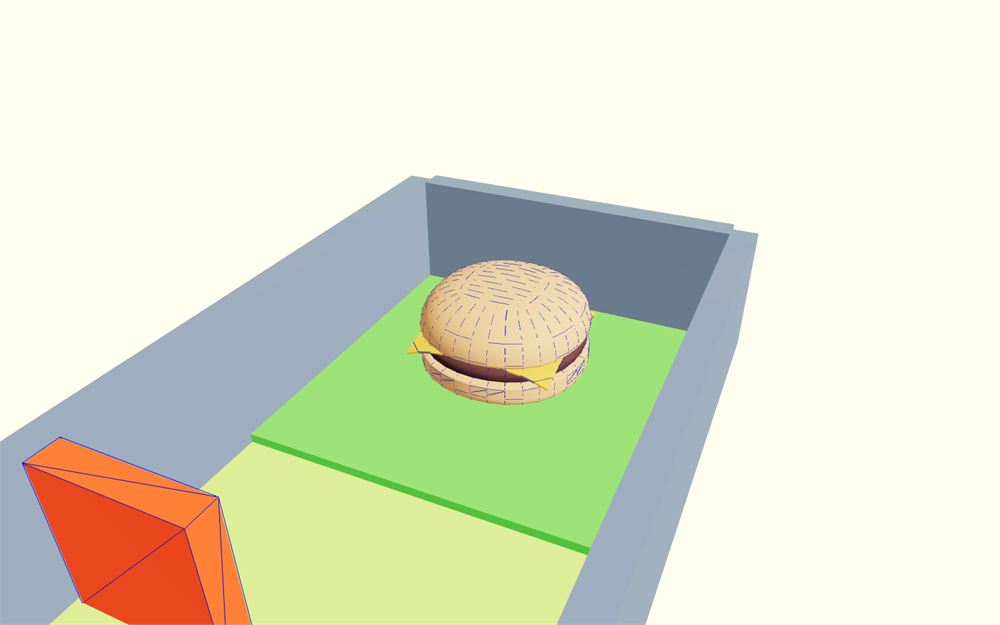
现在我们可以把这三个 <mesh> 包裹在一个 type 为 'fixed' 的 <RigidBody> 中:
function Bounds({ length = 1 })
{
    return <>
        <RigidBody type="fixed">
            <mesh
                position={ [ 2.15, 0.75, - (length * 2) + 2 ] }
                geometry={ boxGeometry }
                material={ wallMaterial }
                scale={ [ 0.3, 1.5, 4 * length ] }
                castShadow
            />
            <mesh
                position={ [ - 2.15, 0.75, - (length * 2) + 2 ] }
                geometry={ boxGeometry }
                material={ wallMaterial }
                scale={ [ 0.3, 1.5, 4 * length ] }
                receiveShadow
            />
            <mesh
                position={ [ 0, 0.75, - (length * 4) + 2] }
                geometry={ boxGeometry }
                material={ wallMaterial }
                scale={ [ 4, 1.5, 0.3 ] }
                receiveShadow
            />
        </RigidBody>
    </>
}
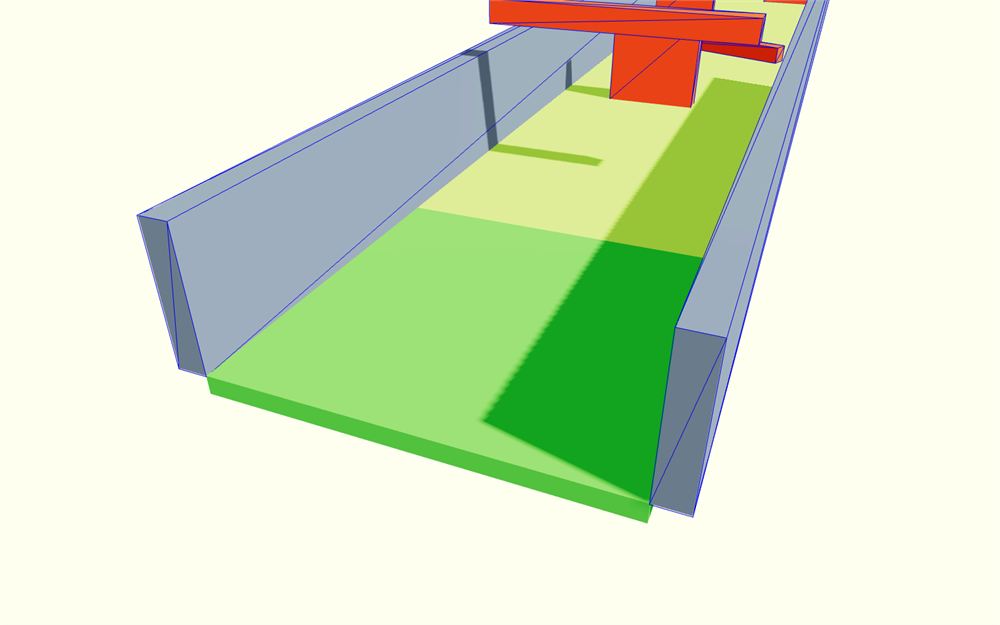
React Three Rapier 为每个 <mesh> 自动创建了一个长方体碰撞体。
在 <RigidBody> 上把 restitution 设置为 0.2,friction 设置为 0:
function Bounds({ length = 1 })
{
    return <>
        <RigidBody type="fixed" restitution={ 0.2 } friction={ 0 }>
            {/* ... */}
        </RigidBody>
    </>
}
地板
我们遗漏了最后一个重要的碰撞体,那就是地板。
我们将手动在 <RigidBody> 中添加一个 <CuboidCollider>,并定位它使其覆盖整个地板。
从 @react-three/rapier 导入 CuboidCollider:
import { CuboidCollider, RigidBody } from '@react-three/rapier'把它添加到 <RigidBody> 中,type 设为 'fixed':
function Bounds({ length = 1 })
{
    return <>
        <RigidBody type="fixed" restitution={ 0.2 } friction={ 0 }>
            {/* ... */}
            <CuboidCollider args={ [ 1, 1, 1 ] } />
        </RigidBody>
    </>
}
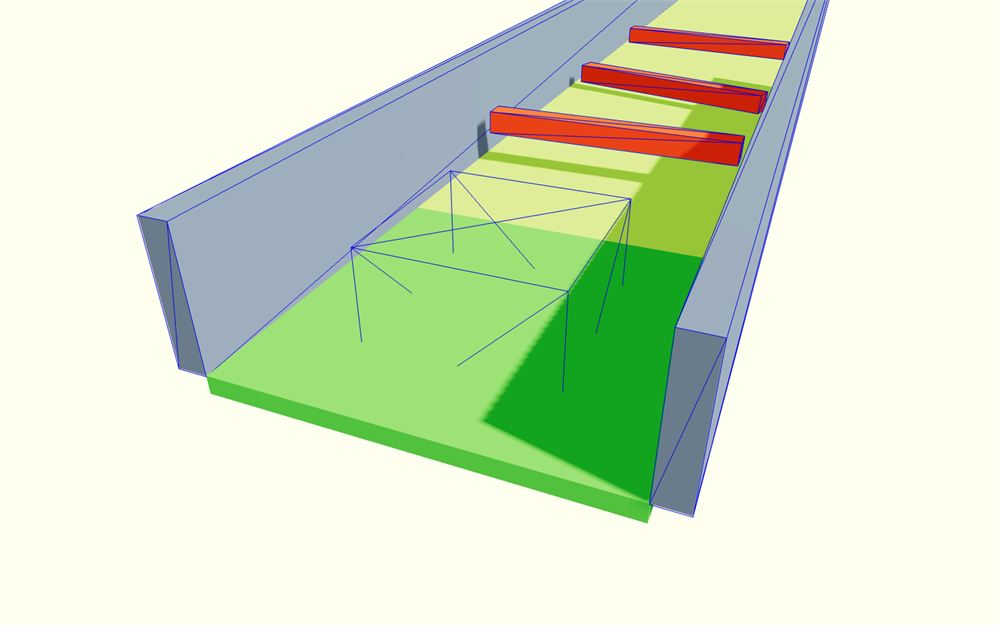
移动并缩放它,使其覆盖整个地板:
<CuboidCollider
    args={ [ 2, 0.1, 2 * length ] }
    position={ [ 0, -0.1, - (length * 2) + 2 ] }
/>
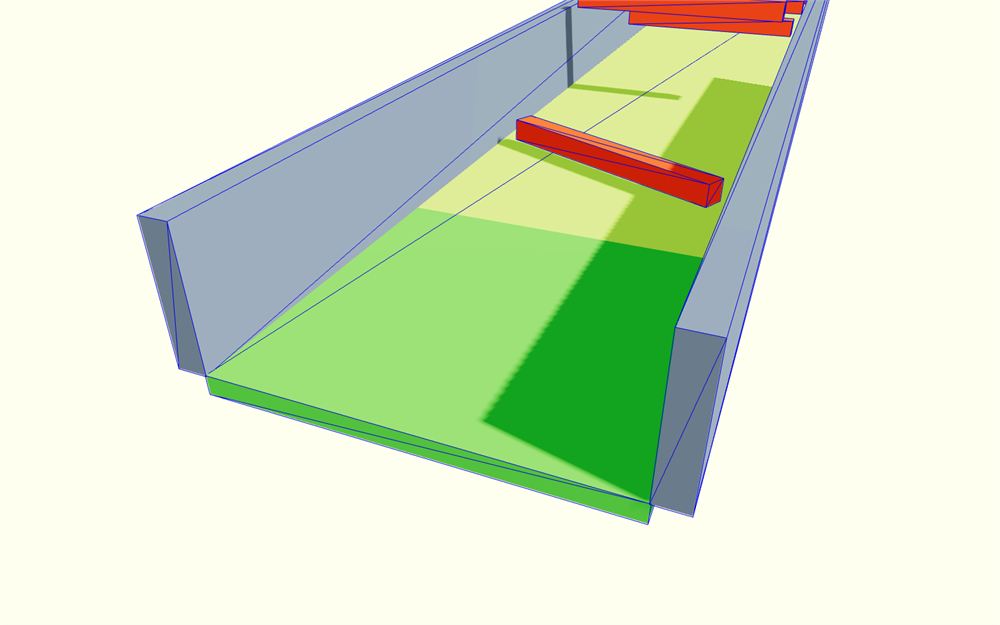
最后,把它的 restitution 设置为 0.2,friction 设置为 1,以在弹珠和地板之间产生摩擦力。这样,旋转弹珠就会让它移动,而不是在光滑的地板上打滑:
<CuboidCollider
    args={ [ 2, 0.1, 2 * length ] }
    position={ [ 0, -0.1, - (length * 2) + 2 ] }
    restitution={ 0.2 }
    friction={ 1 }
/>
现在,关卡(暂时)完成了。
玩家
接下来是玩家。
正如前面提到的,我们要扮演一颗用键盘移动的弹珠。
组件
在 /src/ 中创建 Player.jsx 文件,并导出一个 Player 函数组件:
export default function Player()
{
    return <>
    </>
}
在 Experience 中,导入 Player 并把它添加到 <Physics> 中:
import Player from './Player.jsx'

export default function Experience()
{
    return <>

        {/* ... */}

        <Physics>
            {/* ... */}
            <Player />
        </Physics>

    </>
}
球
对于实际的弹珠,创建一个 <mesh>,几何体用 <icosahedronGeometry>,材质用 <meshStandardMaterial>。把它的 color 设置为 "mediumpurple":
export default function Player()
{
    return <>
        <mesh>
            <icosahedronGeometry args={ [ 0.3, 1 ] } />
            <meshStandardMaterial color="mediumpurple" />
        </mesh>
    </>
}
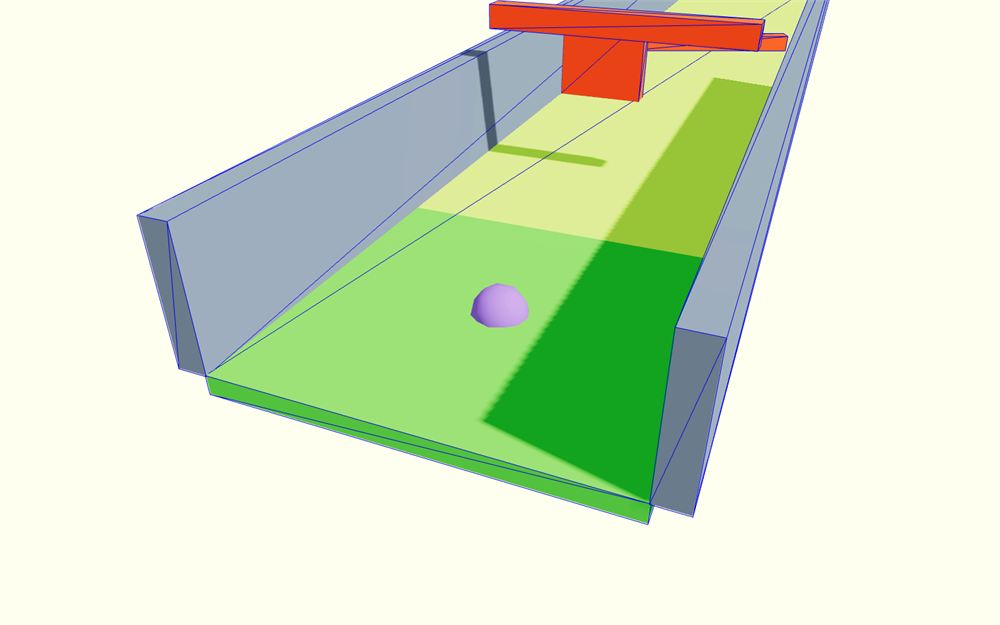
给 <mesh> 添加 castShadow(我们不添加 receiveShadow,这样即使处于阴影中,球体也保持清晰可见):
<mesh castShadow>
    <icosahedronGeometry args={ [ 0.3, 1 ] } />
    <meshStandardMaterial color="mediumpurple" />
</mesh>
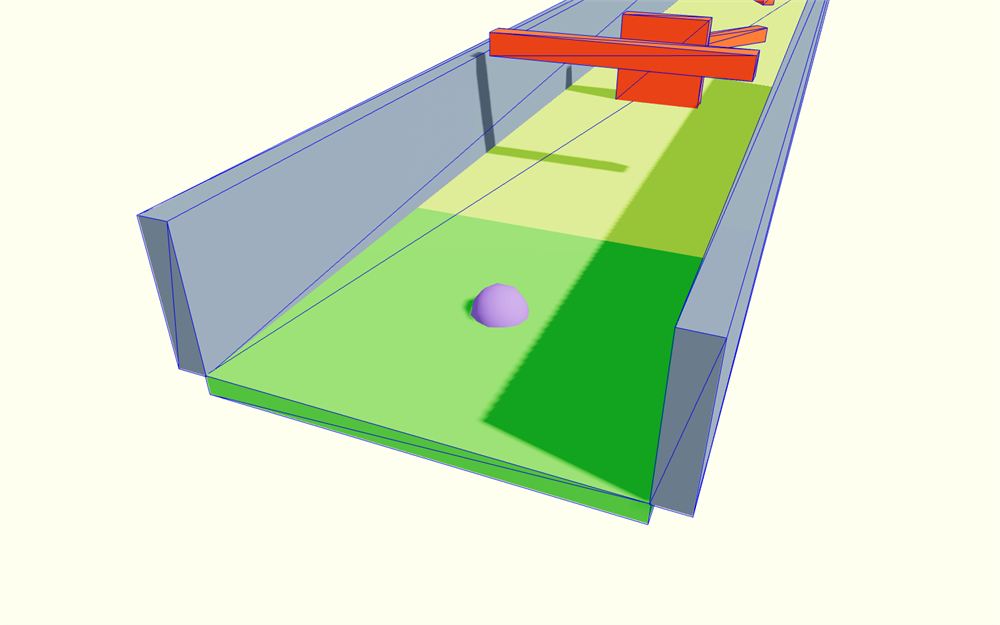
由于球体会旋转,我们希望玩家能注意到这种旋转。为了提高旋转的可见性,我们可以给 <meshStandardMaterial> 添加 flatShading:
<mesh castShadow>
    <icosahedronGeometry args={ [ 0.3, 1 ] } />
    <meshStandardMaterial flatShading color="mediumpurple" />
</mesh>
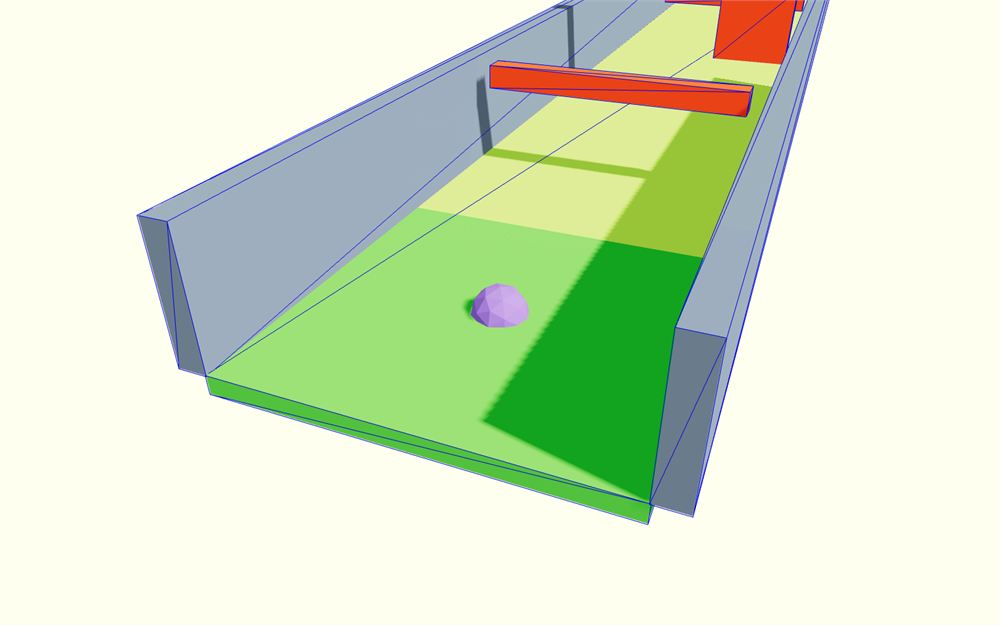
物理
给球添加物理非常简单。
首先,从 @react-three/rapier 导入 RigidBody:
import { RigidBody } from '@react-three/rapier'然后,把 <mesh> 包裹在 <RigidBody> 中:
export default function Player()
{
    return <>
        <RigidBody>
            <mesh castShadow>
                <icosahedronGeometry args={ [ 0.3, 1 ] } />
                <meshStandardMaterial flatShading color="mediumpurple" />
            </mesh>
        </RigidBody>
    </>
}
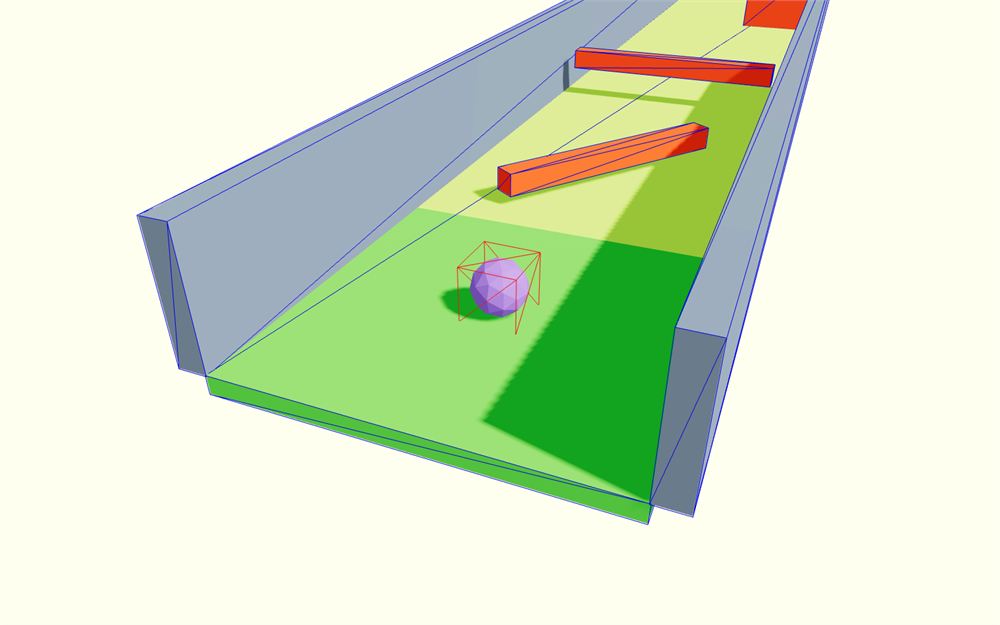
由于 Player 组件除了 <RigidBody> 之外不会返回任何东西,我们可以移除 Fragment(<>...</>):
export default function Player()
{
    return <RigidBody>
        <mesh castShadow>
            <icosahedronGeometry args={ [ 0.3, 1 ] } />
            <meshStandardMaterial flatShading color="mediumpurple" />
        </mesh>
    </RigidBody>
}
用 position 属性把 <RigidBody> 抬高,让它从稍微高于地板的位置开始:
<RigidBody position={ [ 0, 1, 0 ] }>
    {/* ... */}
</RigidBody>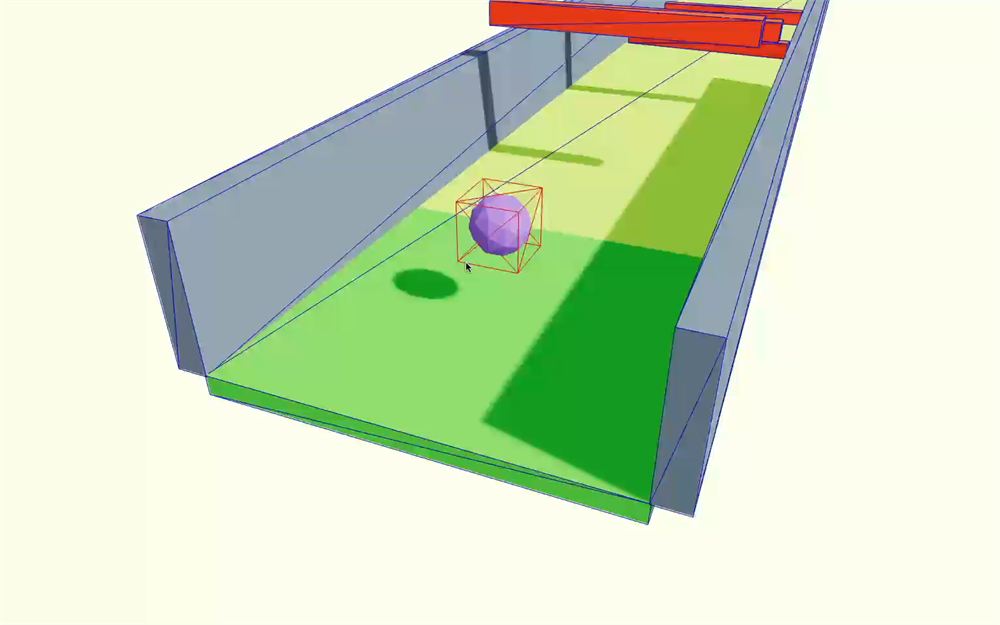
默认的碰撞体是长方体,如果你想让它像弹珠一样滚动就不太理想。
添加一个 colliders 属性,设为 "ball":
<RigidBody colliders="ball" position={ [ 0, 1, 0 ] }>
    {/* ... */}
</RigidBody>
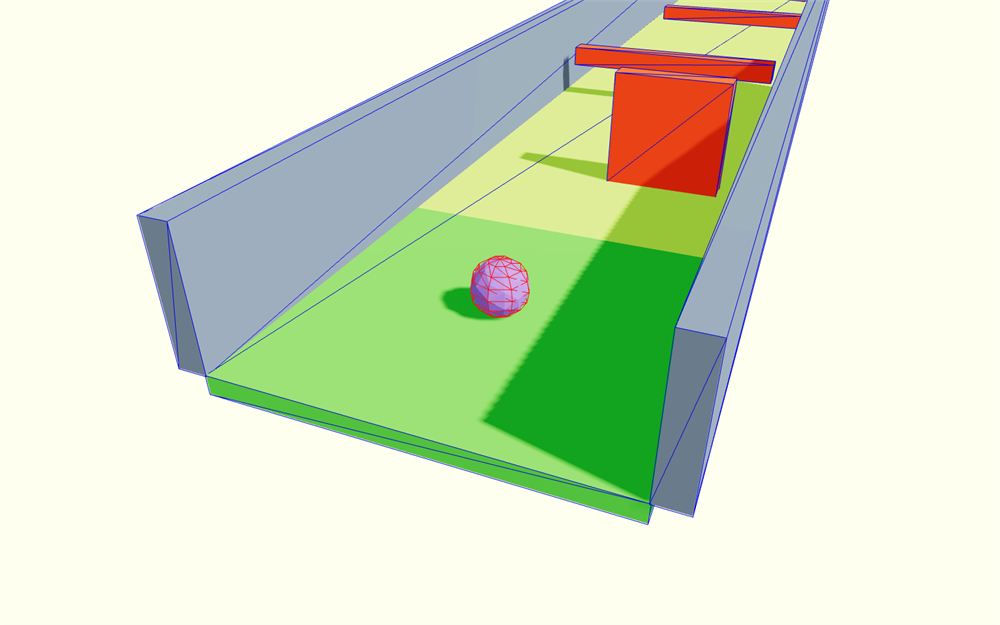
把它的 restitution 设置为 0.2,friction 设置为 1,这样弹珠会反弹一点点,而不会过多地与地板摩擦:
<RigidBody colliders="ball" restitution={ 0.2 } friction={ 1 } position={ [ 0, 1, 0 ] }>
    {/* ... */}
</RigidBody>
几乎看不出来,但几秒后你会发现玩家辅助器的颜色变暗了。这意味着刚体现在处于休眠状态,不会被检测。
这会阻止用户对它施加力,我们的球体会待在原地,即使玩家按方向键也没用。
为了修复这个问题,我们将通过添加 canSleep 属性并设为 false 来防止刚体休眠:
<RigidBody canSleep={ false } colliders="ball" restitution={ 0.2 } friction={ 1 } position={ [ 0, 1, 0 ] }>
    {/* ... */}
</RigidBody>
控制
是时候添加控制,让玩家能够移动弹珠了。
本节课我们只关注桌面端和键盘操作。完成课程后,欢迎你添加更多支持,比如设备方向或手柄。
此外,我们希望玩家既能用 WASD 也能用方向键来控制弹珠的方向。
最后,我们希望在按下 Space 键时让弹珠跳跃。
KeyboardControls
在 React 中,给游戏添加键盘控制曾经很繁琐,有各种并不总是适合该任务的解决方案。
好消息是,有一个名为 KeyboardControls 的 drei 辅助工具,可以正好满足我们的需求。
<KeyboardControls> 需要包裹每一个需要感知哪些按键被按下的组件。本节课稍后,我们会在 <Canvas> 外部添加一个界面,这个界面会对键盘做出响应。
这意味着我们需要把 <KeyboardControls> 设置在顶层。
在 index.jsx 中,从 @react-three/drei 导入 KeyboardControls:
import { KeyboardControls } from '@react-three/drei'然后,把 <Canvas> 包裹在 <KeyboardControls> 中,并把它的 map 属性设为 []:
root.render(
    <KeyboardControls map={ [] }>
        <Canvas
            shadows
            camera={ {
                fov: 45,
                near: 0.1,
                far: 200,
                position: [ 2.5, 4, 6 ]
            } }
        >
            <Experience />
        </Canvas>
    </KeyboardControls>
)
在那个 map 数组中,我们需要把想要观察的每个按键表示为一个对象,包含 name 以及一个作为另一个数组的 keys 列表,表示哪些按键应该触发该变化。
例如,我们希望 ArrowUp 和 KeyW 都能让玩家 'forward'(向前):
<KeyboardControls
    map={ [
        { name: 'forward', keys: [ 'ArrowUp', 'KeyW' ] },
    ] }
>
    {/* ... */}
</KeyboardControls>
同样地,我们可以为 'backward'、'leftward'、'rightward' 和 'jump' 做同样的处理:
<KeyboardControls
    map={ [
        { name: 'forward', keys: [ 'ArrowUp', 'KeyW' ] },
        { name: 'backward', keys: [ 'ArrowDown', 'KeyS' ] },
        { name: 'leftward', keys: [ 'ArrowLeft', 'KeyA' ] },
        { name: 'rightward', keys: [ 'ArrowRight', 'KeyD' ] },
        { name: 'jump', keys: [ 'Space' ] },
    ] }
>
    {/* ... */}
</KeyboardControls>
如你所见,我们使用像 'KeyW' 这样的按键名称,而不是单纯的 'w'。'w' 只指字符,而不指按键的位置。
对于 QWERTY 键盘,用 'w' 代替 'KeyW' 会得到相同的效果,但对于非 QWERTY 键盘(比如法国的),就行不通,因为字符的位置不同。
对非 QWERTY 键盘友好一点;对我们来说这已经够难了。
让它滚动
现在回到 Player.jsx 文件。
由于我们要在相应按键被按下时施力,需要在 useFrame 中完成。
从 @react-three/fiber 导入 useFrame:
import { useFrame } from '@react-three/fiber'在 Player 中调用 useFrame 并传入一个函数:
export default function Player()
{
    useFrame(() =>
    {

    })

    // ...
}
首先,我们需要获取按键及其状态。
为此,首先需要从 @react-three/drei 导入 useKeyboardControls:
import { useKeyboardControls } from '@react-three/drei'这个 hook 会返回一个包含两样东西的数组:
- 一个用于订阅按键变化的函数(用于知道跳跃键何时被按下)
- 一个用于获取按键当前状态的函数(用于知道
WASD键是否被按下)
由于 useKeyboardControls 返回一个数组,我们可以把它解构为 subscribeKeys 和 getKeys:
export default function Player()
{
    const [ subscribeKeys, getKeys ] = useKeyboardControls()

    // ...
}
在 useFrame 中,调用 getKeys,把它赋值给 keys 变量并打印:
export default function Player()
{
    const [ subscribeKeys, getKeys ] = useKeyboardControls()

		useFrame(() =>
		{
		    const keys = getKeys()
		    console.log(keys)
		})

    // ...
}
现在按下各个 WASD 或 Space 键,看它们在日志里变成 true。
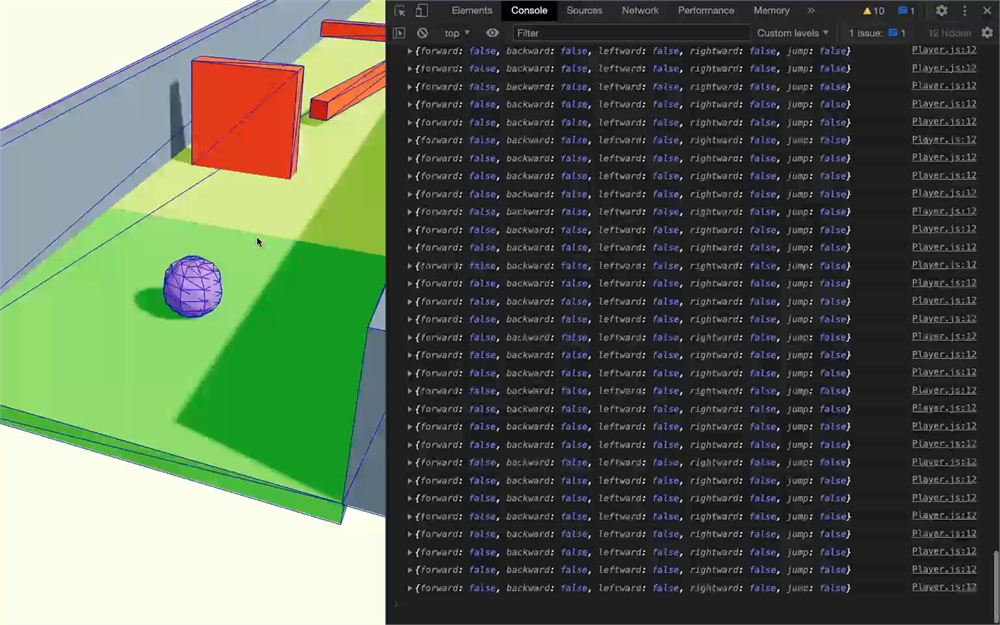
为了方便,我们可以解构它,只需要 forward、backward、leftward 和 rightward(不需要 jump):
useFrame(() =>
{
    const { forward, backward, leftward, rightward } = getKeys()

})
为了让弹珠移动,我们将同时施加一个滚动力和一个推力。这样,即使弹珠在空中,玩家仍然能对轨迹有一定的控制。这在电子游戏里很常见。
要让弹珠滚动,我们使用 applyTorqueImpulse;要推动弹珠,我们使用 applyImpulse。
但首先,我们需要一个指向刚体的引用。
从 react 导入 useRef:
import { useRef } from 'react'创建一个 body 引用:
export default function Player()
{
    const body = useRef()

    // ...
}
用 ref 属性把它赋给 <RigidBody>:
export default function Player()
{
    const body = useRef()

    // ...

    return <RigidBody ref={ body } canSleep={ false } colliders="ball" restitution={ 0.2 } friction={ 1 } position={ [ 0, 1, 0 ] }>
	      {/* ... */}
	  </RigidBody>
}
在 useFrame 中,创建一个 impulse 对象和一个 torque 对象,把它们的 x、y 和 z 属性设为 0:
useFrame(() =>
{
    const { forward, backward, leftward, rightward } = getKeys()

    const impulse = { x: 0, y: 0, z: 0 }
    const torque = { x: 0, y: 0, z: 0 }
})
它们分别是推力和滚动力。我们把它们设为 0,这样默认情况下什么都不会动。
用 applyImpulse 和 applyTorqueImpulse 把这些冲量和力矩施加到 body.current 上:
useFrame(() =>
{
    const { forward, backward, leftward, rightward } = getKeys()

    const impulse = { x: 0, y: 0, z: 0 }
    const torque = { x: 0, y: 0, z: 0 }

    body.current.applyImpulse(impulse)
    body.current.applyTorqueImpulse(torque)
})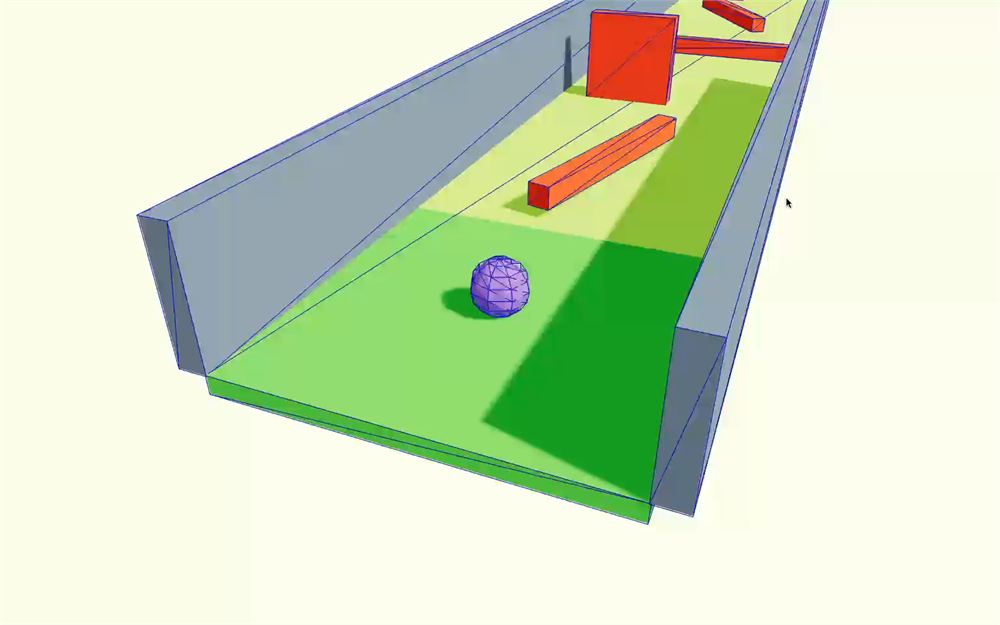
什么都没动,因为 impulse 和 torque 都设为 0,但现在我们可以根据被按下的按键来修改这些值。
为了测试是否生效,你可以在 impulse 中随意修改任意值:
const impulse = { x: 0.001, y: 0, z: 0 }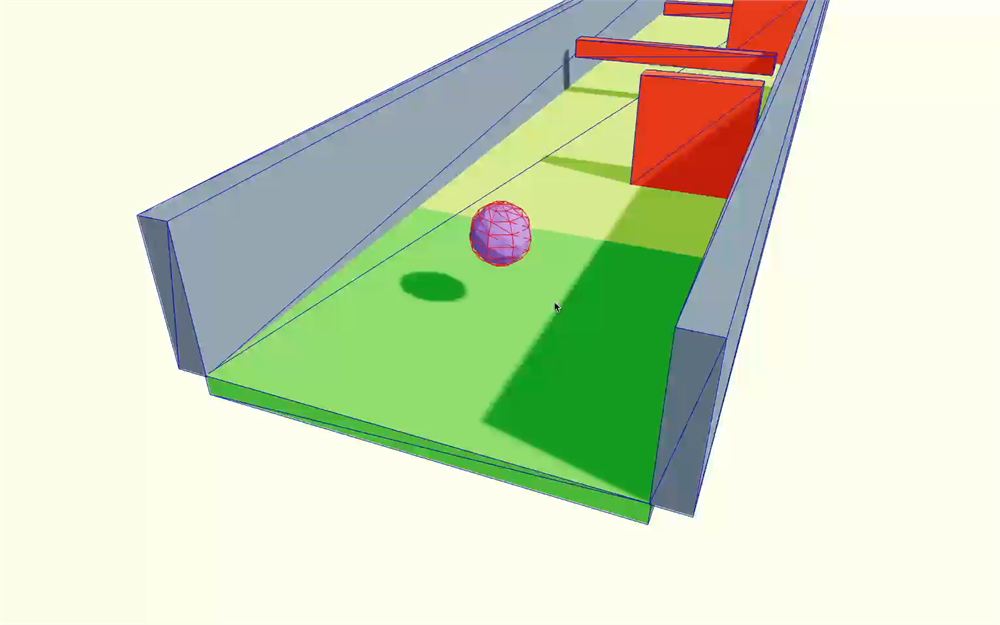
很好。现在弹珠动了。
把值改回 0:
const impulse = { x: 0, y: 0, z: 0 }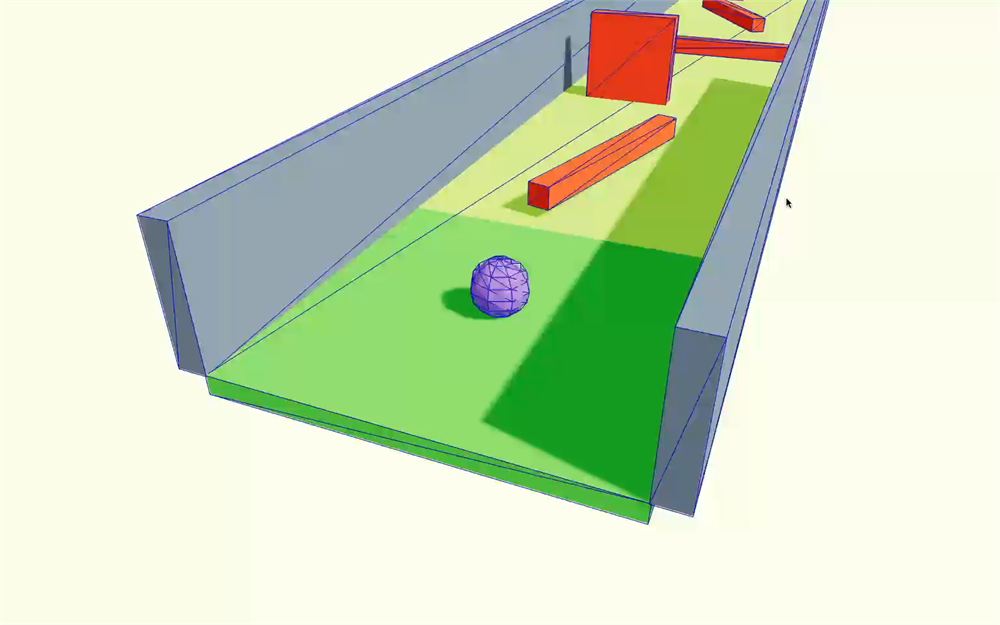
在施加力之前,我们需要处理帧率的变化。
如果我们在帧率更高的电脑上施加同样的冲量,弹珠会移动得更快,因为 applyImpulse 会被更频繁地调用。
首先,我们需要获取距离上一帧所花的时间,可以从 useFrame 的参数中拿到:
useFrame((state, delta) =>
{
    // ...
})
现在,我们可以用 delta 创建 impulseStrength 和 torqueStrength 变量:
useFrame((state, delta) =>
{
    const { forward, backward, leftward, rightward } = getKeys()

    const impulse = { x: 0, y: 0, z: 0 }
    const torque = { x: 0, y: 0, z: 0 }

    const impulseStrength = 1 * delta
    const torqueStrength = 1 * delta

    // ...
})
那个 1 看起来没什么用,但它是一个占位符,稍后我们会用一个值来替换它,以控制 impulse 和 torque 的强度。
太好了!现在我们准备好让弹珠移动了。
我们从 forward(向前)开始。
如果 forward 为 true,我们想把弹珠推向 -z 方向(朝向关卡尽头):
useFrame((state, delta) =>
{
    const { forward, backward, leftward, rightward } = getKeys()

    const impulse = { x: 0, y: 0, z: 0 }
    const torque = { x: 0, y: 0, z: 0 }

    const impulseStrength = 1 * delta
    const torqueStrength = 1 * delta

    if(forward)
    {
        impulse.z -= impulseStrength
    }

    // ...
})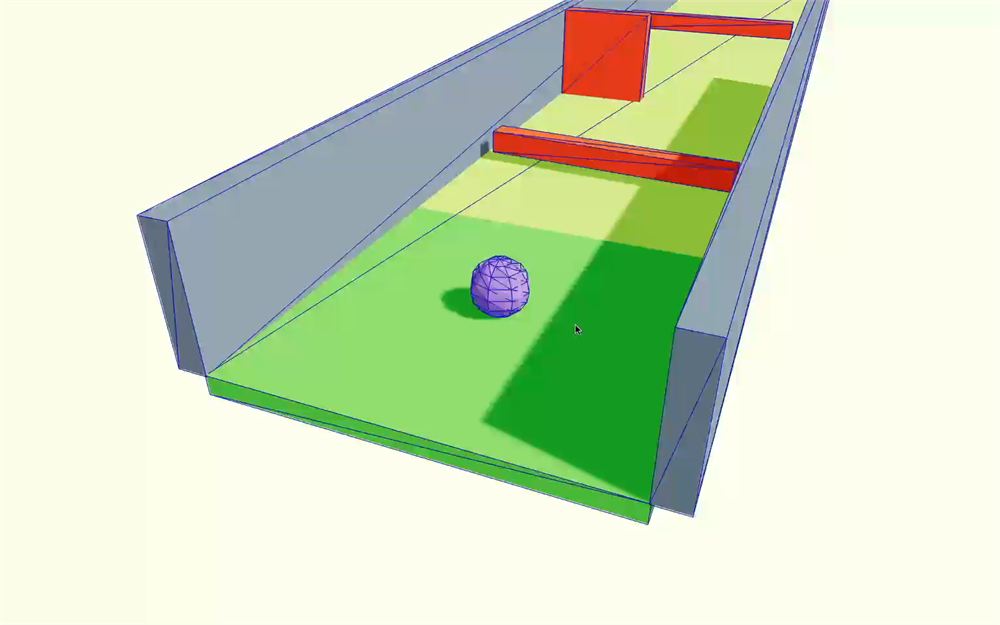
按下 W 或 ArrowUp 键应该能让弹珠移动。
现在我们也可以让它滚动了,但应该是在 x 轴上:
useFrame((state, delta) =>
{
    const { forward, backward, leftward, rightward } = getKeys()

    const impulse = { x: 0, y: 0, z: 0 }
    const torque = { x: 0, y: 0, z: 0 }

    const impulseStrength = 1 * delta
    const torqueStrength = 1 * delta

    if(forward)
    {
        impulse.z -= impulseStrength
        torque.x -= torqueStrength
    }

    // ...
})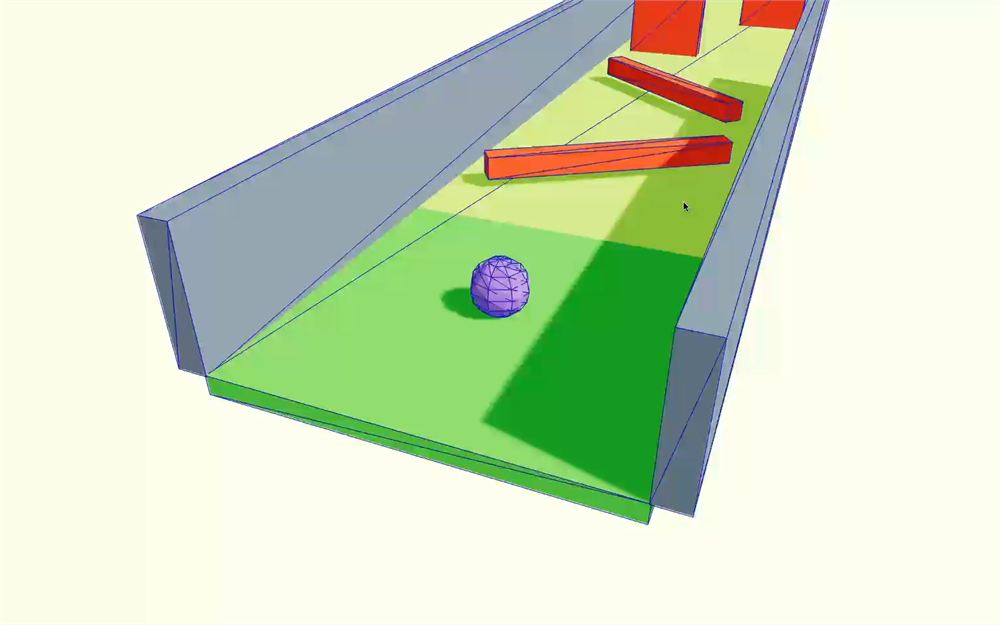
弹珠太快了,但我们可以通过替换两个强度变量中的 1 来控制它:
useFrame((state, delta) =>
{
    // ...

    const impulseStrength = 0.6 * delta
    const torqueStrength = 0.2 * delta

    // ...
})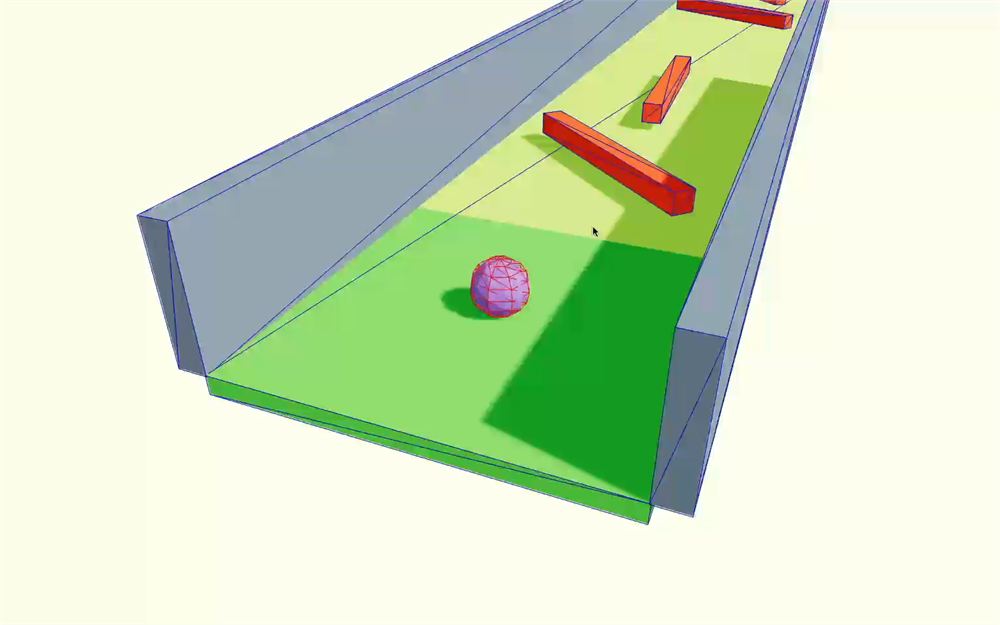
还是有点太快,但先保持这样,因为稍后我们会用某个东西让它稍微慢下来。
现在你可以自己尝试设置另外 3 个按键(你可能需要分别尝试冲量和力矩参数,这样能清楚看到每种力是如何施加的):
useFrame((state, delta) =>
{
    // ...

    if(forward)
    {
        impulse.z -= impulseStrength
        torque.x -= torqueStrength
    }

    if(rightward)
    {
        impulse.x += impulseStrength
        torque.z -= torqueStrength
    }

    if(backward)
    {
        impulse.z += impulseStrength
        torque.x += torqueStrength
    }

    if(leftward)
    {
        impulse.x -= impulseStrength
        torque.z += torqueStrength
    }

    // ...
}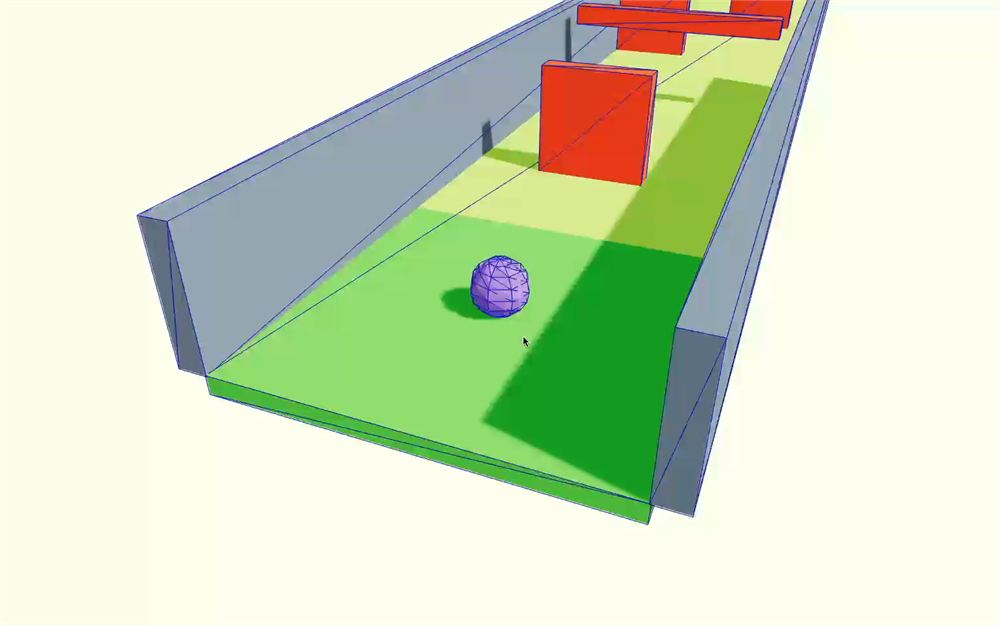
效果很好,但弹珠似乎会一直滚下去。刚体与地板摩擦,但这只让弹珠旋转并继续前进。我们希望弹珠能自行慢下来,而不必撞到墙壁或障碍物。
为此,我们将在 <RigidBody> 上添加所谓的“阻尼(damping)”。
阻尼会减小施加到刚体上的力,并且可以分别为平移和旋转设置。
在 <RigidBody> 上把 linearDamping 设置为 0.5,angularDamping 设置为 0.5:
<RigidBody
    ref={ body }
    canSleep={ false }
    colliders="ball"
    restitution={ 0.2 }
    friction={ 1 }
    linearDamping={ 0.5 }
    angularDamping={ 0.5 }
    position={ [ 0, 1, 0 ] }
>
    {/* ... */}
</RigidBody>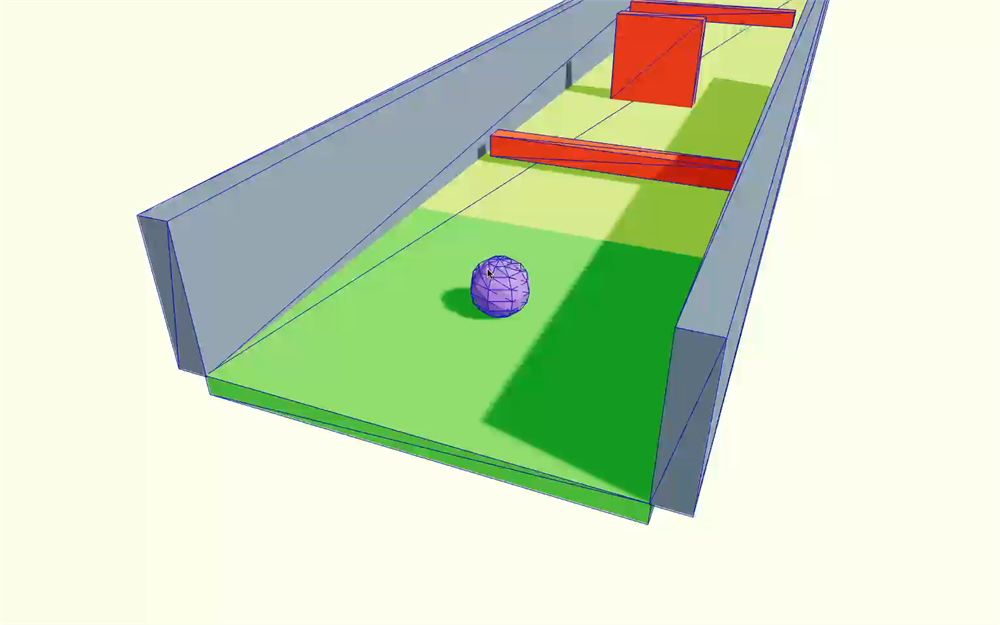
现在,如果你松开按键,弹珠会自行停下。
让它跳跃
我们现在希望在按下 Space 键时让弹珠跳跃。
这个略有不同,因为我们不希望在按住 Space 键时每一帧都让它跳。我们想获知 jump 键何时变化,如果它从“未按下”切换到“已按下”状态,就让弹珠跳跃。
为此,我们需要“订阅”按键值的变化,这正是我们之前从 useKeyboardControls() 中获取的 subscribeKeys 的用途。
不过,我们只想订阅该事件一次,我们将使用 useEffect 来实现。
从 react 导入 useEffect:
import { useEffect, useRef } from 'react'调用它并传入一个空数组作为依赖项,让它在首次渲染后只调用一次:
export default function Player()
{
    const body = useRef()
    const [ subscribeKeys, getKeys ] = useKeyboardControls()

    useEffect(() =>
    {

    }, [])

    // ...
}
现在我们可以调用 subscribeKeys 并传入两个函数:
useEffect(() =>
{
    subscribeKeys(
        () =>
        {

        },
        () =>
        {

        }
    )
}, [])
在第一个函数中,我们需要把 state 作为参数获取:
useEffect(() =>
{
    subscribeKeys(
        (state) =>
        {

        },
        () =>
        {

        }
    )
}, [])
这个 state 是一个对象,包含我们在创建 <KeyboardControls> 时选择的所有按键(有点像 getKeys),我们将通过返回它来“选择”想要观察的那个:
useEffect(() =>
{
    subscribeKeys(
        (state) =>
        {
            return state.jump
        },
        () =>
        {

        }
    )
}, [])
由于这个函数唯一的指令是一个 return,我们可以这样写:
useEffect(() =>
{
    subscribeKeys(
        (state) => state.jump,
        () =>
        {

        }
    )
}, [])
我们刚刚创建的东西叫做“选择器(selector)”。
在第二个函数中,我们可以编写当选择器中的值变化时想要调用的指令,并且可以把实际的值作为参数获取:
useEffect(() =>
{
    subscribeKeys(
        (state) => state.jump,
        (value) =>
        {
            console.log('Jump?', value)
        }
    )
}, [])
按下 Space 键查看日志。
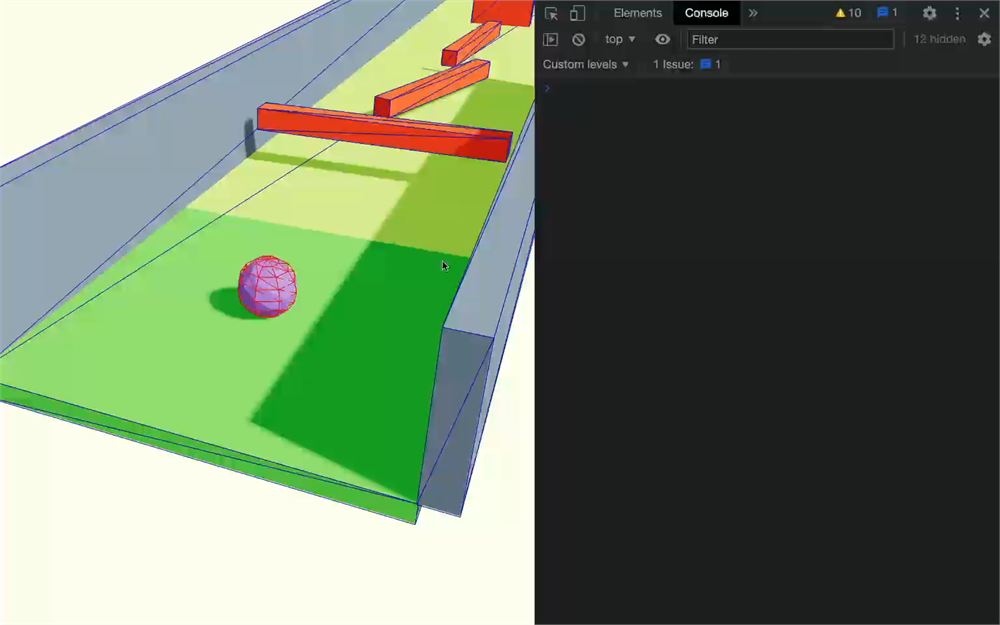
我们可以在 if 语句中判断 value 是否为 true(意味着玩家想要跳跃):
useEffect(() =>
{
    subscribeKeys(
        (state) => state.jump,
        (value) =>
        {
            if(value)
                console.log('Yes, jump!')
        }
    )
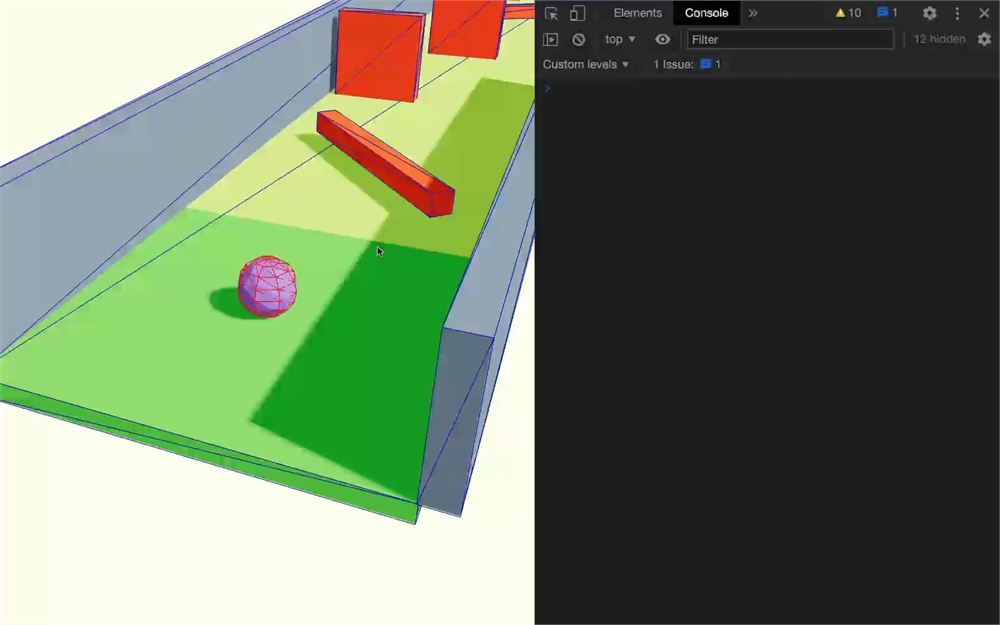
}, [])
为了方便,我们把 jump 函数写在 useEffect 外面,并在 if 语句中调用它:
export default function Player()
{
    // ...

    const jump = () =>
    {
        console.log('Yes, jump!')
    }

    useEffect(() =>
    {
        subscribeKeys(
            (state) => state.jump,
            (value) =>
            {
                if(value)
                    jump()
            }
        )
    }, [])

    // ...
}
我们试着用 applyImpulse 传入一个向上的 x、y、z 对象来让弹珠跳跃:
const jump = () =>
{
    body.current.applyImpulse({ x: 0, y: 0.5, z: 0 })
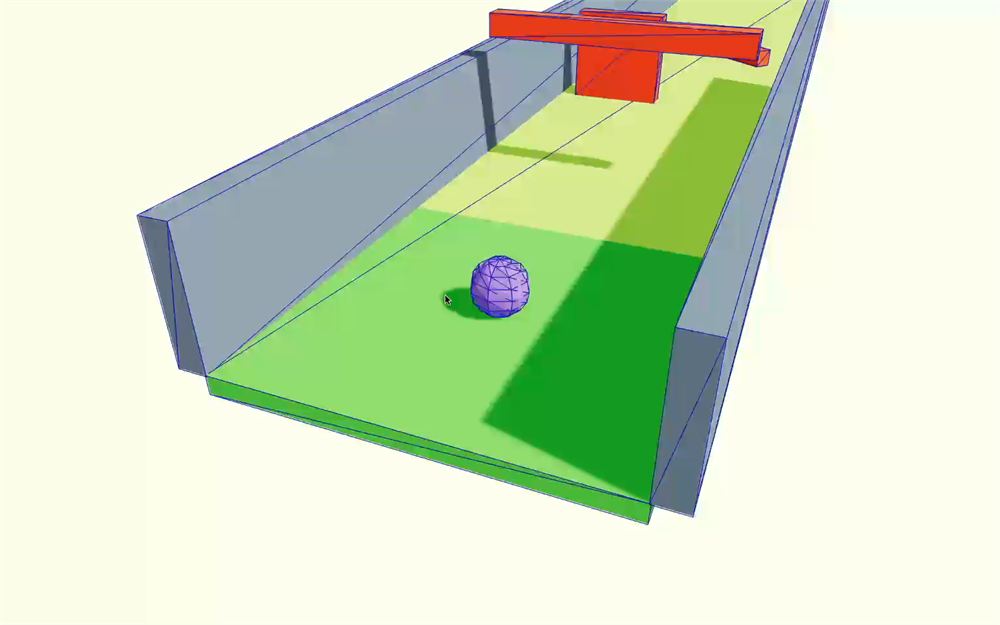
}
很好。它生效了!不过,如果弹珠已经在空中时你还继续按 Space 键,它会一直往上飞到无穷远。
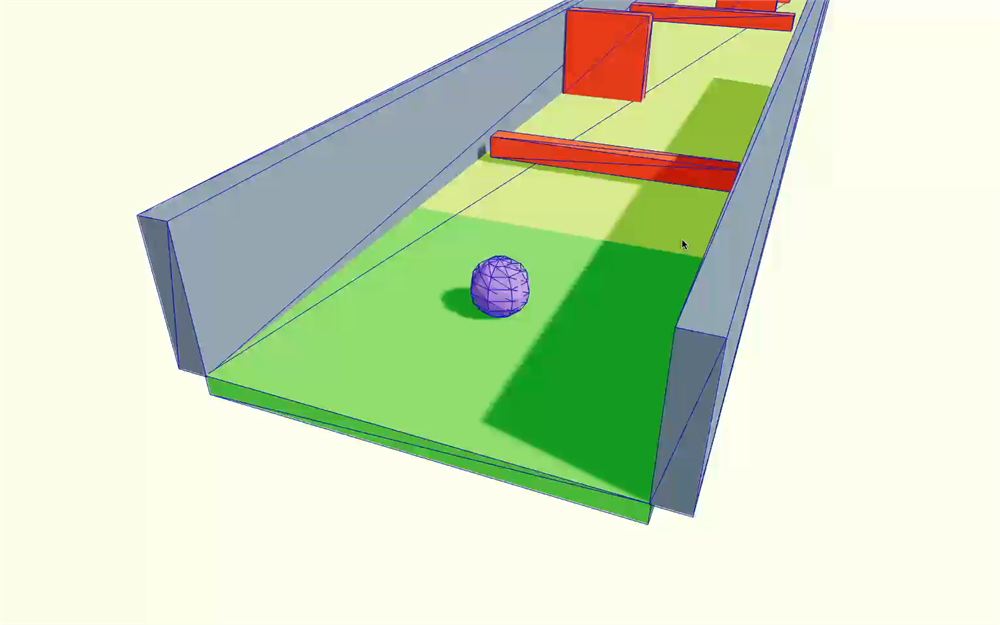
为了解决这个问题,我们将检测弹珠离它下方的东西有多远。为此,我们从弹珠下方朝下发射一条射线,看看碰撞点有多远。
这和 Three.js 中的射线投射非常相似,只是我们在 Rapier 世界里进行。
首先,我们需要设置射线的原点。我们用 translation 方法获取刚体位置,并向下移动 0.31,因为球体半径是 0.3:
const jump = () =>
{
    const origin = body.current.translation()
    origin.y -= 0.31

    // ...
}
对于 direction,我们创建一个简单的 x、y、z 对象,其中 y 为负(向下):
const jump = () =>
{
    const origin = body.current.translation()
    origin.y -= 0.31
    const direction = { x: 0, y: - 1, z: 0 }

    // ...
}
要创建射线,我们需要直接使用 Rapier 库。
访问 Rapier 库有两种方式。第一种,我们可以这样导入(但别这么做!):
import * as RAPIER from '@dimforge/rapier3d-compat'但你可能会注意到,我们并没有把 @dimforge/rapier3d-compat 依赖添加到项目中。这个导入之所以能用,是因为我们添加了 @react-three/rapier,而它使用了 @dimforge/rapier3d-compat。
我们应该避免导入那些没有明确添加到项目中的库,因为那样我们就会依赖并不真正受我们控制的依赖项,导致项目缺乏逻辑性。
第二种方式是使用 @react-three/rapier 提供的 useRapier hook。这个 hook 可以访问许多与 Rapier 相关的元素,比如物理世界、物理选项以及 Rapier 本身。
在 Player.jsx 中,从 @react-three/rapier 导入 useRapier:
import { useRapier, RigidBody } from '@react-three/rapier'调用 useRapier 并解构它,只获取 rapier 属性:
export default function Player()
{
    const body = useRef()
    const [ subscribeKeys, getKeys ] = useKeyboardControls()
    const { rapier } = useRapier()

    console.log(rapier)

    // ...
}
rapier 包含所有原生 Rapier 类,包括 Ray。
现在,移除日志。
在 jump 函数中,用 rapier.Ray 实例化一个 Ray,并传入 origin 和 destination:
const jump = () =>
{
    const origin = body.current.translation()
    origin.y -= 0.31
    const direction = { x: 0, y: - 1, z: 0 }
    const ray = new rapier.Ray(origin, direction)

    body.current.applyImpulse({ x: 0, y: 0.5, z: 0 })
}
我们的 Ray 已经准备好投射了,我们想让它与整个世界进行检测。要访问 Rapier 世界,我们可以再次使用 useRapier:
export default function Player()
{
    // ...
    const { rapier, world } = useRapier()

    console.log(world)

    // ...
}
回到 jump 函数。我们可以在 world 上调用 castRay 方法,传入 ray,并把结果赋值给 hit 变量:
const jump = () =>
{
    const origin = body.current.translation()
    origin.y -= 0.31
    const direction = { x: 0, y: - 1, z: 0 }
    const ray = new rapier.Ray(origin, direction)
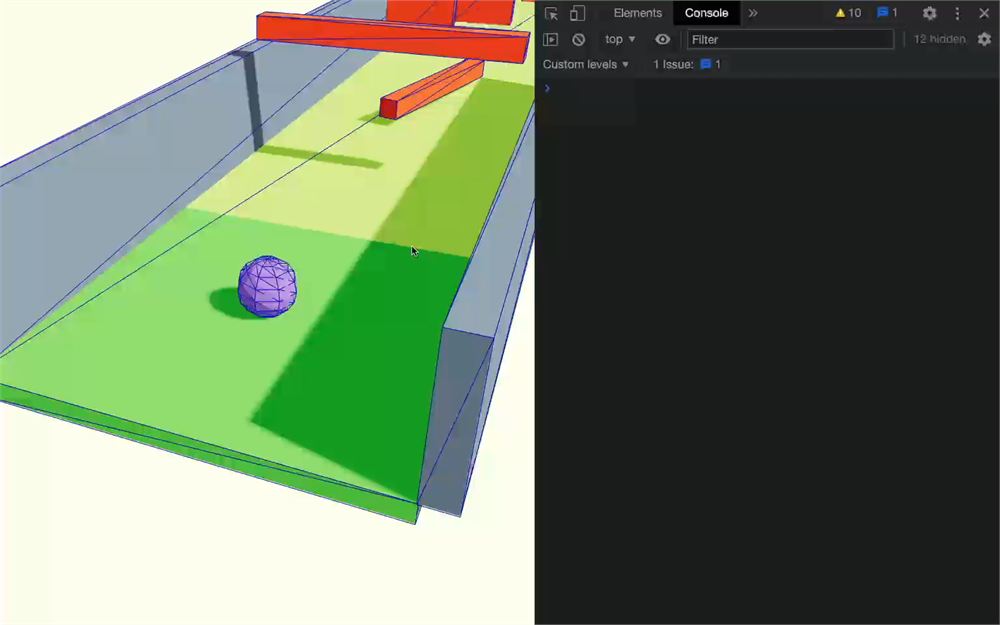
    const hit = world.castRay(ray)

    console.log(hit)

    // ...
}
hit 是一个包含射线碰撞信息的对象。我们需要的属性是 timeOfImpact:
const jump = () =>
{
    // ...

    console.log(hit.timeOfImpact)

    // ...
}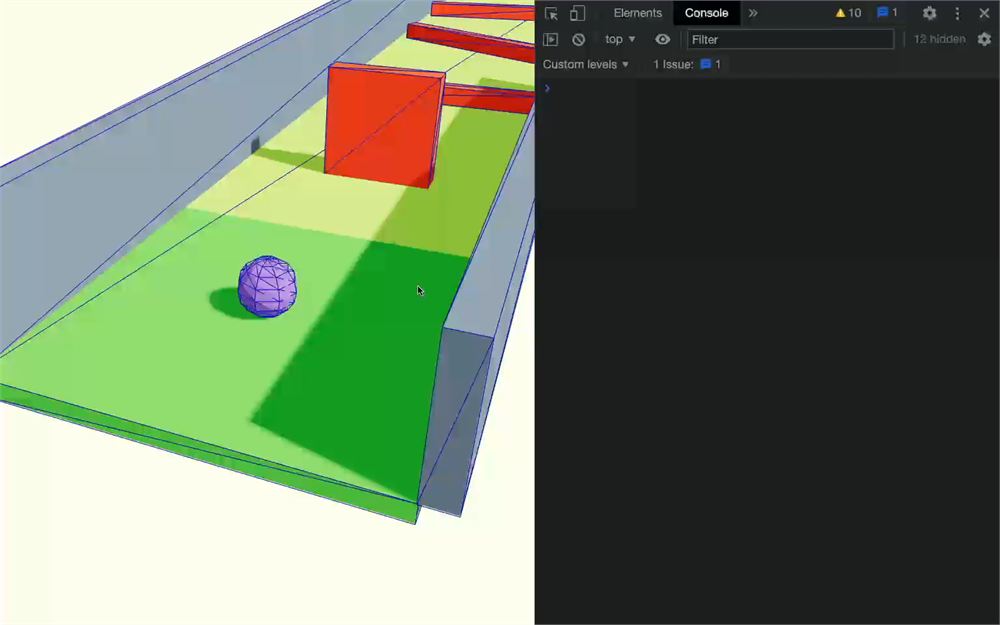
timeOfImpact 可以看作是射线原点与击中点之间的距离。
但为什么弹珠在地板上时我们会得到这些值?我们不是应该得到 0 吗?
问题在于我们把射线投射在球体稍稍偏下的位置,这使原点落在地板碰撞体内部。射线随后向下投射,我们得到的碰撞是与场景下方碰撞体底部的碰撞。
为了解决这个问题,我们可以告诉 castRay 方法所有碰撞体都是实心的,意味着它们内部有实体,这样如果射线投射到碰撞体内部,就会立即击中某个东西。
给 castRay 添加一个 10 和一个 true 参数:
const hit = world.castRay(ray, 10, true)10 是射线的最大距离。虽然我们并不真的关心这个值,但为了设置下一个参数(也就是 solid 参数),我们仍然必须设置它。
在调用 applyImpulse 之前,我们现在可以用 hit.timeOfImpact 来检测击中有多近:
const jump = () =>
{
    // ...

    if(hit.timeOfImpact < 0.15)
        body.current.applyImpulse({ x: 0, y: 0.5, z: 0 })
}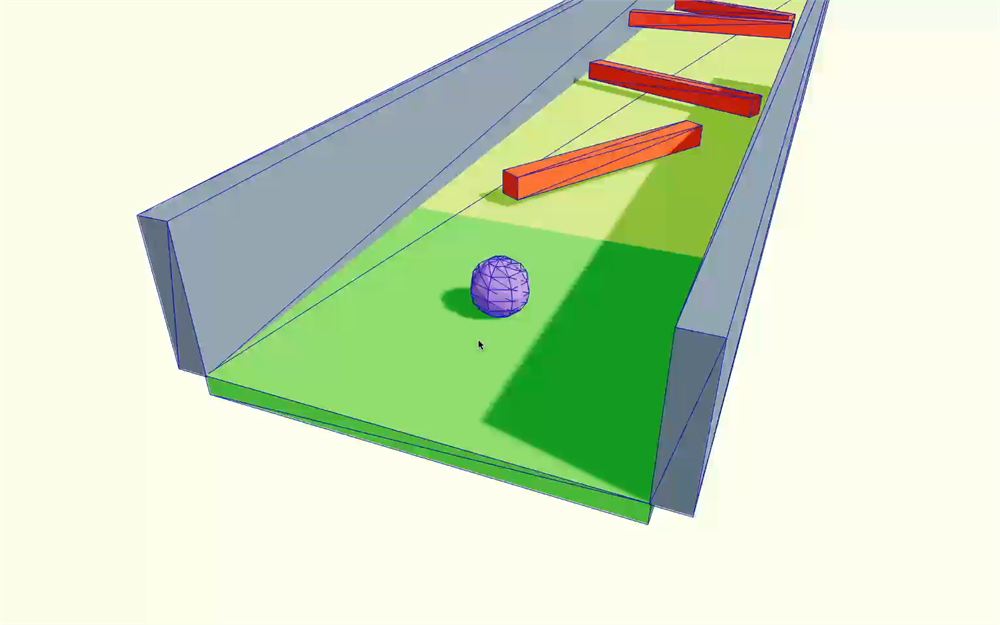
现在我们可以让弹珠跳跃了!
但我们犯了一个小错误。如果我们对 Player 做一些修改,组件会被销毁并重新创建,但我们传给 subscribeKeys 的函数会被调用两次,这会让弹珠跳得两倍高。
你可以自己试试,做任何类型的修改,比如在 Player 函数中任意位置添加一个 console.log,然后在不重新加载页面的情况下测试跳跃:
export default function Player()
{
    console.log('Hey!')

    // ...
}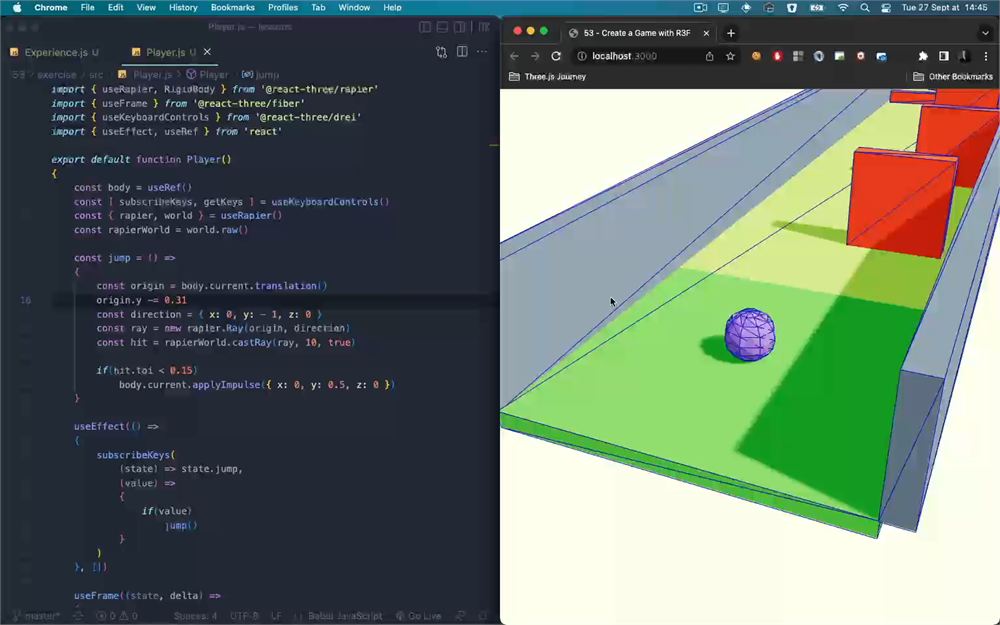
弹珠跳得两倍高,是因为组件被销毁并重新创建,使 useEffect 被第二次调用,导致事件订阅发生了两次。
你可能会觉得这没什么大不了的,因为玩家不会去销毁这个组件,但让组件健壮且无 bug 很重要,因为我们不知道它们将来会如何被使用。这样,我们也可以在不重新加载页面的情况下修改 Player 代码。
我们需要一种在组件被销毁时取消订阅该事件的方法。
移除日志。
首先,我们需要获取用于取消订阅的函数,这正是 subscribeKeys 返回的东西:
useEffect(() =>
{
    const unsubscribeJump = subscribeKeys(
        (state) => state.jump,
        (value) =>
        {
            if(value)
                jump()
        }
    )
}
现在,我们需要在 useEffect 中 return 一个函数:
useEffect(() =>
{
    // ...

    return () =>
    {

    }
}
这个函数会在组件被销毁时调用,我们只需要调用 unsubscribeJump:
useEffect(() =>
{
    // ...

    return () =>
    {
        unsubscribeJump()
    }
}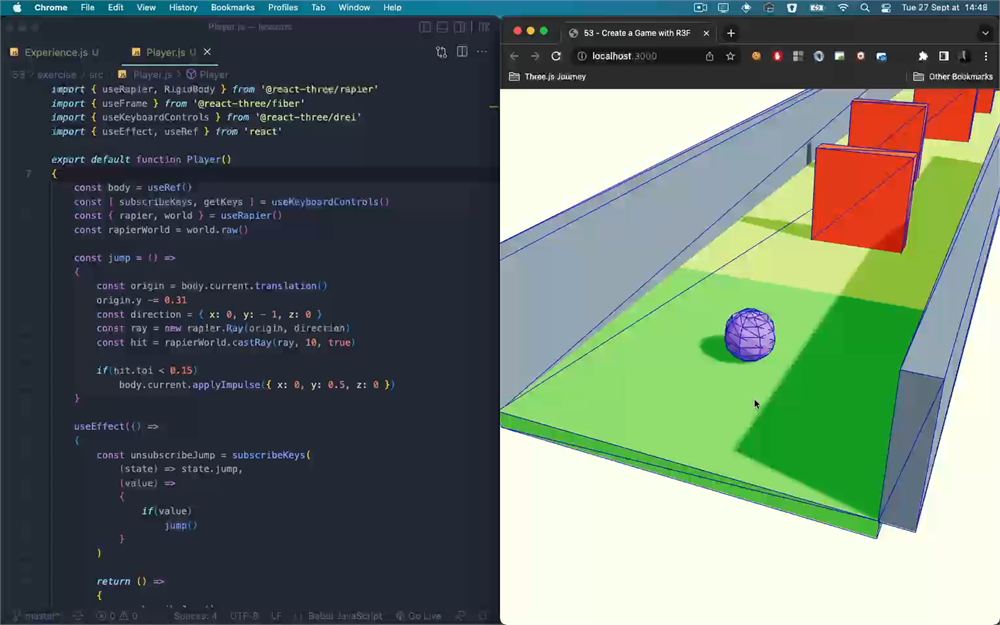
在组件中做修改不会再让弹珠跳得两倍高,因为我们彻底移除了事件订阅。
在继续之前,把 Experience 中的 debug 属性切换为 false,这样我们就能欣赏场景了:
<Physics debug={ false }>
    <Lights />
    <Level />
    <Player />
</Physics>
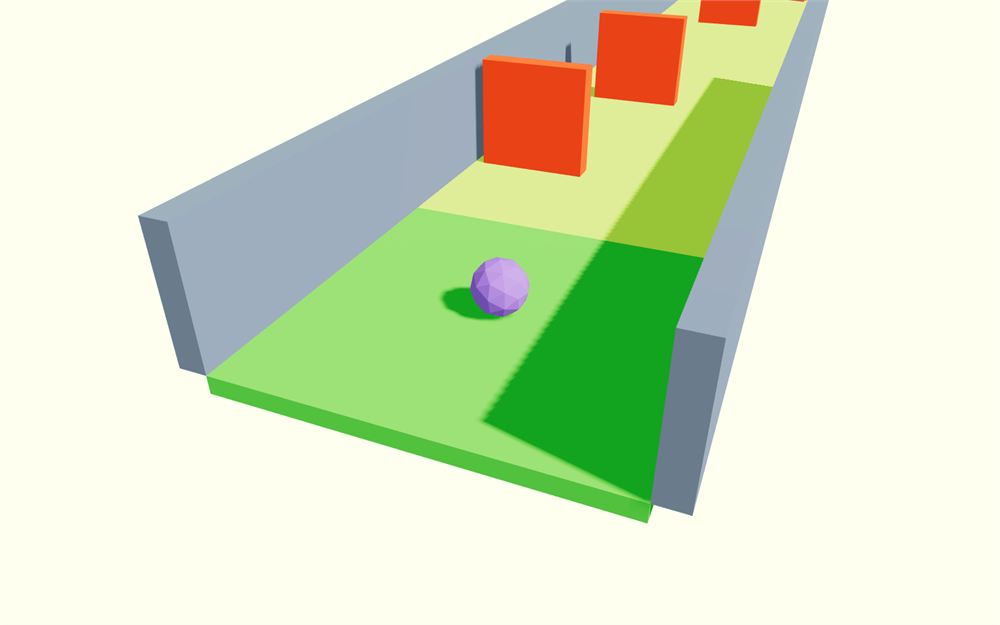
相机动画
接下来,我们希望相机跟随弹珠。
它需要待在弹珠后面,但要有平滑的动画。
OrbitControls
既然我们要自己给相机做动画,就可以去掉 OrbitControls 了。
在 Experience 中,移除或注释掉 <OrbitControls> 及其导入:
{/* <OrbitControls makeDefault /> */}位置与目标
我们的首要任务不是处理平滑。相反,我们要定义相机应该在哪里,以及它应该看向哪里。
由于这需要每帧执行,并且与弹珠相关,我们将在 Player 组件的 useFrame 中完成:
export default function Player()
{
    // ...

    useFrame((state, delta) =>
    {
        /**
         * Controls
         */
        // ...

        /**
         * Camera
         */
        // Here
    })

    // ...
}
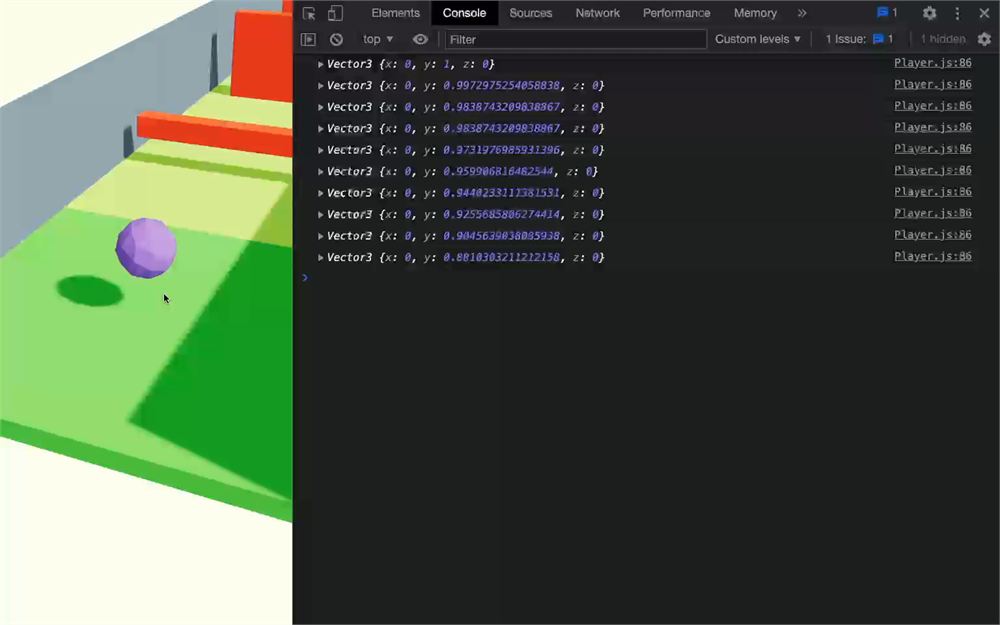
用 translation() 获取刚体(弹珠)的位置:
useFrame((state, delta) =>
{
    // ...

    const bodyPosition = body.current.translation()

    console.log(bodyPosition)
})
移除日志
从 three 导入 Three.js 为 THREE:
import * as THREE from 'three'用 Vector3 创建一个 cameraPosition 变量:
useFrame((state, delta) =>
{
    // ...

    const bodyPosition = body.current.translation()

    const cameraPosition = new THREE.Vector3()
})
用 copy 方法把 bodyPosition 的值复制到 cameraPosition,并把它稍微向后向上移动:
useFrame((state, delta) =>
{
    // ...

    const bodyPosition = body.current.translation()

    const cameraPosition = new THREE.Vector3()
    cameraPosition.copy(bodyPosition)
    cameraPosition.z += 2.25
    cameraPosition.y += 0.65
})
我们还需要为相机看向的位置设置一个 Vector3,我们希望它把注意力集中在弹珠稍上方。
像为 cameraPosition 那样创建一个 cameraTarget 变量,并增加 y:
useFrame((state, delta) =>
{
    // ...

    const cameraTarget = new THREE.Vector3()
    cameraTarget.copy(bodyPosition)
    cameraTarget.y += 0.25
})
好,坐标都准备好了。但仍然缺了主角:我们的相机!
由于我们在 useFrame 中,可以通过给函数添加 state 参数来访问相机,我们其实已经这么做了,因为我们需要访问 delta:
useFrame((state, delta) =>
{
    // ...
})
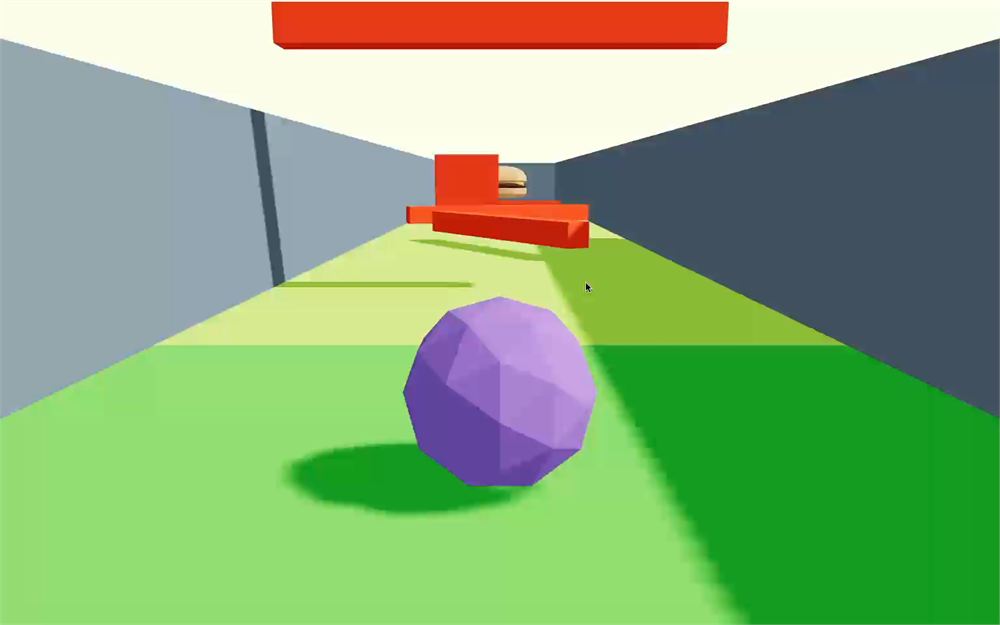
我们可以把 cameraPosition 变量复制到 state.camera.position,并让相机 lookAt(看向)cameraTarget:
useFrame((state, delta) =>
{
    // ...

    state.camera.position.copy(cameraPosition)
    state.camera.lookAt(cameraTarget)
})
平滑动画
是的:它生效了!但动画还是有点粗糙。我们需要让动画平滑,就像我们在基于滚动的动画课里那样,通过“lerp(线性插值)”来处理这个值。
不深入细节的话,主要思路是:每一帧相机都会稍微更接近它应该在的位置,并且在每一帧持续这样做。
首先,我们需要在 useFrame 外部创建两个 Vector3,因为它们会随时间保存相机的位置和目标。为此,我们可以使用 useState。
从 react 导入 useState:
import { useState, useEffect, useRef } from 'react'在 Player 的开头,创建两个 state(smoothedCameraPosition 和 smoothedCameraTarget),每个都返回一个 THREE.Vector3:
export default function Player()
{
    // ...
    const [ smoothedCameraPosition ] = useState(() => new THREE.Vector3())
    const [ smoothedCameraTarget ] = useState(() => new THREE.Vector3())

    // ...
}
正如我们在上一节课讨论的,用这种 useState 创建变量会返回一个值,这个值会为该组件实例保留。
回到 useFrame,要进行 lerp(或者叫线性插值),我们可以在 Vector3 上使用 lerp 函数:
useFrame((state, delta) =>
{
    // ...

    smoothedCameraPosition.lerp(cameraPosition, 0.1)
    smoothedCameraTarget.lerp(cameraTarget, 0.1)

    state.camera.position.copy(cameraPosition)
    state.camera.lookAt(cameraTarget)
})
0.1 意味着这个值会向目标靠近 1/10。
然后我们还需要把平滑后的坐标复制到相机:
useFrame((state, delta) =>
{
    // ...

    state.camera.position.copy(smoothedCameraPosition)
    state.camera.lookAt(smoothedCameraTarget)
})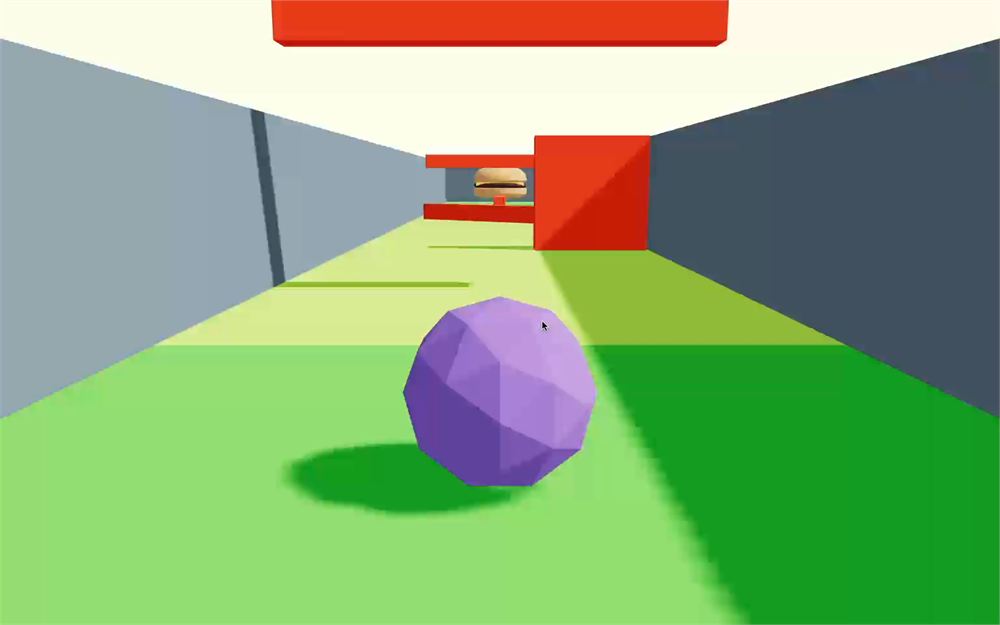
相机动画平滑多了,但我们犯了一个小错误。
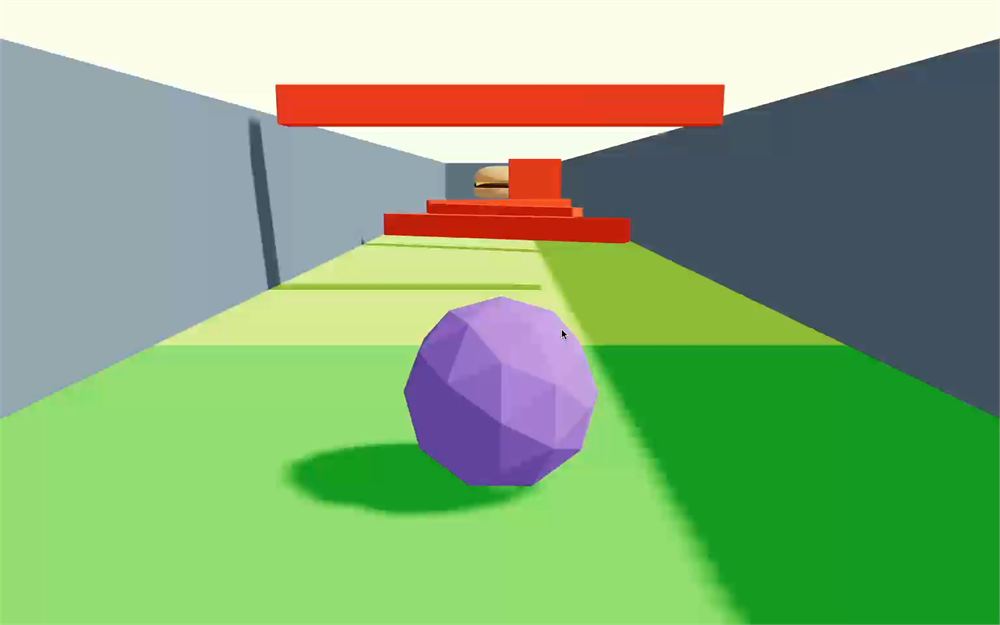
我们没有编写基于时间的动画,这意味着不同帧率的设备会有不同的结果。高帧率设备上相机跟随弹珠会比低帧率设备更紧密。
我们可以通过把 lerp 比例乘以 delta 并提高到 5 来修复(因为 delta 是小于 1 的小数):
useFrame((state, delta) =>
{
    // ...

    smoothedCameraPosition.lerp(cameraPosition, 5 * delta)
    smoothedCameraTarget.lerp(cameraTarget, 5 * delta)

    // ...
})
初始位置
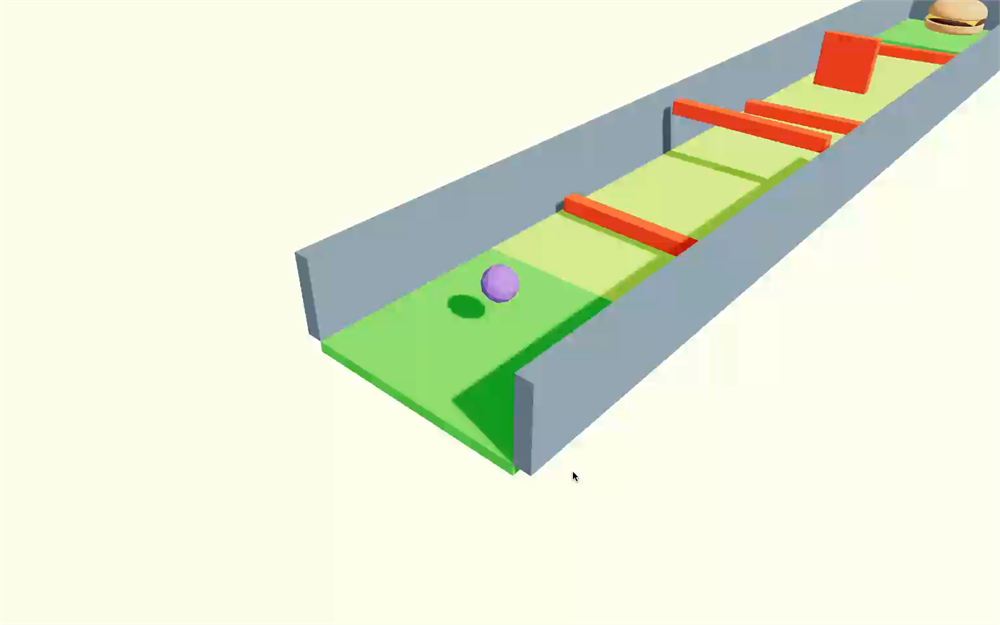
我们的相机动画平滑又好,但在开始体验时,相机似乎是从地板里出来的。虽然这没什么大不了的,但也是个做得更好的机会。
我们将修改相机的初始位置,确保它与关卡和弹珠离得更远。这样玩家就能看到关卡的全貌。
把初始的 smoothedCameraPosition 设置到更远的位置:
export default function Player()
{
    // ...
    const [ smoothedCameraPosition ] = useState(() => new THREE.Vector3(10, 10, 10))
    const [ smoothedCameraTarget ] = useState(() => new THREE.Vector3())

   // ...
}
阴影
现在我们可以玩通整个关卡了,你可能已经注意到阴影在几个陷阱之后就停止了。
正如我们在之前课程中讨论的,阴影是由位于平行光所在位置的正交相机渲染的。遗憾的是,这个相机有局限,而把阴影贴图做得更大又会降低它的质量。
为了解决这个阴影问题,我们将让平行光跟随玩家。
与灯光相关的代码位于 Light.jsx 文件中,你可以看到 <directionalLight> 上已经设置了一些参数:
<directionalLight
    castShadow
    position={ [ 4, 4, 1 ] }
    intensity={ 1.5 }
    shadow-mapSize={ [ 1024, 1024 ] }
    shadow-camera-near={ 1 }
    shadow-camera-far={ 10 }
    shadow-camera-top={ 10 }
    shadow-camera-right={ 10 }
    shadow-camera-bottom={ - 10 }
    shadow-camera-left={ - 10 }
/>
首先,我们需要一个指向 <directionalLight> 的引用。
在 Lights.jsx 中,从 react 导入 useRef:
import { useRef } from 'react'创建一个 light 引用,并用 ref 属性把它赋给 <directionalLight>:
export default function Lights()
{
    const light = useRef()

    return <>
        <directionalLight
            ref={ light }
            // ...
        />
        <ambientLight intensity={ 0.5 } />
    </>
}
我们将每帧移动灯光。
从 @react-three/fiber 导入 useFrame:
import { useFrame } from '@react-three/fiber'在 Light 函数中调用 useFrame 并获取 state 参数,因为我们需要访问默认相机:
export default function Lights()
{
    const light = useRef()

    useFrame((state) =>
    {

    })

    // ...
}
由于关卡沿 z 轴延伸,我们只在该轴上移动相机:
useFrame((state) =>
{
    light.current.position.z = state.camera.position.z + 1
})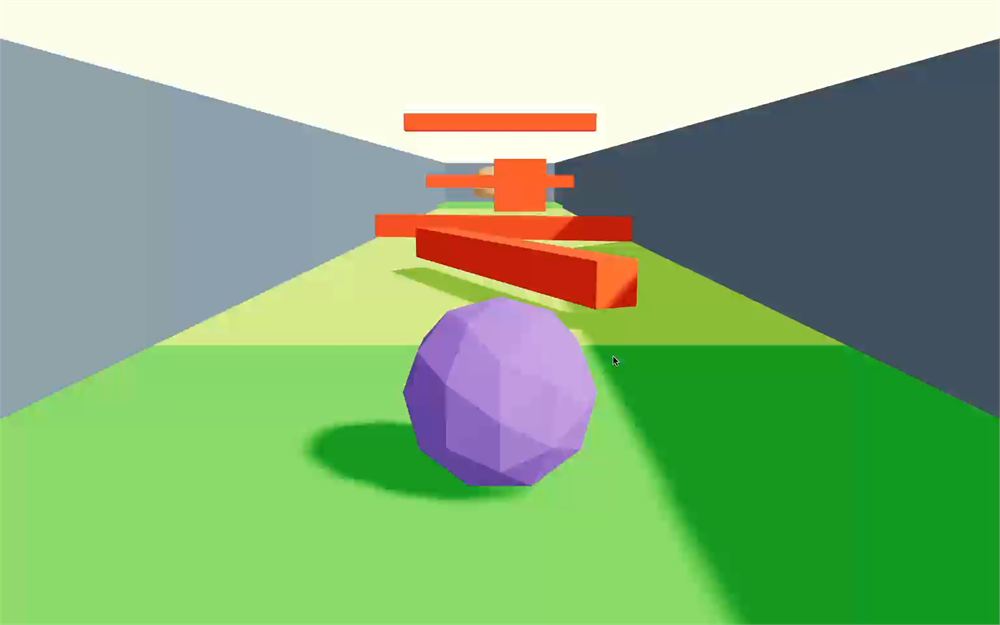
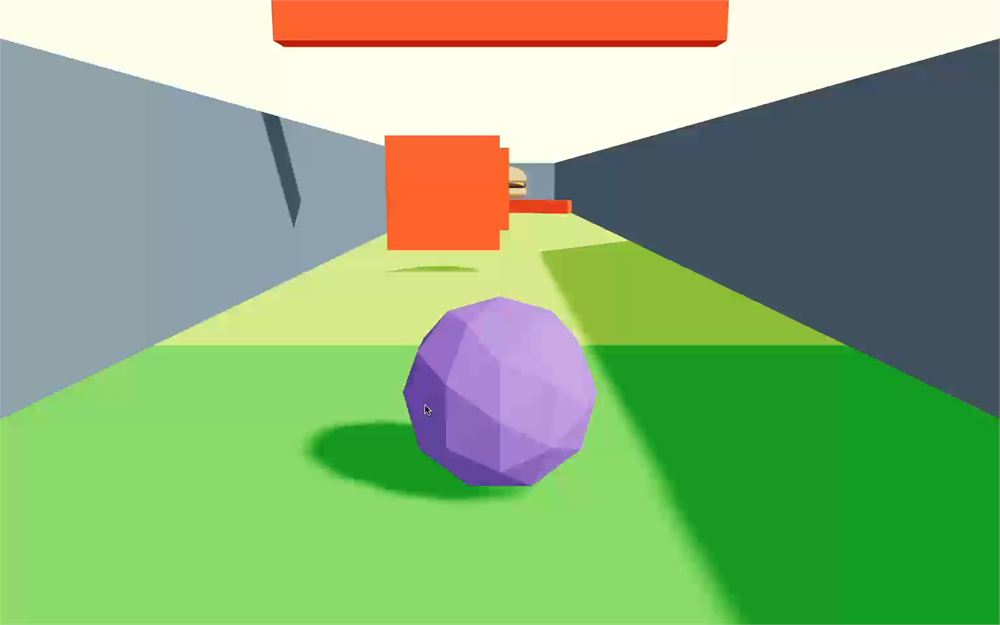
这不是我们预期的结果。
此外,如果你观察弹珠的阴影并四处移动,会发现灯光似乎在改变方向。
这是因为我们移动了灯光,但没有移动灯光的目标(target),它仍然在场景中心。
用同样的方式更新灯光的 target:
useFrame((state) =>
{
    light.current.position.z = state.camera.position.z + 1
    light.current.target.position.z = state.camera.position.z
})
结果还是一样?原因是,修改 target 并不意味着变换矩阵会自动更新。
Three.js 只有在对象的变换坐标(position、rotation、scale)发生变化且对象在场景中时才会更新对象矩阵。没错,灯光在场景中,但 target 不在。
有两种解决方案。我们可以把 target 添加到场景中,或者自己更新矩阵。
我们用 updateMatrixWorld 方法自己更新 target 的矩阵:
useFrame((state) =>
{
    light.current.position.z = state.camera.position.z + 1
    light.current.target.position.z = state.camera.position.z
    light.current.target.updateMatrixWorld()
})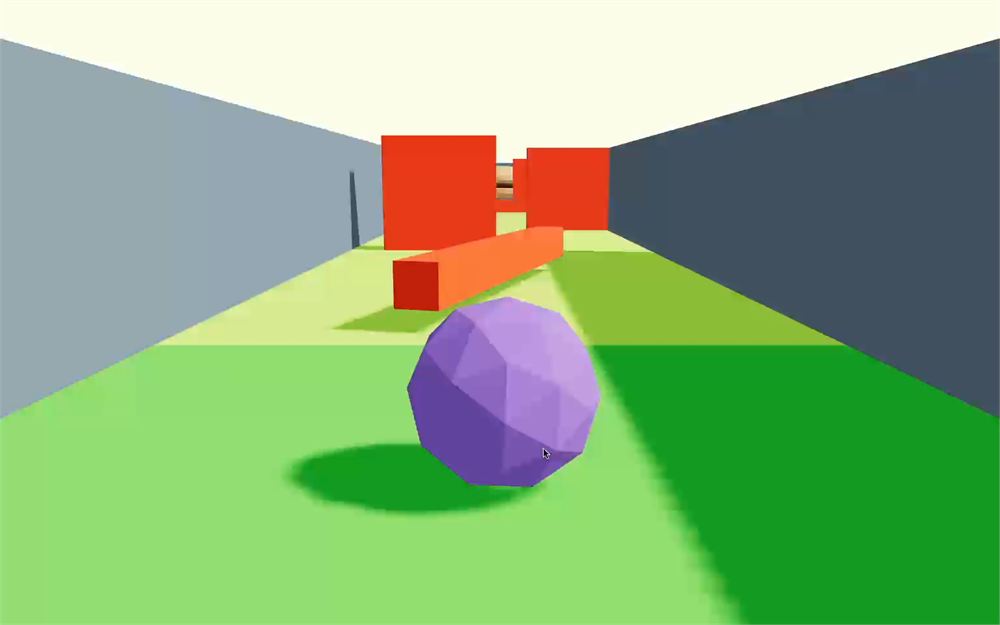
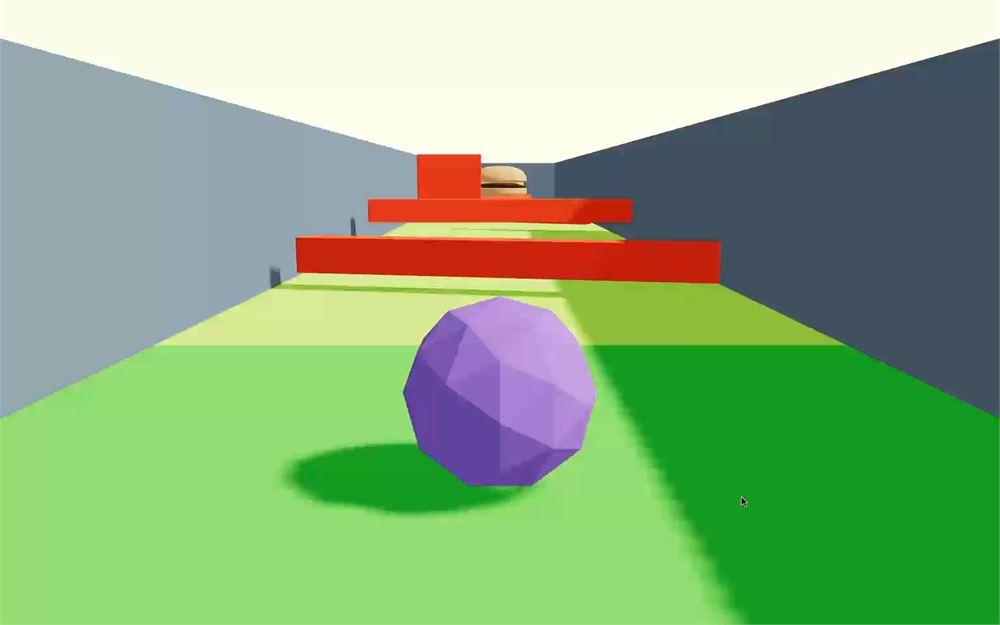
很好,阴影贴图在跟随相机,灯光方向也不再变化,但我们还能做得更好。
目前灯光聚焦在相机上,这意味着阴影贴图有很大一部分用在了相机后方,这是一种浪费。
我们可以通过用 - 4 把灯光和目标稍微向前移动来修复:
useFrame((state) =>
{
    light.current.position.z = state.camera.position.z + 1 - 4
    light.current.target.position.z = state.camera.position.z - 4
    light.current.target.updateMatrixWorld()
})
界面
游戏能运行了,但我们还缺少一些关键的游戏机制,比如目标、重新开始等等。
但首先,我们需要添加一个界面。
这个界面将由 3 样东西组成:
- 一个计时器
- 一个重新开始按钮
- 一个显示
WASD键和Space键的键盘界面
组件
界面将用 HTML 做在 <canvas> 之上。用 HTML 做界面非常直接,而 React 让显示的信息适应数据变得更容易。
首先,在 /src/ 中创建 Interface.jsx 文件,并导出一个 Interface 函数组件:
export default function Interface()
{
    return null
}
在 index.jsx 中导入 Interface:
import Interface from './Interface.jsx'在 <Canvas> 之后实例化 <Interface>,但要放在 <KeyboardControls> 内部,这样我们就能从 Interface 组件访问按键:
root.render(
    <KeyboardControls
        // ...
    >
        <Canvas
            // ...
        >
            <Experience />
        </Canvas>
        <Interface />
    </KeyboardControls>
)
在 Interface.jsx 中,返回一个 <div>,用 className 属性设置 interface class:
export default function Interface()
{
    return <div className="interface">
    </div>
}
对于 CSS,我们保持简单,在 /src/style.css 文件中编写传统的 CSS。
在 /src/style.css 中,选中 .interface,让它填满视口:
/**
 * Interface
 */
.interface
{
    position: fixed;
    top: 0;
    left: 0;
    width: 100%;
    height: 100%;
}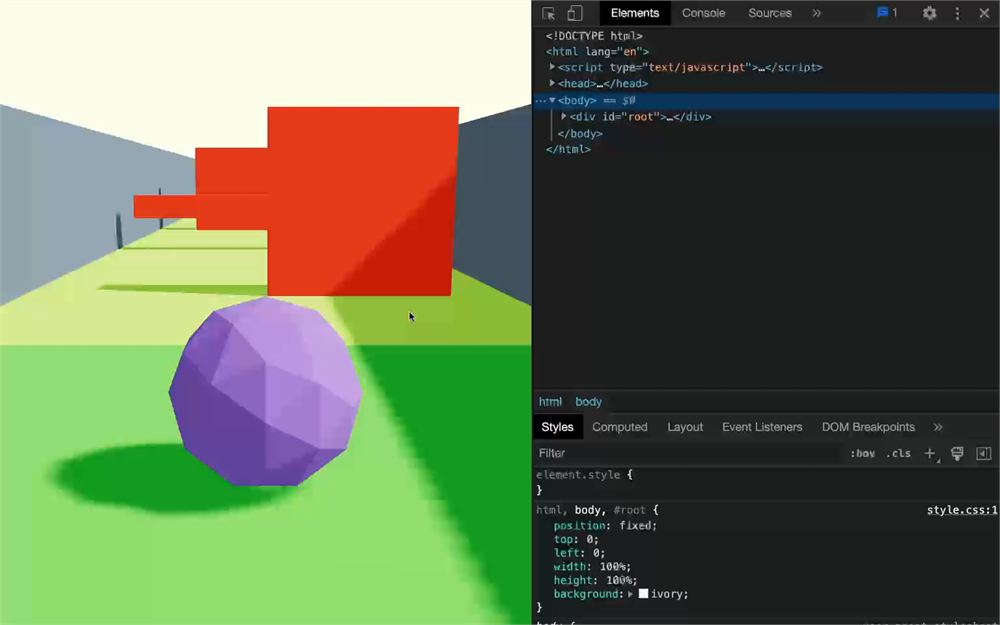
你看不到界面,因为它是透明的,而且 <div> 里什么都没有,但 .interface 确实在那里。
用 pointer-events: none; 停用鼠标事件:
.interface
{
    /* ... */
    pointer-events: none;
}
字体
对于字体,我们使用 Google Fonts 的 Bebas Neue。
把以下代码添加到 /public/index.html 文件的 <head> 中:
<!DOCTYPE html>
<html lang="en">
<head>
    <!-- ... -->

    <link rel="preconnect" href="https://fonts.googleapis.com">
    <link rel="preconnect" href="https://fonts.gstatic.com" crossorigin>
    <link href="https://fonts.googleapis.com/css2?family=Bebas+Neue&display=swap" rel="stylesheet">
</head>
<body>
    <!-- ... -->
</body>
</html>
现在,在 CSS 中通过 font-family 给 .interface 添加字体,这样任何子元素都会使用该字体:
.interface
{
    /* ... */
    font-family: 'Bebas Neue', cursive;
}
如果你不喜欢这个字体,尽管换。我不太擅长选字体。
时间
我们想显示一个秒表,让玩家知道完成关卡用了多长时间。
目前我们只显示 0.00,但稍后这个时间会根据玩家所做的事情更新。
在 Interface 中,添加一个带 time class 的 <div>,并在其中写 0.00:
<div className="interface">

    {/* Time */}
    <div className="time">0.00</div>

</div>
在 CSS 中,添加以下代码:
/**
 * Time
 */
.time
{
    position: absolute;
    top: 15%;
    left: 0;
    width: 100%;
    color: #ffffff;
    font-size: 6vh;
    background: #00000033;
    padding-top: 5px;
    text-align: center;
}
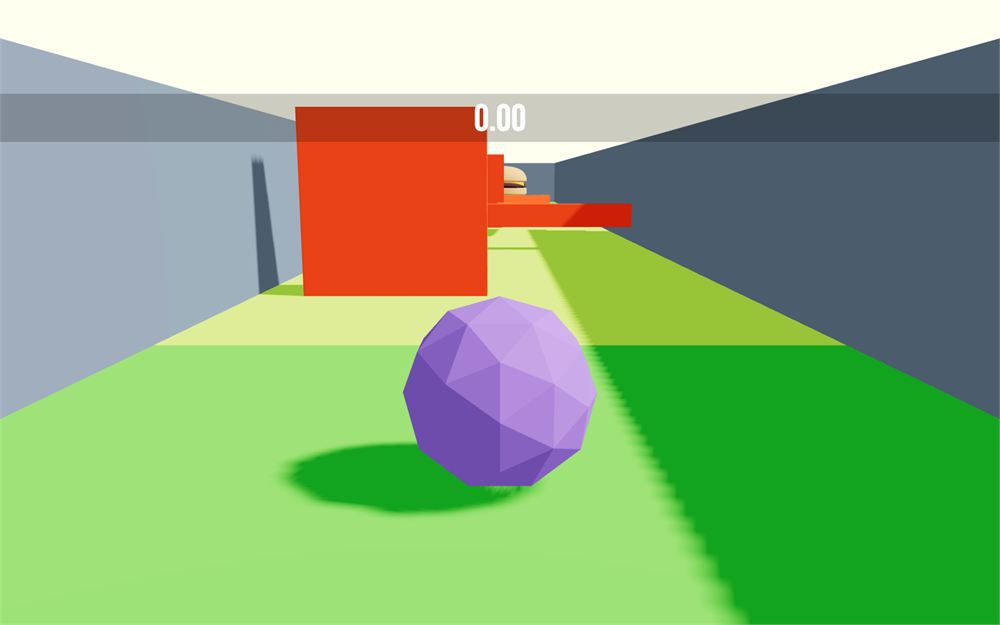
我们不会深入细节,因为这是无聊的 CSS。
重新开始
玩家完成关卡后,屏幕中央会出现一个 Restart 按钮。点击它会重置弹珠和计时器。
目前我们只想创建那个 Restart 按钮。
在 Interface 中,添加一个带 restart class 的 <div>,并在其中写 Restart:
<div className="interface">

    {/* ... */}

    {/* Restart */}
    <div className="restart">Restart</div>

</div>
在 CSS 中,添加以下代码:
/**
 * Restart
 */
.restart
{
    display: flex;
    justify-content: center;
    position: absolute;
    top: 40%;
    left: 0;
    width: 100%;
    color: #ffffff;
    font-size: 80px;
    background: #00000033;
    padding-top: 10px;
    pointer-events: auto;
    cursor: pointer;
}
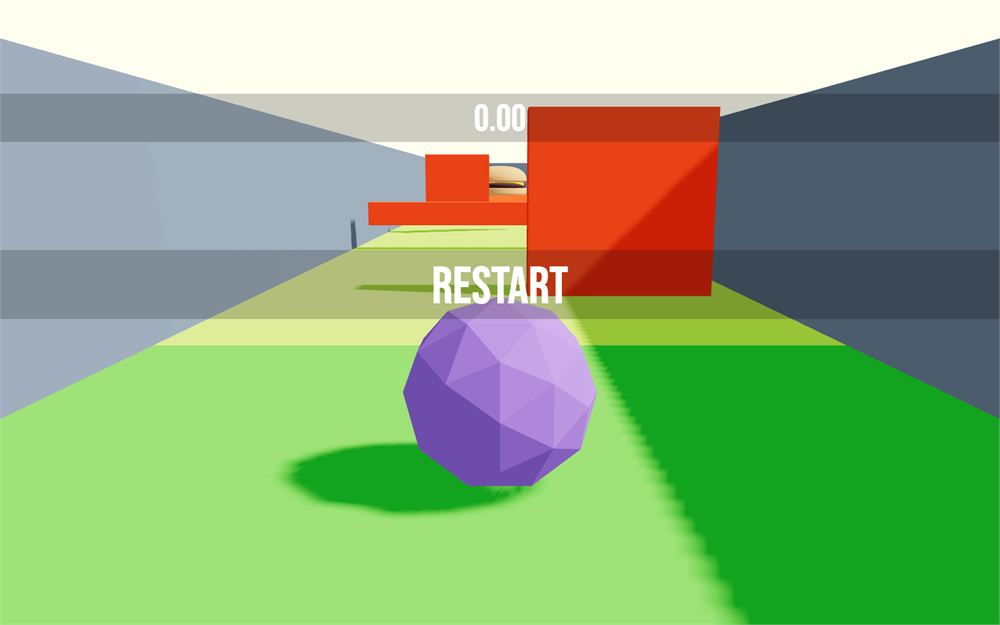
键盘输入
界面的最后一块稍微复杂一点。
我们将显示用户可以用来玩这个游戏的所有输入,也就是 WASD 键和 Space 键。
这能帮助用户理解游戏该怎么玩。除此之外,这也是个找乐子的机会,因为我们会确保按下相应按键时这些输入会被高亮。
在 Interface 中,添加以下代码:
<div className="interface">

    {/* ... */}

    {/* Controls */}
    <div className="controls">
        <div className="raw">
            <div className="key"></div>
        </div>
        <div className="raw">
            <div className="key"></div>
            <div className="key"></div>
            <div className="key"></div>
        </div>
        <div className="raw">
            <div className="key large"></div>
        </div>
    </div>

</div>
在 CSS 中,添加以下代码:
/**
 * Controls
 */
.controls
{
    position: absolute;
    bottom: 10%;
    left: 0;
    width: 100%;
}

.controls .raw
{
    display: flex;
    justify-content: center;
}

.controls .key
{
    width: 40px;
    height: 40px;
    margin: 4px;
    border: 2px solid #ffffff;
    background: #ffffff44;
}

.controls .key.large
{
    width: 144px;
}

.controls .key.active
{
    background: #ffffff99;
}
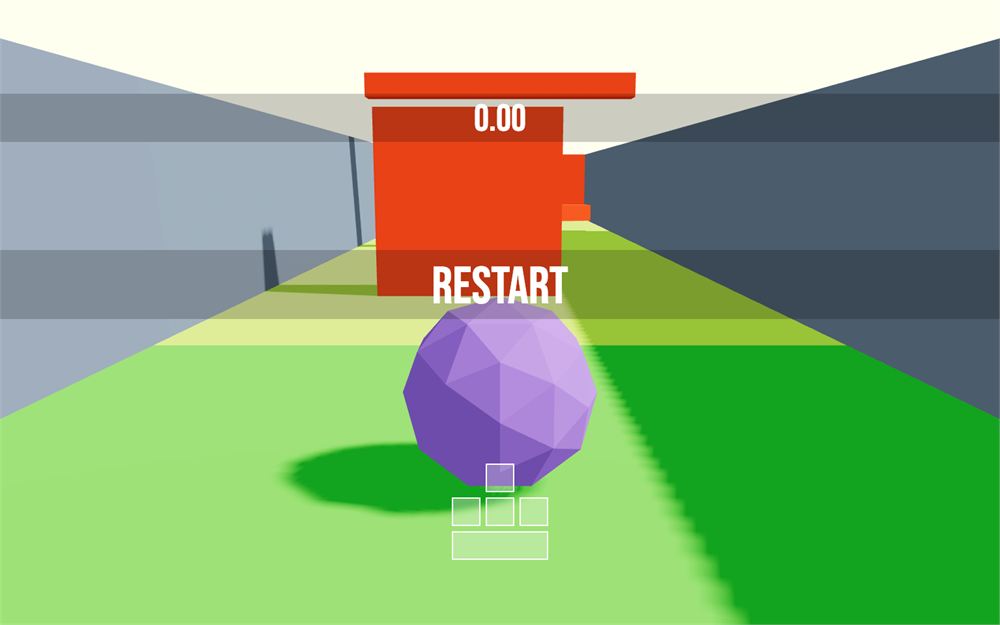
同样,关于 CSS 我们不会深入细节,但注意,如果 .key 同时带有 active class,background 的不透明度会更高。这意味着我们需要给这些键添加 active class,确保它们被高亮。
现在我们已经可以让这些键对用户输入做出反应了。
在 Interface.jsx 中,从 @react-three/drei 导入 useKeyboardControls
import { useKeyboardControls } from '@react-three/drei'之前我们用 useKeyboardControls 获取一个 subscriber 和一个 getter。现在,我们将用它来获取按键,但作为响应式数据。
在 Interface 中,我们可以通过编写以下代码获取所有输入:
export default function Interface()
{
    const controls = useKeyboardControls((state) => state)

    console.log(controls)

    // ...
}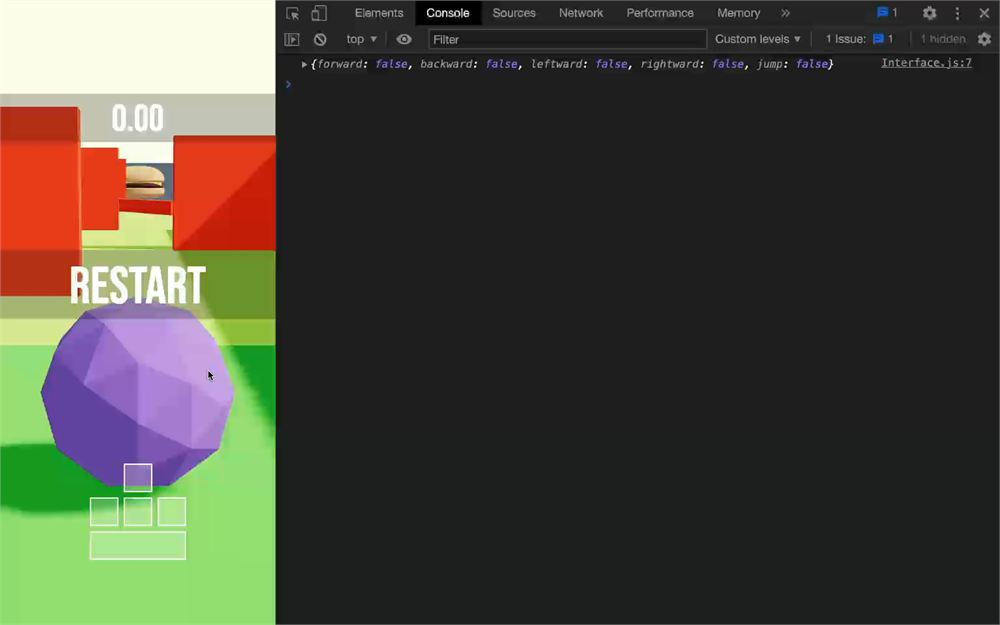
controls 是一个对象,把所有输入作为属性,每个属性都是 true 或 false,取决于该键是否被按下。
我们传入的参数是一个以 state 为参数的函数,我们返回了那个 state。
如果完整写出来,大概会是这样:
export default function Interface()
{
    const controls = useKeyboardControls((state) =>
    {
        return state
    })

    console.log(controls)

    // ...
}
我们之前已经见过这个,当我们在 Player.jsx 中用 getKeys 获取控制时。这是一个选择器,我们要求只要 state 中有任何变化就获取全部内容。
最好只选择我们真正需要的数据,以防止不必要的重新渲染。
我们可以通过为每个键定义特定的选择器来实现:
export default function Interface()
{
    const forward = useKeyboardControls((state) => state.forward)
    const backward = useKeyboardControls((state) => state.backward)
    const leftward = useKeyboardControls((state) => state.leftward)
    const rightward = useKeyboardControls((state) => state.rightward)
    const jump = useKeyboardControls((state) => state.jump)

    console.log(forward, backward, leftward, rightward, jump)

    // ...
}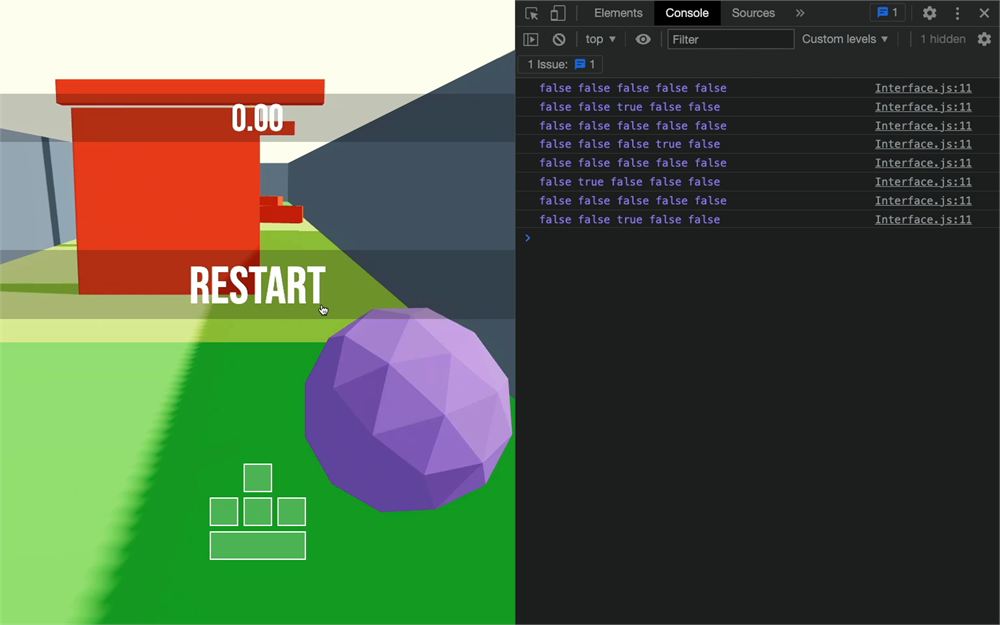
我们就保持输入这样分开,并移除日志。
现在我们需要在相应的变量为 true 时,给不同的 .key 添加 active class。
首先,把 .key 的 className 换成反引号版本,以便进行拼接:
<div className="controls">
    <div className="raw">
        <div className={ `key` }></div>
    </div>
    <div className="raw">
        <div className={ `key` }></div>
        <div className={ `key` }></div>
        <div className={ `key` }></div>
    </div>
    <div className="raw">
        <div className={ `key large` }></div>
    </div>
</div>
现在,如果相应的变量为 true,我们就注入 active class:
<div className="controls">
    <div className="raw">
        <div className={ `key ${ forward ? 'active' : '' }` }></div>
    </div>
    <div className="raw">
        <div className={ `key ${ leftward ? 'active' : '' }` }></div>
        <div className={ `key ${ backward ? 'active' : '' }` }></div>
        <div className={ `key ${ rightward ? 'active' : '' }` }></div>
    </div>
    <div className="raw">
        <div className={ `key large ${ jump ? 'active' : '' }` }></div>
    </div>
</div>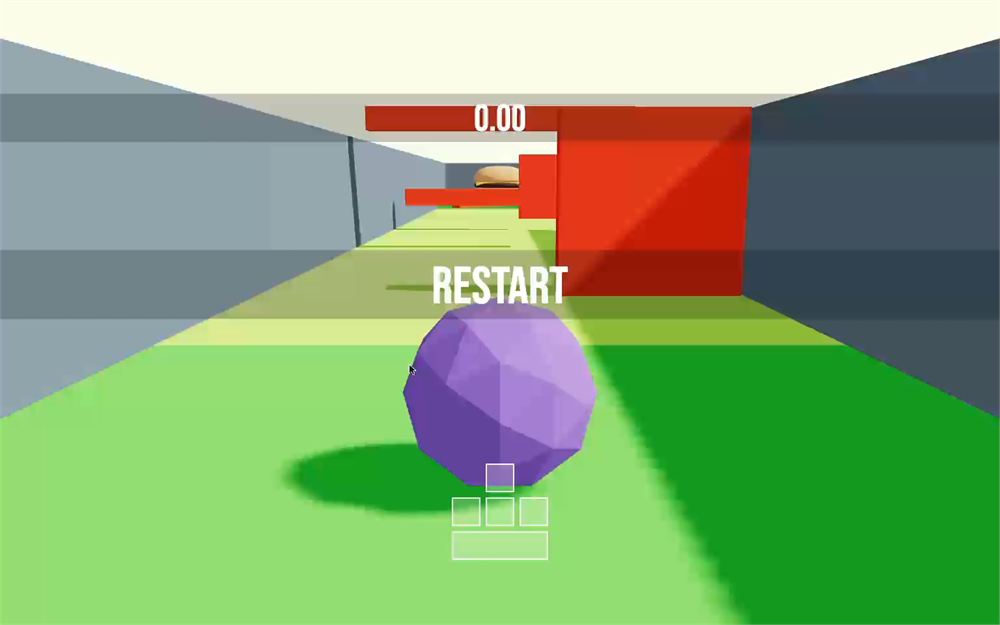
这些控制会响应用户的操作。
游戏机制
我们几乎有了一个能运行的游戏,但如果基本机制不起作用,它就还不是一个真正的游戏。
- 我们需要重新开始按钮可点击,并且只在完成关卡时可见。
- 我们需要计时器显示准确的信息。
- 我们需要在弹珠掉出地图时重置它。
- 等等。
全局状态
这些机制涉及多个组件。例如,Interface 有一个 Restart 按钮,点击它应该重置弹珠,但弹珠是在 Player 组件中设置的。
这意味着我们需要一种方式,能从所有这些组件中获取信息和调用方法。
我们要实现所谓的“全局状态”。
Zustand
创建全局状态有多种方案,但最合适的是 Zustand。
Zustand 由 PMNDRS 团队开发(又是他们!)。它是最简单的状态管理器之一,并且与 R3F 配合得天衣无缝,这可不是所有状态管理器都能做到的。
顺便提一下,KeyboardControls 就使用了 Zustand,你会看到类似的用法,比如如何在不必要地重新渲染组件的情况下获取特定数据,或者如何订阅数据变化。
首先在终端运行 npm install zustand@4.5 把 Zustand 添加到依赖中(我们强制指定版本以避免意外;你可以忽略潜在的漏洞警告)。
创建 store
全局状态(更具体地说,是我们在这里创建的这个)通常被称为 store,最好将它们创建在一个单独的文件中。
虽然我们只会有一个 store,但我们还是把它放进一个文件夹里。
在 /src/ 中创建 stores/ 文件夹。
在那个 /src/stores/ 文件夹中,创建 useGame.jsx 文件(不过 .js 也可以,因为我们不会在里面写 JSX)。
如你所见,文件名看起来像是一个 React hook 的名字(以 use 开头),这是因为我们会像使用 React hook 一样使用它。
在 useGame.jsx 中,从 zustand 导入 create:
import { create } from 'zustand'调用 create,并用 export 把结果作为 default 导出:
import { create } from 'zustand'

export default create()
我们需要给这个 create 函数传入一个函数,它会以对象的形式返回我们的 store 数据:
import { create } from 'zustand'

export default create(() =>
{
    return {}
})
我们要存储的第一项数据是关卡中想要的方块数量,用一个设为 3 的 blocksCount 属性来表示:
import { create } from 'zustand'

export default create(() =>
{
    return {
        blocksCount: 3
    }
})
在 Experience.jsx 中,导入 useGame store:
import useGame from './stores/useGame.jsx'在 Experience 组件中,通过调用 useGame 并传入一个函数来获取 blocksCount 数据(这段代码现在还无法运行):
export default function Experience()
{
    const blocksCount = useGame(() => {})

    // ...
}
那个函数会把数据作为 state 参数传入:
export default function Experience()
{
    const blocksCount = useGame((state) => {})

    // ...
}
而要选择特定的数据(我们的情况是 blocksCount),我们需要从 state 中返回那个属性:
export default function Experience()
{
    const blocksCount = useGame((state) => { return state.blocksCount })

    // ...
}
由于我们用的是箭头函数,可以去掉 ()、{} 和 return:
export default function Experience()
{
    const blocksCount = useGame((state) => state.blocksCount)

    // ...
}
这就是我们如何从 store 中选择一个非常具体的值,与我们在控制中使用的技术完全相同。记住,KeyboardControls 内部使用的就是 Zustand。
如果那个值发生变化(我们稍后会讲如何变化),组件会重新渲染,这就是为什么最好只选择组件中真正需要的数据。
现在,我们可以在 Experience 中 <Level /> 的 count 属性上使用 blocksCount:
<Level count={ blocksCount } />
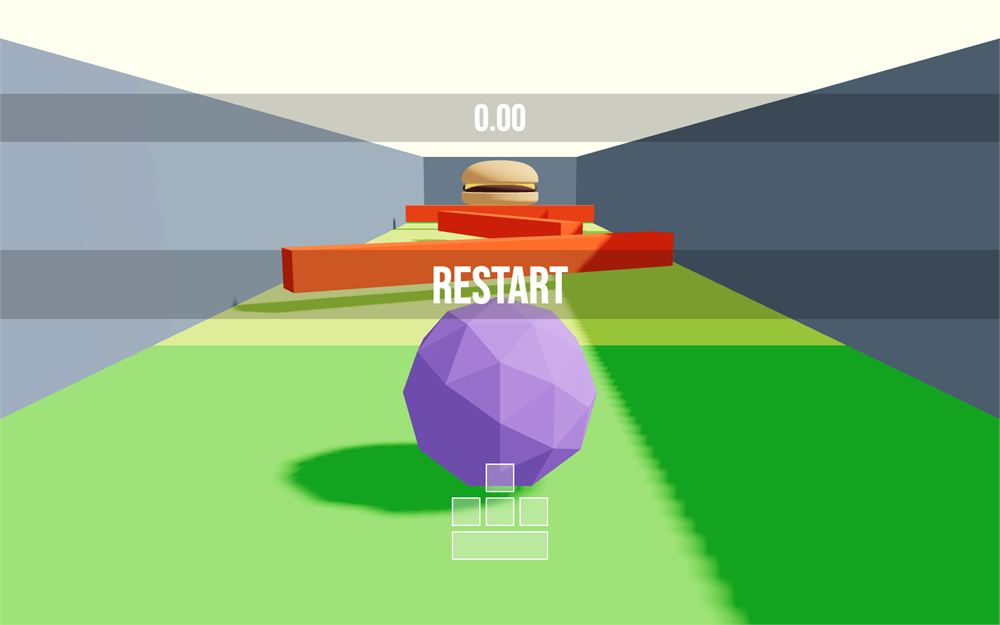
现在关卡只包含 3 个陷阱。它显然太短了,也没什么乐趣,但等机制设置好后我们会增加陷阱数量。
阶段
我们看到了如何在 store 中设置简单的属性并取回它,现在我们来看看如何更新属性。
我们将通过 phase 属性来实现属性更新,它会保存当前阶段。
- 当我们开始游戏时,
phase会设为'ready'。 - 当我们通过任意
WASD或Space键开始游戏时,phase会设为'playing'。 - 当我们到达关卡终点时,
phase会设为'ended'。
这样,任何时候、任何地方,我们都能知道当前阶段并决定该做什么。
首先,给 store 添加一个 phase 属性,设为 'ready':
export default create(() =>
{
    return {
        blocksCount: 3,

        /**
         * Phases
         */
        phase: 'ready'
    }
})
我们现在想在需要的时候更新那个 phase 属性。
更新 store 状态可以通过直接添加到 store 中的方法完成。方法就是一个简单属性,我们给它赋一个函数。
添加一个 start 方法:
export default create(() =>
{
    return {
        blocksCount: 3,

        /**
         * Phases
         */
        phase: 'ready',

        start: () =>
        {

        }
    }
})
在这个 start 方法中,我们需要更新状态,让 phase 从 'ready' 变为 'playing'。更新状态可以通过 set 函数完成,它可以从我们之前传给 create() 的函数的参数中获取:
export default create((set) =>
{
    // ...
})
现在我们可以使用那个 set 函数,并把新状态传给它。
那个新状态需要是一个对象,其属性会替换之前的属性。在我们的例子中,我们只想替换 phase 属性:
export default create((set) =>
{
    return {
        // ...

        start: () =>
        {
            set(() =>
            {
                return { phase: 'playing' }
            })
        }
    }
})
这看起来可能有点小题大做,但稍后我们会在这些方法里添加更多指令。它还把 store 的逻辑封装在自身内部,你稍后会看到。
我们对 restart 和 end 方法做同样的处理:
export default create((set) =>
{
    return {
        // ...

        start: () =>
        {
            set(() =>
            {
                return { phase: 'playing' }
            })
        },

        restart: () =>
        {
            set(() =>
            {
                return { phase: 'ready' }
            })
        },

        end: () =>
        {
            set(() =>
            {
                return { phase: 'ended' }
            })
        }
    }
})
Start
我们希望在用户按下任意控制键时,从 'ready' 阶段进入 'playing' 阶段。
在 Player.jsx 中,我们已经用 useEffect 订阅了 jump 键。
要订阅任意键,我们用同样的指令,但只发送要执行的函数,而不带选择器:
export default function Player()
{
    // ...

    useEffect(() =>
    {
        const unsubscribeJump = subscribeKeys(
            // ...
        )

        subscribeKeys(
            () =>
            {
                console.log('any key down')
            }
        )

        // ...
    }, [])

    // ...
}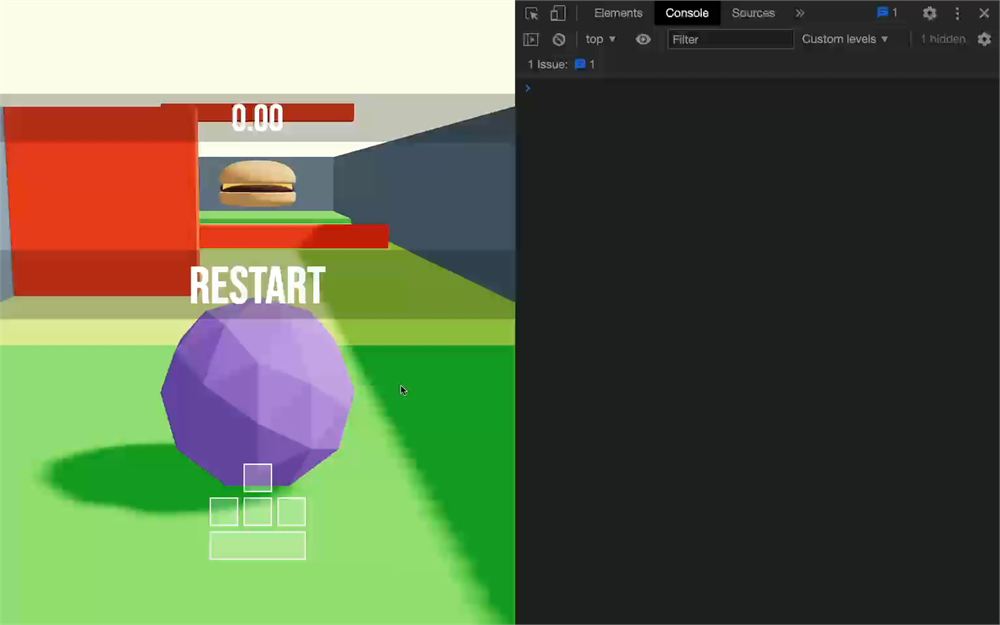
别忘了获取 unsubscribe,并在销毁函数中调用它:
useEffect(() =>
{
    // ...
    const unsubscribeAny = subscribeKeys(
        // ...
    )

    return () =>
    {
        unsubscribeJump()
        unsubscribeAny()
    }
}, [])
我们现在需要从 store 中获取 start 方法,做法与获取 blocksCount 完全一样。
在 Player.jsx 中,导入 useGame store:
import useGame from './stores/useGame.jsx'通过用选择器调用 useGame 来获取 start 方法:
export default function Player()
{
    // ...
    const start = useGame((state) => state.start)

    // ...
}
在之前调用的 subscribeKeys() 中调用 start:
useEffect(() =>
{
    // ...
    const unsubscribeAny = subscribeKeys(
        () =>
        {
            start()
        }
    )
		// ...
}, [])
我们可能看不出什么差别,但现在每当我们开始移动弹珠时,状态就是 'playing' 了。
End
我们对 end 方法做同样的处理。我们将获取该方法,并在弹珠到达关卡终点时调用它。
像获取 start 方法那样获取 end 方法:
export default function Player()
{
    // ...
    const start = useGame((state) => state.start)
    const end = useGame((state) => state.end)

    // ...
}
要验证玩家是否到达终点,我们首先需要知道关卡的长度,这可以用 blocksCount 计算出来。
从 store 中获取 blocksCount:
export default function Player()
{
    // ...
    const start = useGame((state) => state.start)
    const end = useGame((state) => state.end)
    const blocksCount = useGame((state) => state.blocksCount)

    // ...
}
我们将每帧检测弹珠的位置,这些已经在 useFrame 中作为 bodyPosition 获取过了。
在 useFrame 末尾,检测 bodyPosition 是否在关卡尽头。由于我们已经知道每个方块的大小(4),很容易计算出来:
useFrame((state, delta) =>
{
    // ...

    /**
     * Phases
     */
    if(bodyPosition.z < - (blocksCount * 4 + 2))
        console.log('the end')
})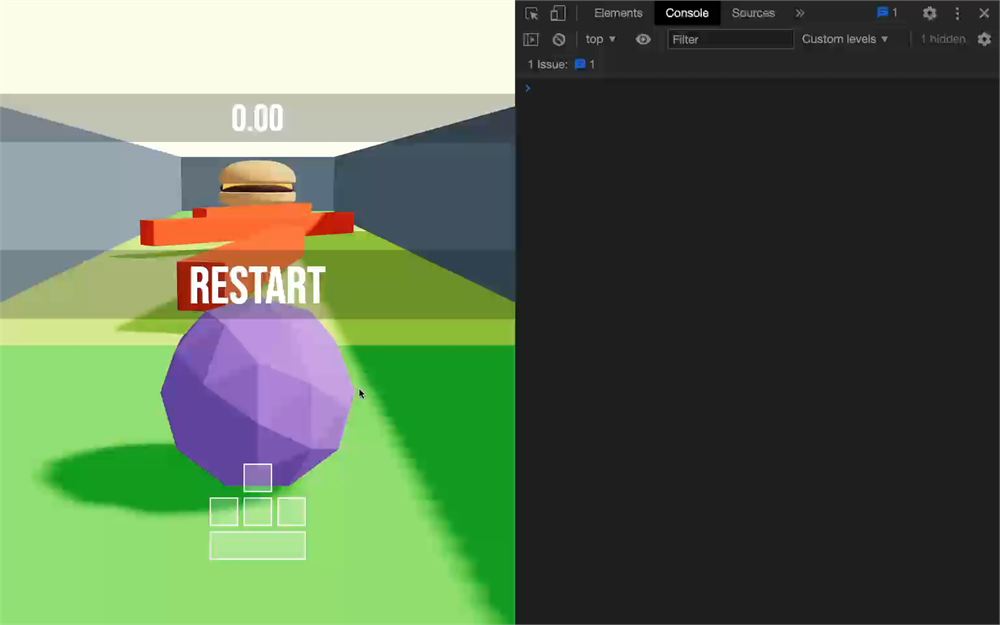
我们可以调用 end 方法:
useFrame((state, delta) =>
{
    // ...

    /**
     * Phases
     */
    if(bodyPosition.z < - (blocksCount * 4 + 2))
        end()
})
同样,我们看不出什么差别,但现在每当我们到达终点方块时,状态就是 'ended' 了。
Restart
我们希望在按下 Restart 按钮时重置弹珠,也在弹珠离开关卡时重置。我们现在先关注后者。
这条指令与 end 方法几乎完全一样。
像获取 start 和 end 方法那样获取 restart 方法:
export default function Player()
{
    // ...
    const start = useGame((state) => state.start)
    const end = useGame((state) => state.end)
    const restart = useGame((state) => state.restart)
    // ...
}
在 useFrame 中,我们可以检测 bodyPosition.y 是否低于 - 4:
useFrame((state, delta) =>
{
    // ...

    /**
     * Phases
     */
    if(bodyPosition.z < - (blocksCount * 4 + 2))
        end()

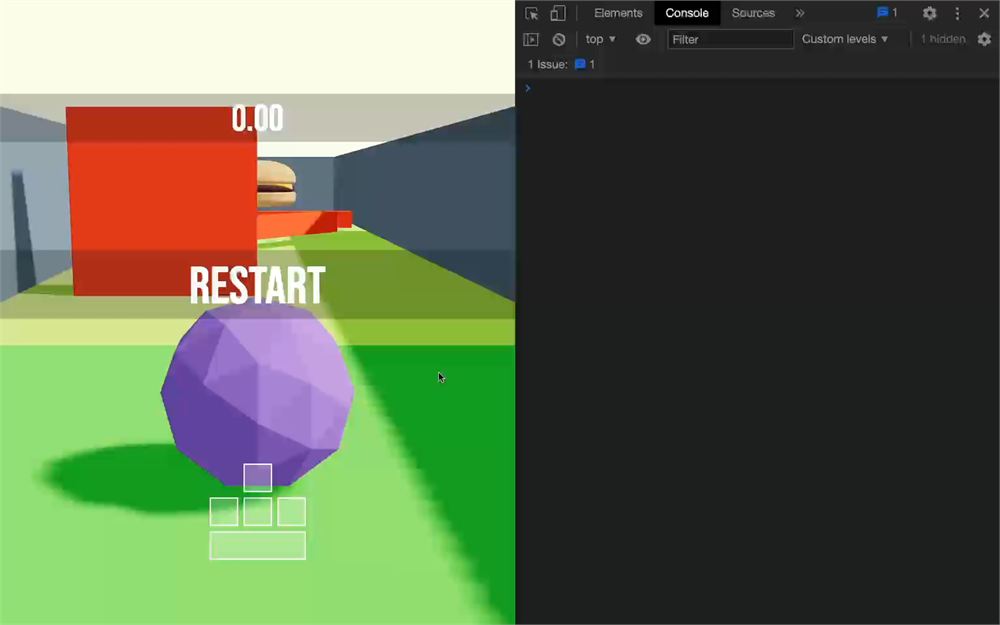
    if(bodyPosition.y < - 4)
        console.log('AAAAHHHH!!!')
})
在 useFrame 中,如果 bodyPosition 低于 - 4 就调用 restart:
useFrame((state, delta) =>
{
    // ...

    /**
     * Phases
     */
    if(bodyPosition.z < - (blocksCount * 4 + 2))
        end()

    if(bodyPosition.y < - 4)
        restart()
})
限制阶段变化
目前,按键被按下时 store 会被频繁更新,当弹珠到达关卡终点时每帧也会更新。
调用 set 时,我们希望限制 store 中的这些变化。这就是为什么我们还要检测当前 phase 是否允许该变化。
我们从 useGame store 中的 start 方法开始。
首先,在 set 调用中,我们需要一种方式知道当前的 phase 是什么。为此,我们可以给函数添加一个 state 参数:
start: () =>
{
    set((state) =>
    {
        return { phase: 'playing' }
    })
},
state 包含的正是我们一直在使用的那个状态。
我们可以用它来检测 phase。
如果它是 'ready',我们返回把 phase 设为 'playing' 的对象;否则返回一个空对象(因为 set 需要返回一些东西):
start: () =>
{
    set((state) =>
    {
        if(state.phase === 'ready')
            return { phase: 'playing' }

        return {}
    })
},
这个函数可以大幅简化,但我们现在先保持它冗长而清晰。
我们可以对 restart 做同样的处理,只在 phase 为 'playing' 或 'ended' 时才改变它:
restart: () =>
{
    set((state) =>
    {
        if(state.phase === 'playing' || state.phase === 'ended')
            return { phase: 'ready' }

        return {}
    })
},
对 end 也一样,只在 phase 为 'playing' 时才改变:
end: () =>
{
    set((state) =>
    {
        if(state.phase === 'playing')
            return { phase: 'ended' }

        return {}
    })
}
重置弹珠
我们的阶段已经准备好,并且会在该改变时改变。现在我们需要让游戏对这些 phase 变化做出反应。
首先,让我们专注于当玩家的弹珠离开关卡时重置它。
在 Player.jsx 中,创建一个 reset 函数:
export default function Player()
{
    // ...

    const reset = () =>
    {
        console.log('reset')
    }

    // ...
}
我们希望在 phase 变化为 'ready' 时调用那个函数。
订阅
为此,我们需要订阅 store 上的变化。
但我们的 store 目前还不支持订阅,这就是为什么我们需要使用一个 Zustand 中间件。
在 useGame 中,从 zustand/middleware 导入 subscribeWithSelector:
import { subscribeWithSelector } from 'zustand/middleware'subscribeWithSelector 是一个函数,我们需要把传给 create 的函数包裹在它里面(注意括号放的位置):
export default create(subscribeWithSelector((set) =>
{
    // ...
}))
回到 Player.jsx,现在我们可以通过调用 useGame.subscribe 来订阅 phase 变化,参数与按键控制订阅相同:
- 一个选择器(我们想要观察的属性)
- 一个在属性变化时调用的函数
我们只需要在 useEffect 中做一次:
export default function Player()
{
    // ...

    useEffect(() =>
    {
        useGame.subscribe(
            (state) => state.phase,
            (value) =>
            {
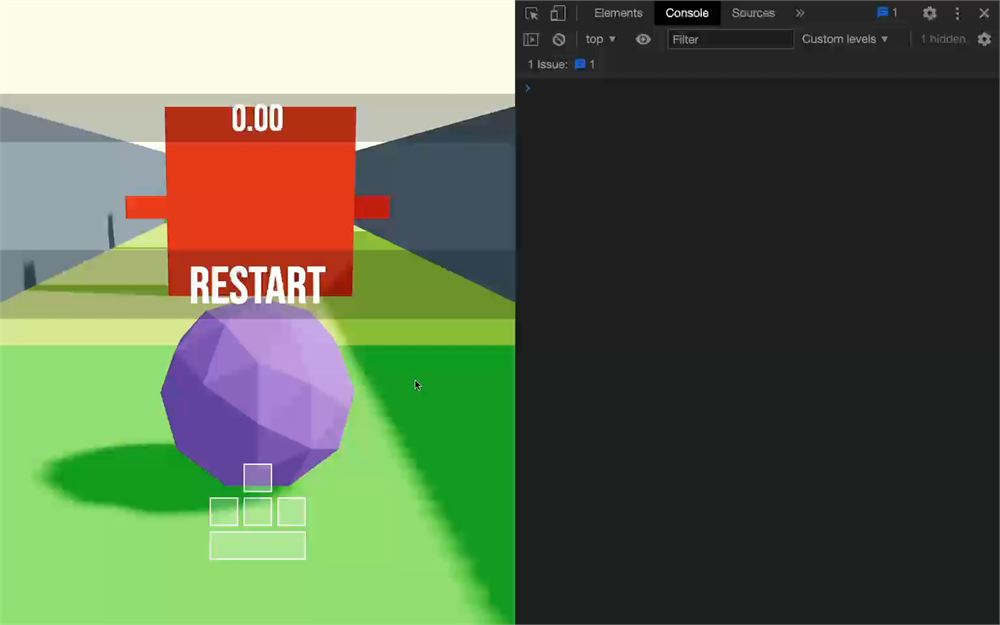
                console.log('phase changes to', value)
            }
        )

        // ...
   })
}
就像控制一样,我们需要通过在 unsubscribeReset 变量中保存 unsubscribe 函数,并在 return 函数中调用它来取消订阅:
export default function Player()
{
    // ...

    useEffect(() =>
    {
        const unsubscribeReset = useGame.subscribe(
            // ...
        )

        // ...

        return () =>
        {
            unsubscribeReset()
            // ...
        }
   })
}
现在,我们可以检测 value(即 phase)是否为 'ready',并调用 reset 函数:
export default function Player()
{
    // ...

    useEffect(() =>
    {
        const unsubscribeReset = useGame.subscribe(
            (state) => state.phase,
            (value) =>
            {
                if(value === 'ready')
                    reset()
            }
        )

        // ...
   })
}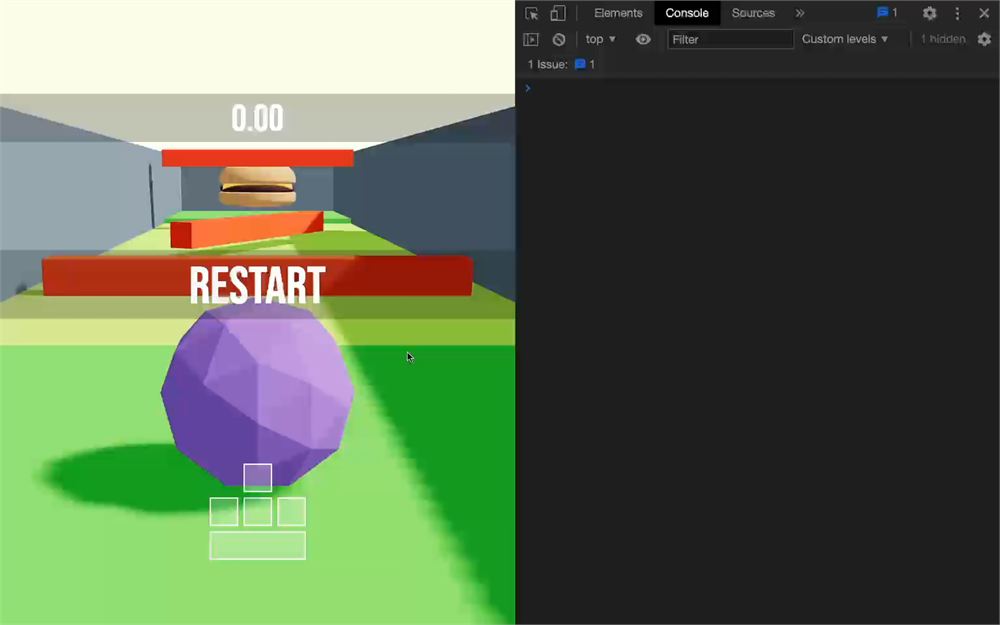
一旦玩家的弹珠离开关卡(掉落),日志就应该出现。
在 reset 函数中,我们将在 body 引用上调用三个函数来重置弹珠:
setTranslation把它放回原点setLinvel移除任何平移力setAngvel移除任何角度力
const reset = () =>
{
    body.current.setTranslation({ x: 0, y: 1, z: 0 })
    body.current.setLinvel({ x: 0, y: 0, z: 0 })
    body.current.setAngvel({ x: 0, y: 0, z: 0 })
}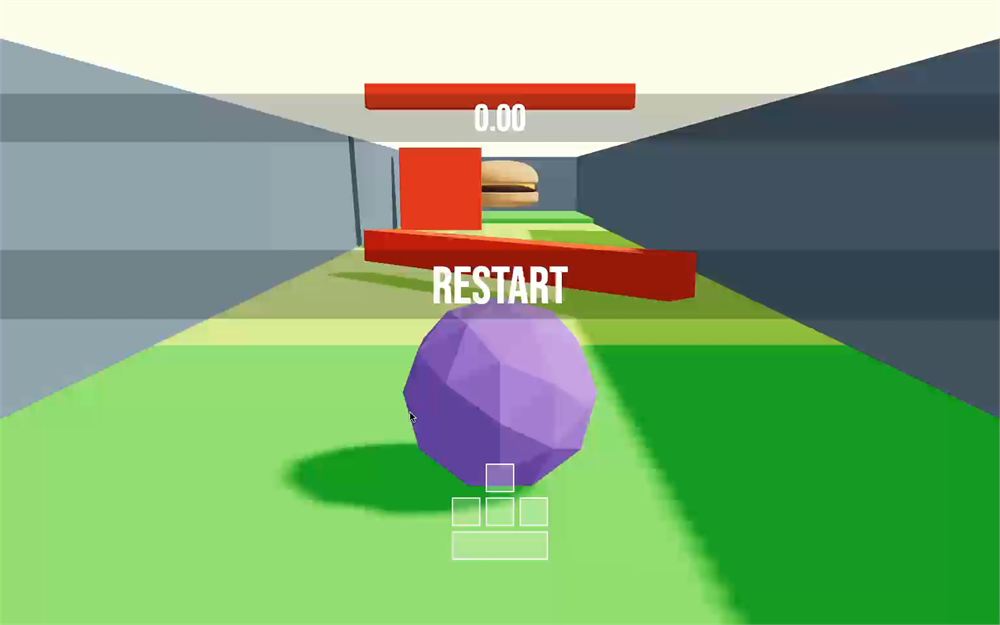
从关卡掉落应该会让弹珠被放回起点。
切换 Restart 按钮
目前,Restart 按钮始终可见,点击它也不会做任何事。
点击时重置
首先,让我们在点击它时重置弹珠。
在 Interface.jsx 中,导入 useGame store:
import useGame from './stores/useGame.jsx'通过用选择器调用 useGame 来获取 restart 方法:
export default function Interface()
{
    const restart = useGame((state) => state.restart)

    // ...
}
把 restart 传给 .restart <div> 的 onClick 属性:
<div className="restart" onClick={ restart }>Restart</div>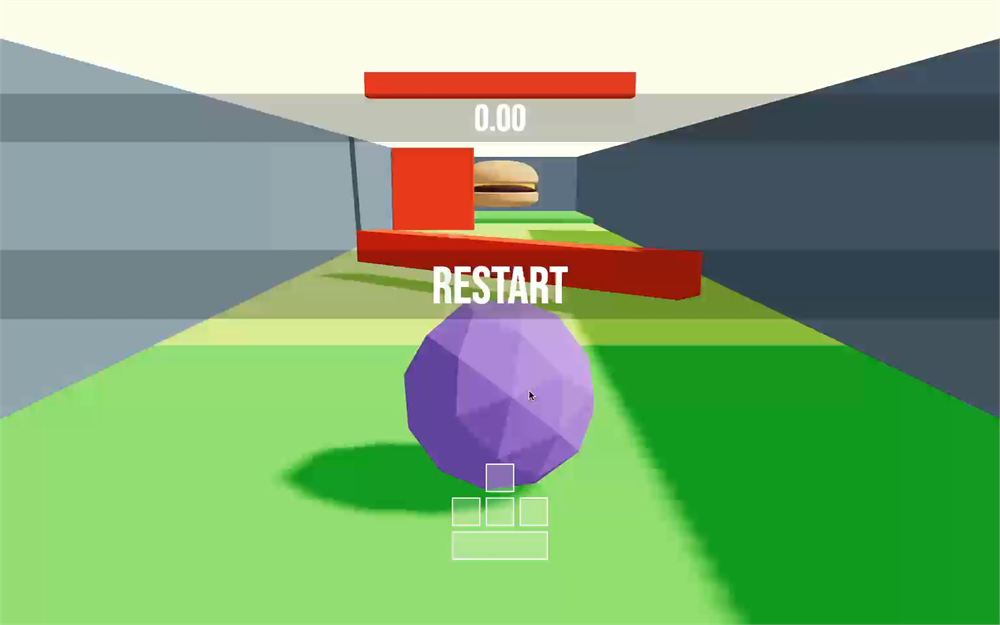
稍微移动弹珠,点击 Restart 按钮,弹珠就应该重置了。
结束时显示
我们还希望 Restart 按钮只在玩家完成关卡时显示。
为此,我们需要知道当前的 phase:
在 Interface.jsx 中,通过用选择器调用 useGame 来获取 phase 属性:
export default function Interface()
{
    const restart = useGame((restart) => state.restart)
    const phase = useGame((state) => state.phase)

    // ...
}
现在让 .restart <div> 只在 phase 等于 'ended' 时可见:
{ phase === 'ended' && <div className="restart" onClick={ restart }>Restart</div> }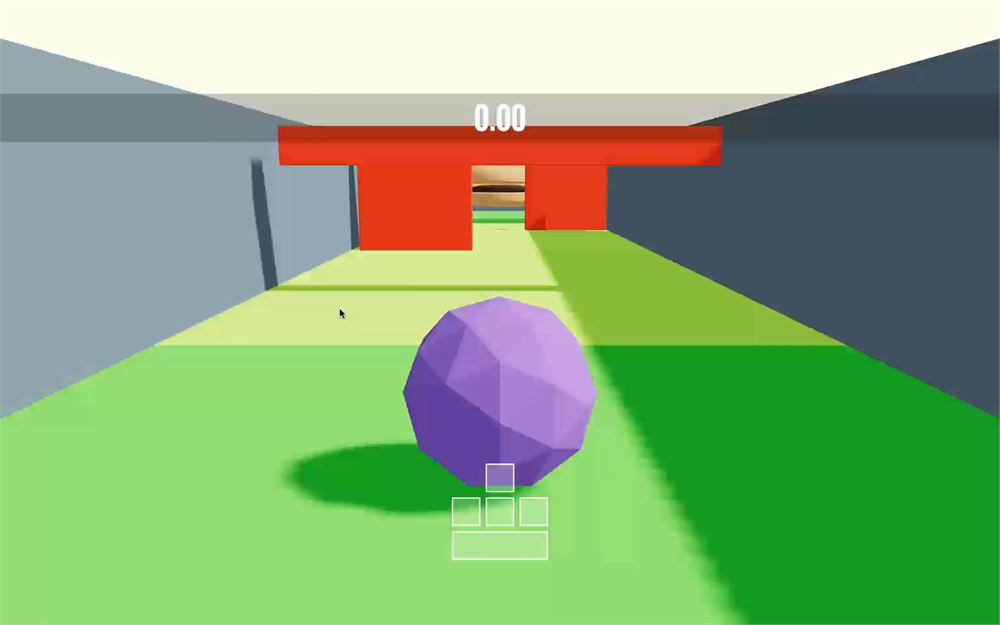
时间
我们几乎完成了游戏机制,但还缺一个非常重要的功能。我们需要给用户计时。
时间已经在界面中显示为 0.00。我们希望它在玩家开始移动弹珠时(当 phase 变为 'playing' 时)启动,并在弹珠到达关卡终点时(当 phase 变为 'ended' 时)停止。最后,我们希望在用户重新开始时把它重置为 0.00。
我们本可以在每帧把 delta 时间发送到 store 来保存经过的时间,但这样做可能会在每帧触发不需要的组件重新渲染,尤其是当我们不使用选择器而获取整个状态时(尽管我们已经避免这样做)。
相反,我们将在开始游戏时保存开始时间,在完成关卡时保存结束时间。
在界面中,如果 phase 是 'playing',我们每帧显示经过的时间;如果 phase 是 'ended',我们显示开始和结束之间经过的时间。
如果这有点模糊,别担心,等我们做出来就清楚了。
设置 store
首先,给 useGame store 添加 startTime 和 endTime 属性:
export default create(subscribeWithSelector((set) =>
{
    return {
        // ...

        /**
         * Time
         */
        startTime: 0,
        endTime: 0,

        // ...
    }
}))
在 start 方法中设置新的 phase 的同时,也用 Date.now() 设置 startTime:
start: () =>
{
    set((state) =>
    {
        if(state.phase === 'ready')
            return { phase: 'playing', startTime: Date.now() }

        return {}
    })
},
在 end 方法中设置新的 phase 的同时,也用 Date.now() 设置 endTime:
end: () =>
{
    set((state) =>
    {
        if(state.phase === 'playing')
            return { phase: 'ended', endTime: Date.now() }

        return {}
    })
}
更新界面
现在,在 Interface.jsx 中,我们希望根据 phase、startTime 和 endTime 来显示时间。
但有个问题。我们希望每帧更新时间,这样玩家就能在游戏过程中看到性能表现。你可能会想到用 useFrame,但遗憾的是,useFrame 只能在 <Canvas> 内部使用,而 <Interface> 并非如此。
另外,我们不想每帧重新渲染 Interface 组件。我们只想自己更新 .time,并直接获取 store 的值,而不带任何响应式行为。
一开始,由于我们想直接更新 .time,我们需要一个引用。
在 Interface.jsx 中,从 react 导入 useRef:
import { useRef } from 'react'创建一个 time 引用:
export default function Interface()
{
    const time = useRef()

    // ...
}
用 ref 属性把它赋给 .time <div>:
<div ref={ time } className="time">0.00</div>我们希望能够每帧更新那个时间。在原生 JavaScript 中,我们得使用 requestAnimationFrame,在 React 中也能这样做。然而,R3F 已经通过 addEffect hook 为我们处理好了,它可以在 <Canvas> 之外使用,并且会与 useFrame 同步执行。
从 @react-three/fiber 导入 addEffect:
import { addEffect } from '@react-three/fiber'我们只想调用 addEffect 一次。为此,我们可以使用 useEffect。
从 react 导入 useEffect:
import { useEffect, useRef } from 'react'在 Interface 中,调用 useEffect,传入一个函数和一个空数组作为依赖项:
export default function Interface()
{
    // ...

    useEffect(() =>
    {

    }, [])

    // ...
}
在那个函数中,调用 addEffect,也传入一个函数:
export default function Interface()
{
// ...
useEffect(() =>
{
addEffect(() =>
{
console.log('tick')
})
}, [])
// ...
}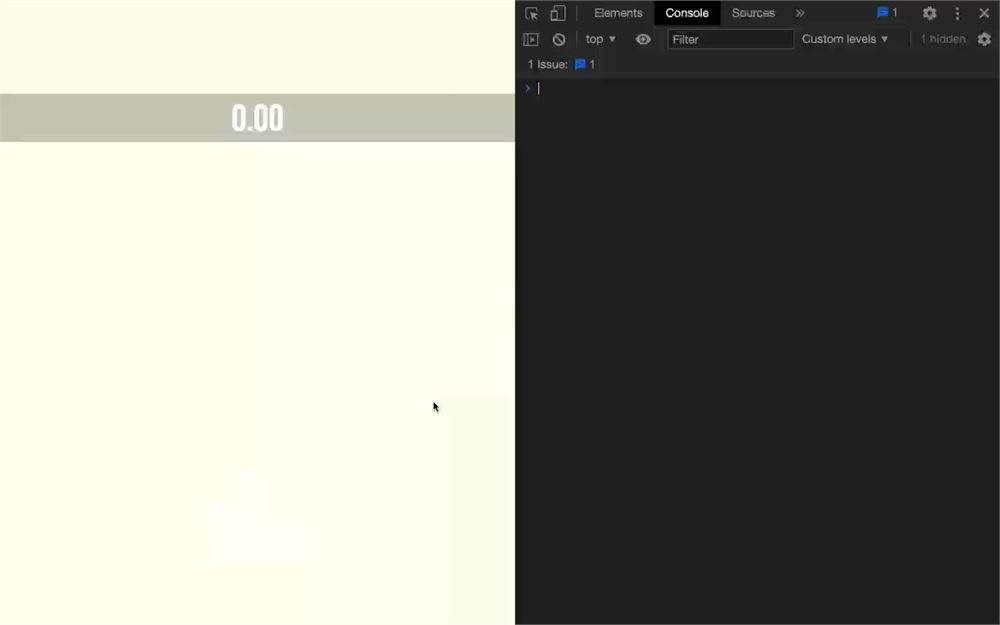
如你所见,这个函数每帧都会被调用。
但我们犯了一个小错误。如果我们对 Interface 应用修改,组件会被销毁并重新创建,但我们传给 addEffect 的函数仍会每帧继续被调用。
我们需要在 Interface 组件被销毁时停止它,可以像我们在 Player.jsx 中对 useEffect 所做的那样处理。
首先,我们在 unsubscribeEffect 变量中获取 addEffect 的取消订阅函数:
useEffect(() =>
{
const unsubscribeEffect = addEffect(() =>
{
console.log('tick')
})
}, [])然后我们在 useEffect 中返回一个函数,并在其中调用 unsubscribeEffect:
useEffect(() =>
{
const unsubscribeEffect = addEffect(() =>
{
console.log('tick')
})
return () =>
{
unsubscribeEffect()
}
}, [])再一次,我们本可以把这段代码写得更短,但我们这样做是为了保持清晰。
接下来,在 addEffect 中,我们需要访问 store 的 state,但我们不想以通常的响应式方式访问它。我们只想获取值。
为此,我们可以在 useGame 上调用 getState:
useEffect(() =>
{
const unsubscribeEffect = addEffect(() =>
{
const state = useGame.getState()
console.log(state)
})
// ...
}, [])
现在我们能访问整个 state 了,可以用它来计算 elapsedTime。
创建一个 elapsedTime 变量,默认为 0。如果 phase 是 'playing',我们用当前时间减去 startTime;如果 phase 是 'ended',我们用 endTime 减去 startTime:
useEffect(() =>
{
const unsubscribeEffect = addEffect(() =>
{
const state = useGame.getState()
let elapsedTime = 0
if(state.phase === 'playing')
elapsedTime = Date.now() - state.startTime
else if(state.phase === 'ended')
elapsedTime = state.endTime - state.startTime
})
// ...
}, [])我们需要把 elapsedTime 除以 1000,因为它目前是毫秒,而我们想要秒:
useEffect(() =>
{
const unsubscribeEffect = addEffect(() =>
{
// ...
elapsedTime /= 1000
})
// ...
}, [])我们只想要两位小数,可以用 toFixed 做到:
useEffect(() =>
{
const unsubscribeEffect = addEffect(() =>
{
// ...
elapsedTime = elapsedTime.toFixed(2)
})
// ...
}, [])最后,我们直接用引用更新 .time,但在这样做之前,我们需要确保 time.current 不是 null(在极少数情况下,addEffect 可能会在引用准备好之前被触发):
useEffect(() =>
{
const unsubscribeEffect = addEffect(() =>
{
// ...
if(time.current)
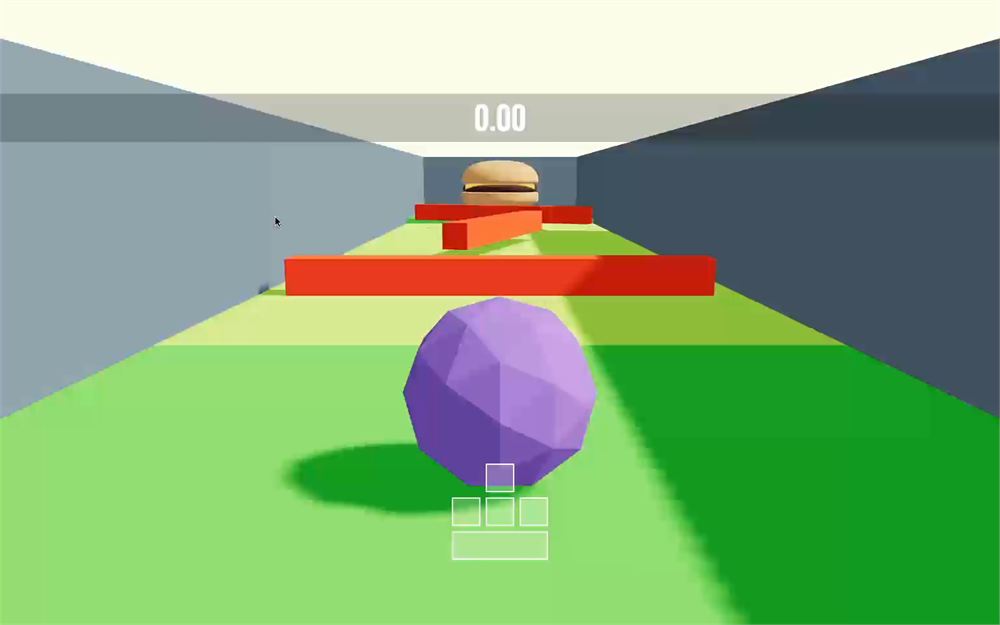
time.current.textContent = elapsedTime
})
// ...
}, [])
随机关卡
你会看到,当我们重新开始时,得到的是完全相同的关卡,这有点无聊。
为了解决这个问题,我们将通过在依赖项中添加一个只在重新开始时才改变的变量,来强制再次调用 Level 组件中的 useMemo。
首先,在 useGame store 中,添加一个 blocksSeed 属性,设为 0:
export default create(subscribeWithSelector((set) =>
{
return {
blocksCount: 3,
blocksSeed: 0,
// ...
}
}))如果你熟悉程序化生成,seed 这个词并不完全准确,但我们别太挑剔。
在 Level.jsx 中,添加一个 seed props:
export function Level({
count = 5,
types = [ BlockSpinner, BlockAxe, BlockLimbo ],
seed = 0
})
{
const blocks = useMemo(() =>
{
// ...
}, [ count, types, seed ])
// ...
}并把那个 seed 传给 useMemo 的依赖项:
const blocks = useMemo(() =>
{
// ...
}, [ count, types, seed ])在 Experience.jsx 中,从 useGame store 获取 seedsBlocks:
export default function Experience()
{
const blocksCount = useGame(state => state.blocksCount)
const blocksSeed = useGame(state => state.blocksSeed)
// ...
}用 seed 属性把它传给 <Level>:
<Level count={ blocksCount } seed={ blocksSeed } />现在我们需要做的,就是在用户重新开始时把 blocksSeed 改成任意其他值,可以直接在 useGame store 的 restart 方法中完成:
restart: () =>
{
set((state) =>
{
if(state.phase === 'playing' || state.phase === 'ended')
return { phase: 'ready', blocksSeed: Math.random() }
return {}
})
},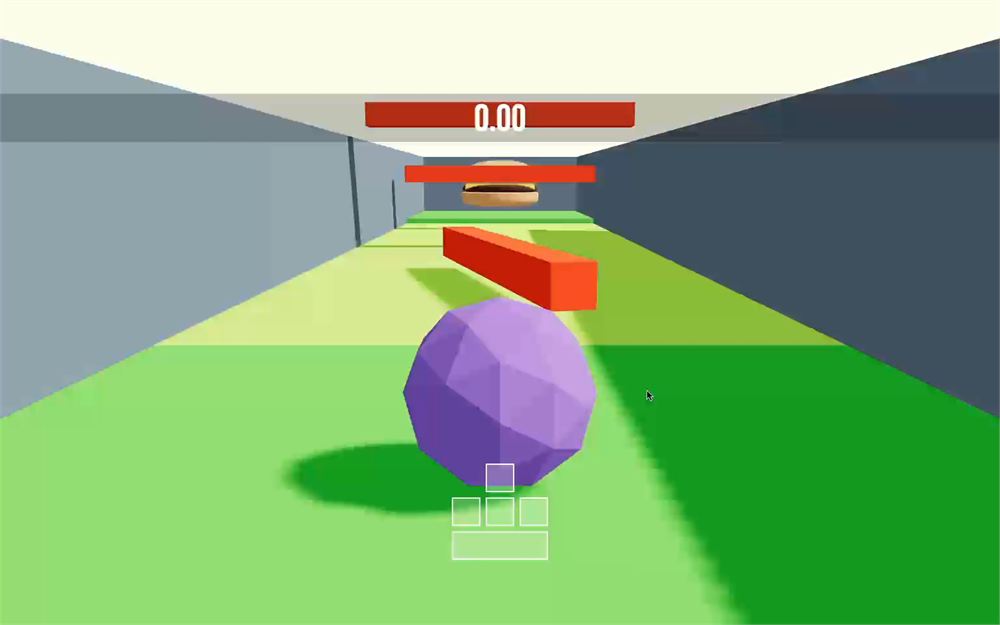
每次你重新开始,都会得到一组新的方块。
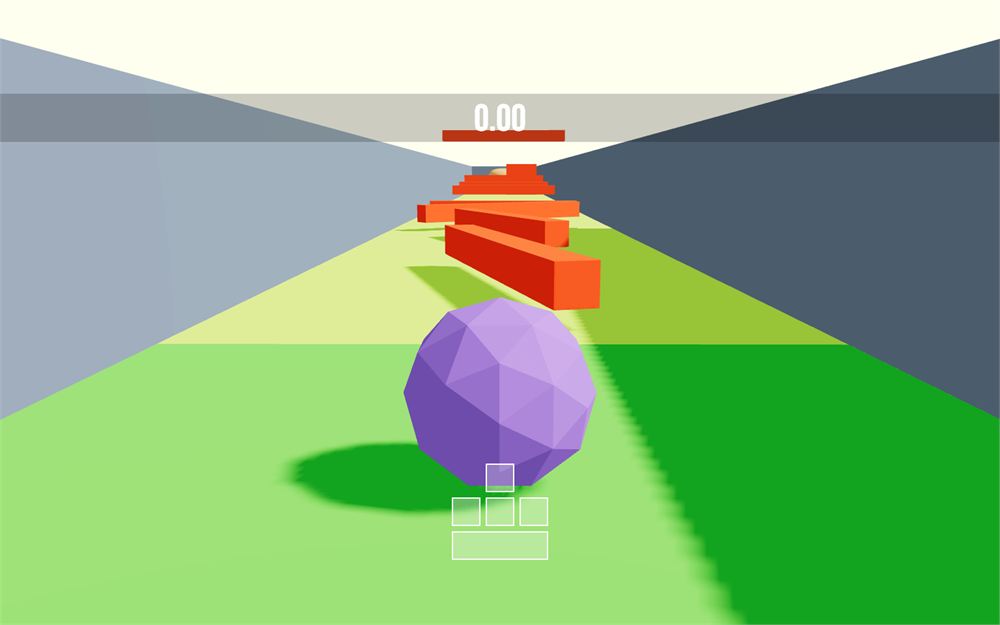
让我们把 useGame 中的 blocksCount 改回 10,来享受我们完成的游戏:
export default create(subscribeWithSelector((set) =>
{
return {
blocksCount: 10,
blocksSeed: 0,
// ...
}
}))
让它更出彩
恭喜,你完成了这个游戏!
不过让我们再多玩一会儿,让游戏更出彩。
背景
虽然只是个小细节,但让我们改变一下背景。
在 Experience.jsx 中,添加一个 <color>,并把它的 attach 属性设为 background:
export default function Experience()
{
// ...
return <>
<color args={ [ '#bdedfc' ] } attach="background" />
{/* ... */}
</>
}
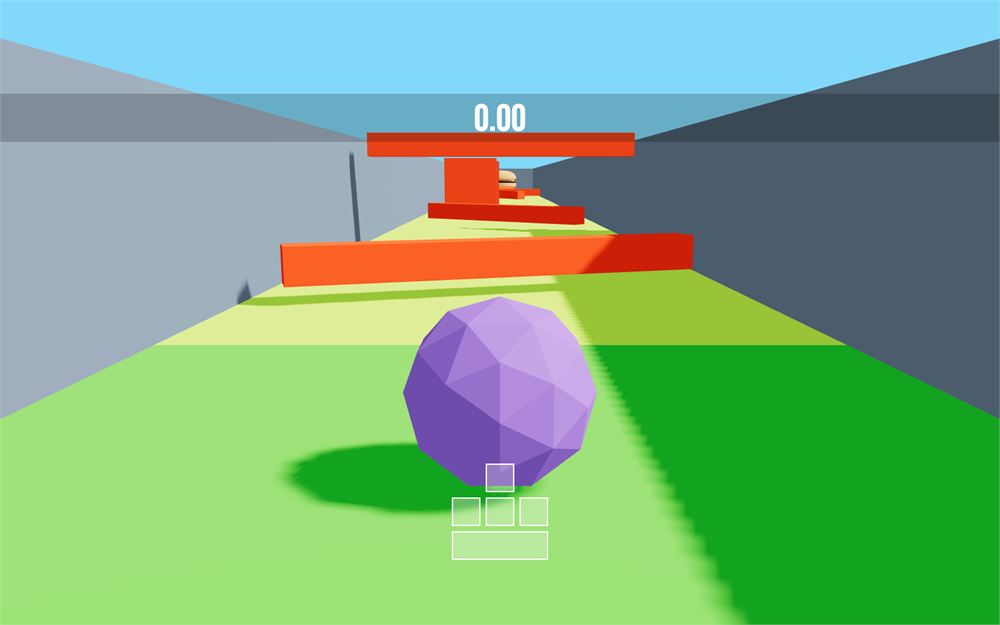
游戏标题
为了让初始画面更有趣,我们将在关卡起点添加一个浮动文本框,里面写着游戏名字。
在 Level.jsx 中,从 @react-three/drei 导入 Float 和 Text:
import { Float, Text, useGLTF } from '@react-three/drei'在 BlockStart 中,添加一个 scale 为 4 的 <Text>,并把它包裹在 <Float> 中(我们给游戏起名叫“Marble Race”):
export function BlockStart({ position = [ 0, 0, 0 ] })
{
return <group position={ position }>
<Float>
<Text scale={ 0.5 }>Marble Race</Text>
</Float>
{/* ... */}
</group>
}
Google Fonts 的 Bebas Neue 字体在 /public/ 文件夹中以 woff 文件的形式提供。
在 <Text> 上设置 font 属性:
<Text
font="./bebas-neue-v9-latin-regular.woff"
scale={ 0.5 }
>
Marble Race
</Text>
设置一堆其他属性,把它移到弹珠的右上方,让它看起来更好看:
<Text
font="./bebas-neue-v9-latin-regular.woff"
scale={ 0.5 }
maxWidth={ 0.25 }
lineHeight={ 0.75 }
textAlign="right"
position={ [ 0.75, 0.65, 0 ] }
rotation-y={ - 0.25 }
>
Marble Race
</Text>
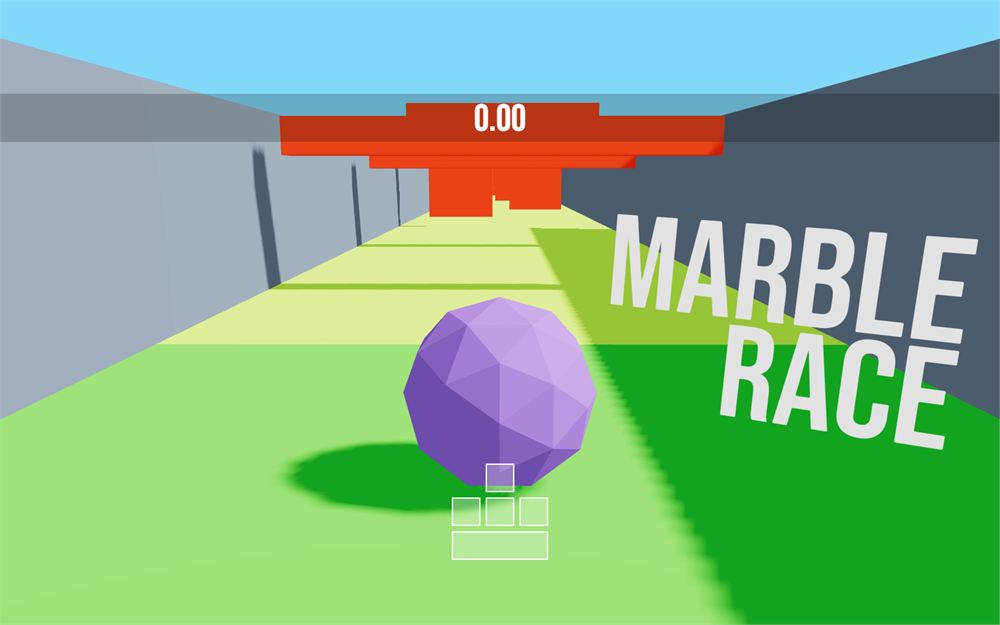
虽然文字看起来不错,但它太暗了,因为它使用的是 MeshStandardMaterial,而光照并不理想。
为了解决这个问题,我们改用 MeshBasicMaterial。
给 <Text> 添加一个 <meshBasicMaterial>,并把它的 toneMapped 属性设为 false,这样我们就能得到纯白色:
<Text
// ...
>
Marble Race
<meshBasicMaterial toneMapped={ false } />
</Text>
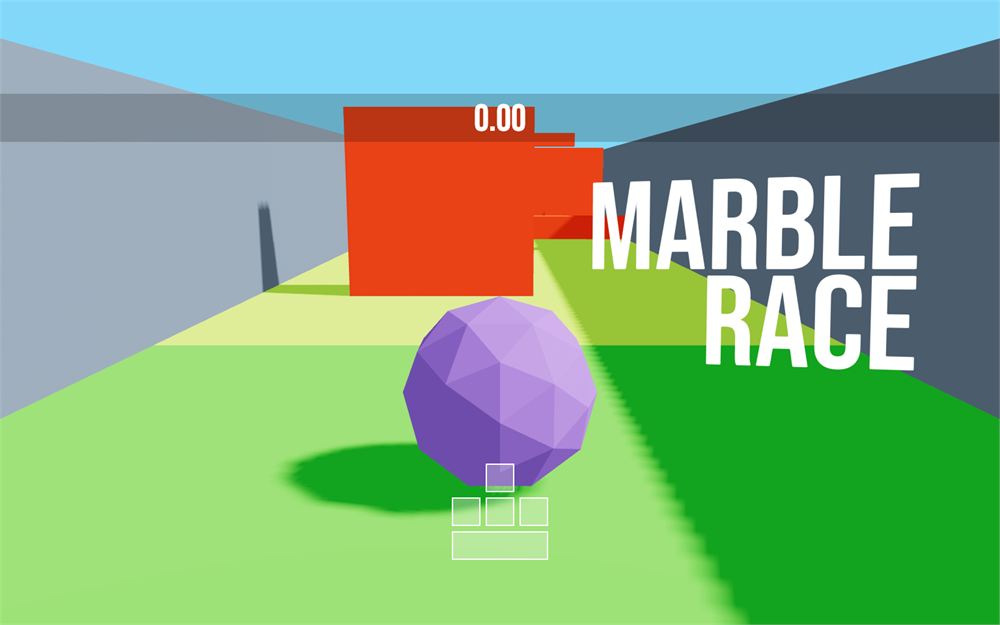
最后,稍微降低 <Float> 的强度:
<Float floatIntensity={ 0.25 } rotationIntensity={ 0.25 }>
{/* ... */}
</Float>终点线标题
让我们在关卡终点添加一个“FINISH”标题。
在 BlockEnd 中,添加一个 <Title>,使用相同的 font、scale 为 8 以及相同的 <meshBasicMaterial>:
export function BlockEnd({ position = [ 0, 0, 0 ] })
{
// ...
return <group position={ position }>
<Text
font="./bebas-neue-v9-latin-regular.woff"
scale={ 8 }
>
FINISH
<meshBasicMaterial toneMapped={ false } />
</Text>
{/* ... */}
</group>
}把它放在汉堡上方,并稍微向前拉,使其与方块边界对齐:
<Text
font="./bebas-neue-v9-latin-regular.woff"
scale={ 8 }
position={ [ 0, 2.25, 2 ] }
>
FINISH
<meshBasicMaterial toneMapped={ false } />
</Text>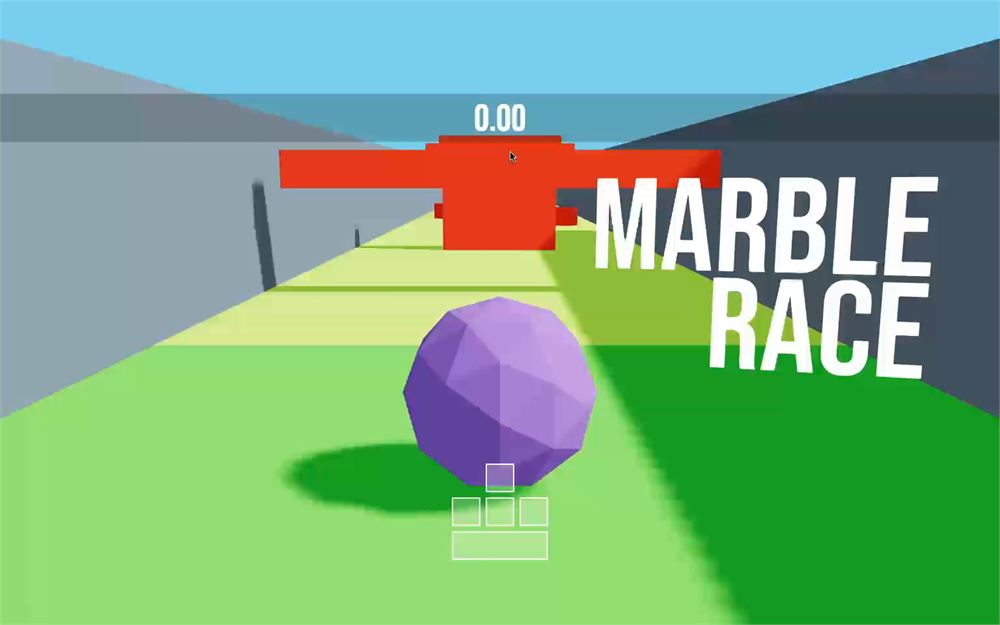
更进一步
我们的游戏就制作完成了。
看看你能不能跑进 5 秒以内。如果可以,在 Twitter 上发个截图并 @ 我(@bruno_simon)。
我们实际做的相对简单,但只加了一些额外的内容来增添乐趣。欢迎你改进游戏并添加一堆很酷的功能。
这里有一些想法:
- 让斧头障碍看起来像真正的平衡斧
- 更多陷阱变化
- 控制陷阱大小(目前是
4,我们不得不在很多地方写它,但这个信息可以来自 store) - 更好的场景(感觉有点空)
- 一个加速键
- 散布在关卡各处的加速奖励
- 不同的难度
- 音效
- 粒子
- 弹珠自定义
- 会瞬间杀死你的激光